Short answer
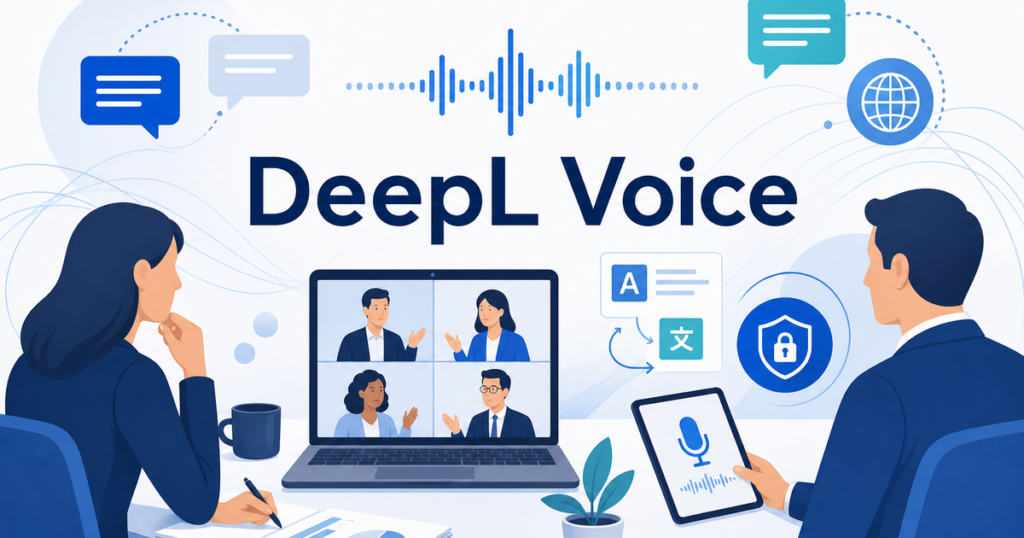
DeepL Voice for Meetings can add real-time translated text captions to supported Microsoft Teams, Zoom, and Google Meet meetings. It is not a universal meeting layer: the person connecting the meeting needs a DeepL Voice for Meetings license, the host organization must allow external participants so the DeepL bot can join, and Chat must be enabled so the bot can share the access link. The current output is translated text captions and transcription; DeepL lists voice-to-voice translation as coming soon. The matrix below separates those requirements from built-in Zoom and Teams features. For wider platform context, see Zoom vs Teams vs Google Meet meeting translation and live captions vs voice interpretation.
The practical question is therefore not simply whether DeepL Voice works. It is whether your meeting type, host organization, license, and desired output match its documented conditions.
What DeepL Voice for Meetings Requires
DeepL’s current meeting-connection guide lists Voice for Meetings, Voice for Meetings Core, Voice for Meetings Business, Voice starter, and Voice Business as eligible plans. The person who starts the connection needs a DeepL Voice for Meetings license; participants and guests do not need a DeepL account or subscription to follow the resulting translation link. See DeepL’s Connect a meeting guide and About DeepL Voice for Meetings.
- The host organization must allow external participants. DeepL says this is required for its bot to join and stream meeting audio.
- Chat must be enabled. The bot posts a link in the meeting chat so participants can open the translation view. Adding
deepl.comto trusted domains is optional where the organization uses that control. - The connection starts from DeepL’s web flow. Choose DeepL Voice, select Translate new meeting, paste a Teams, Zoom, or Google Meet link, add an access code when needed, and start translation.
- Teams has an additional app path. The DeepL Voice app runs inside the Teams meeting and must be admitted to the participant list. A browser window is also available. The Teams enabler needs a Teams business plan and an active DeepL Voice for Meetings license, and the host organization must have accepted DeepL permissions.
On Zoom and Google Meet, the bot joins through the web connection flow and participants use the DeepL browser window. Browser access is protected by a one-time password so the translation view is limited to active meeting participants. These requirements mean that DeepL changes the integration path, but it does not remove host-organization controls.
Which Meetings DeepL Voice Supports
DeepL documents support for three meeting platforms rather than every service or meeting format. Microsoft Teams supports instant Meet now and scheduled meetings, but not one-to-one meetings, town halls, direct calls, or channel calls. Zoom support covers regular meetings, not webinars or Zoom Rooms. Google Meet supports instant and scheduled meetings. The integrations do not support breakout rooms. These conditions are listed in DeepL’s meeting-connection requirements and its Voice for Meetings product page.
That distinction matters when choosing a tool. A supported platform is not the same as universal availability inside that platform: the bot still needs to join the specific meeting, the meeting type must be supported, and Chat must be available.
Languages and Output
DeepL’s published spoken-input list for Voice for Meetings contains these 18 languages: Chinese (Mandarin), Czech, Dutch, English, French, German, Indonesian, Italian, Japanese, Korean, Polish, Portuguese, Romanian, Russian, Spanish, Swedish, Turkish, and Ukrainian. DeepL says captions for meeting speech can be translated into any language supported for Pro users in DeepL Translator, excluding languages in Beta. Check the published language and security details when your spoken-language pair matters.
The current output is text: each participant can choose a caption language, and transcription can be enabled or used without translation. A translation manager can download the transcript. DeepL says accessed transcripts and translations persist on the user’s local device, while meeting transcription and translation data is held temporarily in memory and deleted when the call ends; it also says customer data is not used to train its language models. These are vendor-documented data-handling statements, not a reason to skip your organization’s own review.
In the Teams app, a glossary can be applied. DeepL also documents Spoken terms and Formality as Beta features. Those controls can help carry terminology choices into the supported caption workflow, but they do not turn the service into a general-purpose spoken interpreter. The product page currently labels voice-to-voice support as coming soon; spoken translated audio is not the current output.
Capability and Eligibility Matrix
| Feature | License / plan required | Works in | Spoken (input) languages | Caption output languages | Spoken output | Guest / external conditions |
|---|---|---|---|---|---|---|
| DeepL Voice for Meetings (meeting requirements) | DeepL Voice for Meetings license; the connection guide lists Voice for Meetings, Core, Business, Voice starter, and Voice Business. Teams also requires a Teams business plan for the enabler. | Teams instant/scheduled meetings; Zoom meetings; Google Meet instant/scheduled meetings. Not Teams one-to-one, town hall, direct/channel calls; not Zoom webinars or Rooms; no breakout rooms. (platform details) | 18 documented spoken inputs, including Japanese, Korean, Mandarin, English, and Ukrainian. (language list) | Any language supported for Pro users in DeepL Translator, excluding Beta languages. | No current voice-to-voice output; translated text captions and transcription are available. Voice-to-voice is marked coming soon. | Host organization must allow external participants and Chat so the bot can join and post the link. Teams host organization must accept DeepL permissions. Participants need no DeepL account; browser access uses OTP. |
| Zoom translated captions (Zoom documentation) | Zoom Workplace Business Plus, Enterprise Essentials, Enterprise Plus, or Enterprise Premier, or an assigned Translated Captions add-on. | Zoom meetings and webinars. An account owner or administrator enables automated captions and translated captions in the Zoom web portal. | 36 fully supported source languages; Greek, Norwegian, and Welsh are listed as translation targets only. | Supported language pairs selected by the account or user. | No; the feature provides translated captions. | Participants can self-enable captions and switch languages without the host after the feature is enabled. Some regulated-industry accounts may not have access. |
| Teams live translated captions (Microsoft admin guidance) | The meeting or event organizer needs Teams Premium or Microsoft 365 Copilot for attendees to use live translated captions. | Teams meetings and events. Town halls use preselected languages; Microsoft documents a higher limit when the organizer has Teams Premium. | Microsoft documents 55+ spoken-language caption variants. | Microsoft documents a separate set of translated-caption target languages. | No; translated captions remain text. | When the organizer is licensed, participants do not need an individual license. If only an individual participant is licensed, only that participant sees the Translate to option. (participant guidance) |
| Teams Interpreter (Microsoft Interpreter guidance) | Meeting organizer has Teams Premium or Microsoft 365 Copilot. Copilot includes 20 hours of interpretation per person per month. | Supported Teams meetings and calls; not ad-hoc meetings, town halls, webinars, Teams Rooms with personal devices, or Teams Free. | 10 listed languages. | Not a caption-target feature; it supplies spoken interpretation. | Yes, speech-to-speech with voice simulation or an automated voice. Interpretation audio is not included in meeting recordings. | External users need verified Microsoft 365 accounts with valid Copilot licenses. Anonymous and guest users cannot use Interpreter. |
DeepL Voice vs Zoom Translated Captions
Zoom’s native translated captions are controlled by the Zoom account: an eligible Workplace plan or add-on must be assigned, an administrator or account owner enables automated and translated captions, and participants then choose captions and language pairs. Participants can change their own caption language without asking the host. The Zoom real-time translation guide covers the setup context; the current Zoom documentation is the authority for account availability.
DeepL uses a different set of conditions. The connector needs its own Voice license, the host organization must permit the external bot, and Chat must be enabled. DeepL can be a fit for a regular Zoom meeting when those conditions are acceptable and you want each participant to follow along in a caption language. It is not a workaround for Zoom webinars or Rooms, and it does not provide spoken output today.
DeepL Voice vs Teams Translated Captions and Interpreter
Teams already has two different built-in paths. Live translated captions are organizer-controlled: Microsoft says the organizer needs Teams Premium or Microsoft 365 Copilot for attendees to use the translated-caption option. Teams Interpreter is a separate speech-to-speech feature with its own organizer license, language list, meeting limits, and external-user conditions. See the focused comparison in Teams Interpreter vs live captions and desktop apps.
DeepL Voice for Teams requires a DeepL Voice license, a Teams business plan for the enabler, accepted DeepL permissions in the host organization, and a bot admitted to the meeting. Its current result is translated text captions and transcription. That can be useful when the organization accepts the DeepL app and the meeting format is supported, but it should not be described as a way to avoid Teams administration altogether. If the requirement is spoken interpretation, Teams Interpreter is the directly relevant built-in comparison, subject to its own Premium/Copilot and external-user rules.
Where DeepL Voice Fits
Good fit: a licensed organizer needs translated text captions for a supported Teams, Zoom, or Google Meet meeting; the host organization allows the bot and Chat; the meeting is not a blocked format; and participants can use a browser or Teams app to follow their own caption language.
Conditional fit for an external Zoom host: DeepL can help only when the host meeting allows external participants, Chat is enabled, and the regular-meeting format accepts the bot. If the host blocks external participants or Chat, the connection cannot rely on DeepL’s documented flow.
Less suitable: you need webinars, breakout rooms, Teams town halls or direct/channel calls, Zoom Rooms, spoken translated audio, or audio from a meeting format outside the three supported platform paths. In those cases, compare a platform feature with the actual meeting conditions or use a receive-side desktop option.
The key decision is the boundary you control. DeepL is useful when a host organization can approve the bot-based workflow. A desktop tool is more relevant when you need to work from the audio already reaching your computer rather than ask the meeting host to enable a bot.
What DeepL Voice Does Not Do
- It does not support every meeting platform or format. Its documented meeting integrations are Teams, Zoom, and Google Meet, with the limits above.
- It does not currently produce translated speech. The current output is text captions and transcription; voice-to-voice support is announced as coming soon.
- It does not remove eligibility checks. The connector still needs a Voice license, a bot-join path through external-participant policy, and Chat.
- It does not expand the spoken-input list beyond the languages documented by DeepL. Caption target languages follow the separate DeepL Translator rule.
- It does not replace a human interpreter for a high-stakes conversation where the participants need accountable interpretation and review.
Availability and meeting requirements can change, so recheck DeepL’s current documentation before scheduling an important multilingual meeting. The comparison above is about capability and eligibility, not a claim that one service is universally better.
When You Need Something Else
Choose a different path when the host cannot allow external participants or Chat, when the meeting is a webinar, town hall, one-to-one call, breakout room, or Zoom Room outside DeepL’s supported formats, or when you need translated audio rather than translated text. A receive-side Windows workflow can be useful when you need subtitles from the PC audio you already hear and do not want the meeting platform’s host or caption-plan settings to be the deciding condition.
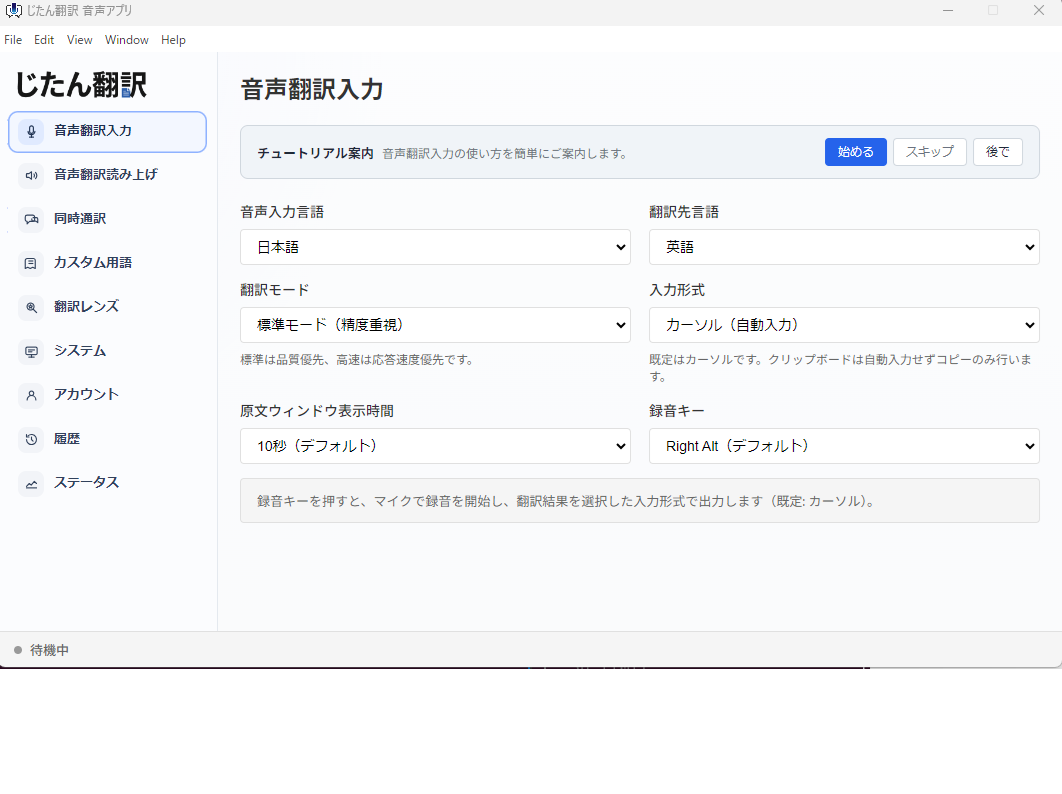
For Windows 11 users, the Jitan download page describes real-time translated subtitles from PC meeting audio, optional read-aloud, Microsoft Store distribution, and use across Teams, Zoom, Google Meet, webinars, and videos. It also states that the workflow does not depend on host settings, Teams Premium, or Zoom translated-caption settings. Those are product-page claims for the Windows app, not claims about DeepL’s service.
try Jitan Translate for Windows
The Bottom Line
DeepL Voice for Meetings is a licensed bot/app workflow for translated text captions in supported Teams, Zoom, and Google Meet meetings. Its fit depends on the host organization’s external-participant and Chat policies, the meeting type, the 18 spoken input languages, and whether text captions are enough. Zoom and Teams have their own built-in translated-caption and spoken-interpretation conditions. If your next step is a document rather than a meeting, see our guide to translating a PDF without losing its formatting.