How to Create a Dedicated Voice Input Key with PowerToys and F13
Voice input becomes much more useful when it has a dedicated key. If you need to press a complicated shortcut every time you want to dictate, you will probably stop using it. If the shortcut conflicts with your browser, editor, spreadsheet, chat app, or meeting software, it becomes even worse.
A practical solution on Windows is to create a key that behaves like F13 and use it as your dedicated voice input key.
F13 is not printed on most keyboards, but Windows can still recognize it as a key. Microsoft PowerToys includes a tool called Keyboard Manager that can remap one key to another, including extended function keys such as F13. That means you can take a key you rarely use and turn it into a clean, low-conflict hotkey for voice input.
For Japanese keyboard users, a strong candidate is the Katakana / Hiragana / Romaji key. Many people rarely use it directly, and it sits in a convenient location for push-to-talk style input. By remapping that key to F13, you can create a dedicated voice input button without buying a special keyboard.
Why F13 Is a Good Voice Input Hotkey
Most common shortcuts use letters, numbers, function keys from F1 to F12, or modifier combinations such as Control + Shift. F13 is different. It exists as a recognized key code, but most mainstream apps do not assign default actions to it.
That makes F13 useful for voice input:
- It is unlikely to conflict with browser shortcuts.
- It is unlikely to conflict with Office app shortcuts.
- It can be used as a single-key trigger.
- It can be mapped to a physical key you already have.
- It keeps your voice input workflow separate from normal typing shortcuts.
This is especially helpful for apps that use push-to-talk or press-and-hold recording. You want the key to feel like part of the keyboard, not like a complicated command.
What You Need
You need three things:
- A Windows PC.
- Microsoft PowerToys.
- A voice input or voice translation app that can accept F13 as a hotkey.
PowerToys is a Microsoft utility suite for Windows. Keyboard Manager is one of its tools. It lets you remap keys and shortcuts at the system level. Microsoft documents Keyboard Manager as a way to redefine keys and shortcuts, including function keys beyond the standard F1-F12 range.
Source: Microsoft PowerToys Keyboard Manager
Step 1: Install and Open PowerToys
Install Microsoft PowerToys from Microsoft Store or GitHub. After installation, open PowerToys and select Keyboard Manager from the left-side menu.
Make sure Keyboard Manager is enabled. If it is disabled, remapping will not apply.
Step 2: Remap an Unused Key to F13
In Keyboard Manager, choose Remap a key. Then create a mapping like this:
| Setting | Value |
|---|---|
| Physical key | A key you rarely use |
| Mapped to | F13 |
On a Japanese keyboard, the physical key can be the Katakana / Hiragana / Romaji key if you do not use it for IME control. On some systems, the exact label shown by PowerToys may vary. The important point is to press the physical key you want to use, then map it to F13.
After saving the remap, pressing that physical key should send F13 to Windows.
Step 3: Assign F13 in Your Voice Input App
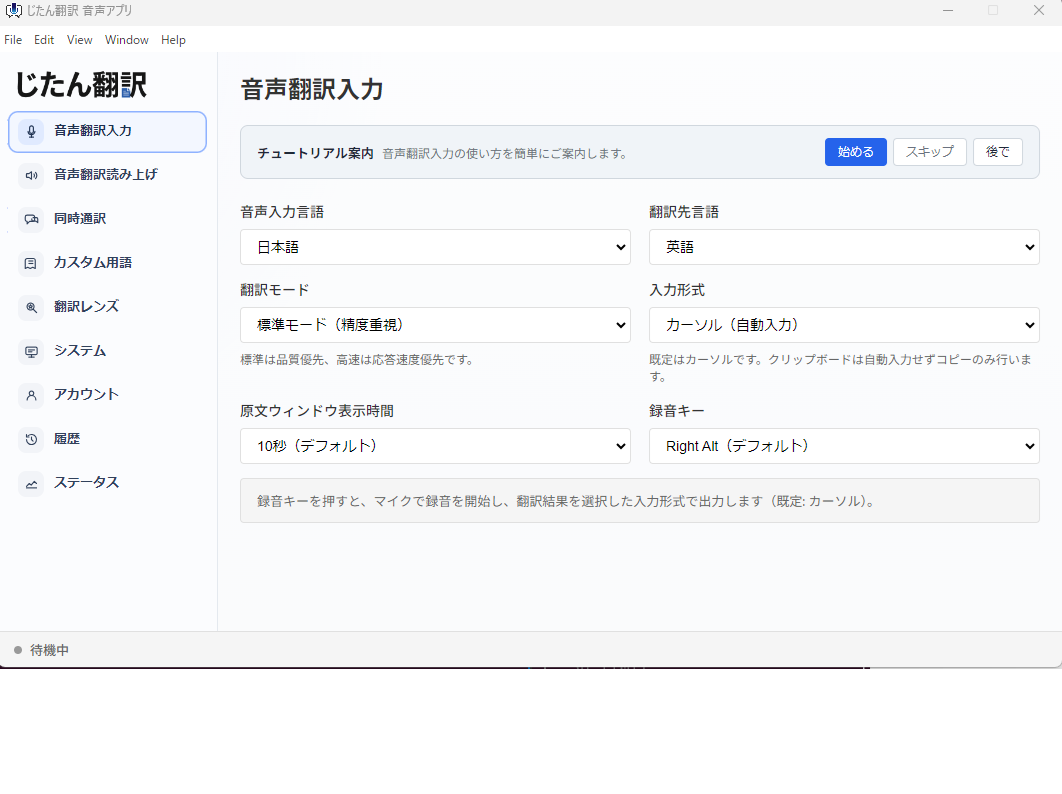
Open your voice input app and go to the hotkey settings. Choose a custom hotkey and press the remapped key.
If PowerToys is working, the app should see it as F13. Save the setting and test it in a text field.
A good test workflow is:
- Open Notepad, a browser input box, or a chat app.
- Place the cursor in the text field.
- Hold the remapped key.
- Speak a short sentence.
- Release the key and check the inserted text.
Start with short sentences before using it for long dictation.
Good Keys to Remap
The best key depends on your keyboard and habits.
| Candidate key | Good for | Caution |
|---|---|---|
| Katakana / Hiragana / Romaji | Japanese keyboard users who rarely use IME-specific keys | Avoid if you rely on it for Japanese input switching |
| Muhenkan | Users who do not use conversion controls | May matter for Japanese IME workflows |
| Henkan | Users who rarely use the conversion key | Can interfere with Japanese text workflows |
| Caps Lock | Users who never use Caps Lock | Some people need it for English typing |
| Right Alt | Users who prefer a built-in single key | Can conflict with Alt-based behavior in some environments |
For many Japanese keyboard users, the Katakana key is the cleanest candidate. It is visible, easy to reach, and often underused.
Why This Works Well for Voice Translation
Voice translation input is not only a translation feature. It is also a fast way to create text.
With a dedicated F13 key, you can:
- Dictate Japanese text into email and chat.
- Speak Japanese and insert English output.
- Draft prompts for ChatGPT or Claude.
- Create meeting notes.
- Reply to messages faster.
- Translate short business messages without opening a separate web translator.
The dedicated key changes the workflow. Instead of thinking "I need to open a translation app," you simply press a key, speak, and insert text.
Common Problems and Fixes
The App Does Not Detect F13
Check whether PowerToys is running. Keyboard Manager remaps only work while PowerToys is active. Also make sure the remap is enabled and saved.
The Wrong Key Is Being Remapped
Open Keyboard Manager again and use the key detection option instead of choosing from a list manually. Keyboard labels can vary by hardware and layout.
The Key Still Does Something Else
Another app may be capturing the physical key before the remap, or the key may be tied to IME behavior. Try another unused key such as Muhenkan, Henkan, or Caps Lock.
F13 Conflicts with a Specific App
F13 conflicts are uncommon but possible in specialized software. If that happens, try F14 or F15 instead.
When Not to Use This Setup
Do not remap a key you actually use. If you rely on the Katakana key or conversion keys for Japanese typing, changing them may slow you down. The goal is to create a frictionless voice input key, not to break your normal keyboard workflow.
Also, if you use a company-managed PC, check whether PowerToys or keyboard remapping is allowed by your IT policy.
Summary
PowerToys lets you turn an unused key into F13, and F13 is a strong choice for a dedicated voice input hotkey because it rarely collides with everyday shortcuts.
For Japanese keyboard users, remapping the Katakana / Hiragana / Romaji key to F13 can create a practical push-to-talk key for voice input and voice translation. Once set up, you can use voice input across email, chat, AI prompts, and translation workflows without reaching for complicated shortcut combinations.
Jitan Translate supports voice translation input workflows and starts from JPY 450 per month on the Starter plan. If you want a low-friction Windows voice input setup, combining PowerToys with an F13 hotkey is a practical place to start.