Most business teams do not get to choose their meeting platform based on translation features alone. The decision is usually driven by IT policy, existing contracts, or whichever tool the client prefers. What you can choose is how to handle multilingual communication within whatever platform your team uses.
This article compares the translation capabilities of Zoom, Microsoft Teams, and Google Meet, explains where each one falls short, and covers cross-platform alternatives that work regardless of which platform hosts the meeting.
What Each Platform Offers
Before comparing, it is important to understand what each platform actually provides. The terminology is confusing because all three use similar words for different features.
Zoom
Zoom offers two main multilingual features:
Translated captions display machine-translated text of the spoken audio. Participants choose their preferred language, and the system generates captions in that language in real time. This feature depends on the host’s Zoom plan and must be enabled by the host.
Language interpretation is a separate feature where human interpreters join the meeting. Participants switch to an audio channel where the interpreter speaks the target language. This is proper simultaneous interpretation, not automated translation.
Zoom also supports third-party apps for captioning and translation through its marketplace, but these require additional setup and may need admin approval.
Source: Zoom translated captions
Microsoft Teams
Teams offers a broader set of multilingual features:
Live captions show the spoken text in the original language. Available broadly across Teams plans.
Translated captions add machine translation so participants see captions in their chosen language. Requires specific licensing tiers.
Transcription creates a written record of the meeting, stored in the organizer’s OneDrive or SharePoint. Available during and after the meeting.
Interpreter is the newest feature, providing real-time translated audio using AI speech synthesis. Participants hear a synthetic voice in their chosen language.
Source: Teams interpreter | Teams captions and transcription
Google Meet
Meet offers translated captions powered by Google’s translation engine:
Translated captions display real-time translated text of the spoken audio. The feature is tied to the host’s Google Workspace plan and may not be available on all tiers.
Gemini-powered features include AI-generated meeting notes and summaries that can complement the caption experience. These have their own plan requirements.
Source: Google Meet translated captions
Side-by-Side Comparison
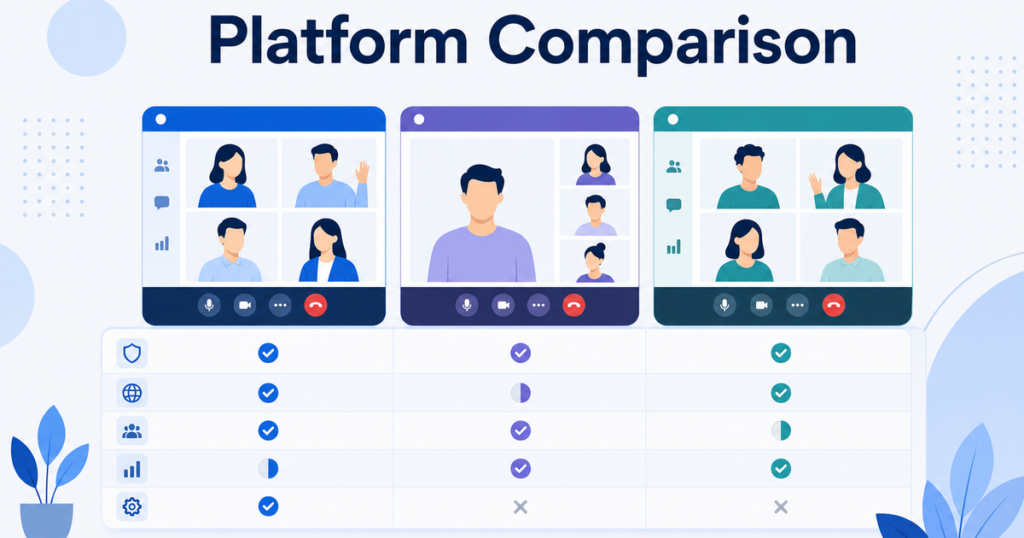
Here is how the three platforms compare on the dimensions that matter most for multilingual meetings.
Feature Availability
| Feature | Zoom | Teams | Meet |
|---|---|---|---|
| Same-language captions | Yes | Yes | Yes |
| Translated captions | Yes, plan-dependent | Yes, plan-dependent | Yes, plan-dependent |
| Human interpretation | Yes (separate feature) | No built-in | No built-in |
| AI interpreter (audio) | No | Yes (Interpreter mode) | No |
| Meeting transcription | Yes (cloud recording) | Yes (built-in) | Limited |
| Post-meeting translation | Via recording | Via transcript | Via Gemini features |
Host Dependency
All three platforms share the same fundamental limitation: the host’s subscription determines feature availability. If you join someone else’s meeting, you cannot control whether translated captions are available.
This is the single most important thing to understand about platform-based translation. Your team might have full-featured Zoom licenses, but if a client invites you to a Google Meet call on a basic plan, none of your Zoom features help you inside that Meet call.
Translation Quality
All three platforms use their own machine translation engines, and the quality differences are modest for general business conversation. Where they differ is in language coverage and domain-specific accuracy.
Google Meet benefits from Google Translate’s extensive language pair support. Teams leverages Microsoft’s translation stack. Zoom uses its own engine. In practice, all three produce output that captures the main points but struggles with specialized vocabulary, idiomatic expressions, and rapid speech.
No platform’s automated translation is reliable enough for legal, medical, or financial discussions where precision is critical. For those scenarios, human interpreters remain necessary regardless of platform.
Admin and IT Overhead
Teams has the most granular admin controls, which is both a strength and a burden. IT admins can configure caption and translation features at the organization, group, or individual level. This provides control but also means more settings to audit and manage.
Zoom admin controls are simpler but still require the host to manually enable translated captions for each meeting. There is no way to set translated captions as a default for all meetings.
Google Meet admin settings live in the Google Workspace admin console. The setup is straightforward but less granular than Teams. Organizations with simple structures will find this easier to manage; complex organizations may find it limiting.
The Cross-Platform Problem
The real challenge for most teams is not choosing between Zoom, Teams, and Meet. It is that they use all three.
Your internal team meetings happen on Teams because that is your corporate standard. Your client prefers Zoom for their meetings. A partner organization sends Google Meet invites. In a single week, you might need translation across all three platforms.
Platform-specific translation features do not solve this problem. Each platform’s features only work within that platform. There is no way to carry Zoom’s translated captions into a Teams meeting or vice versa.
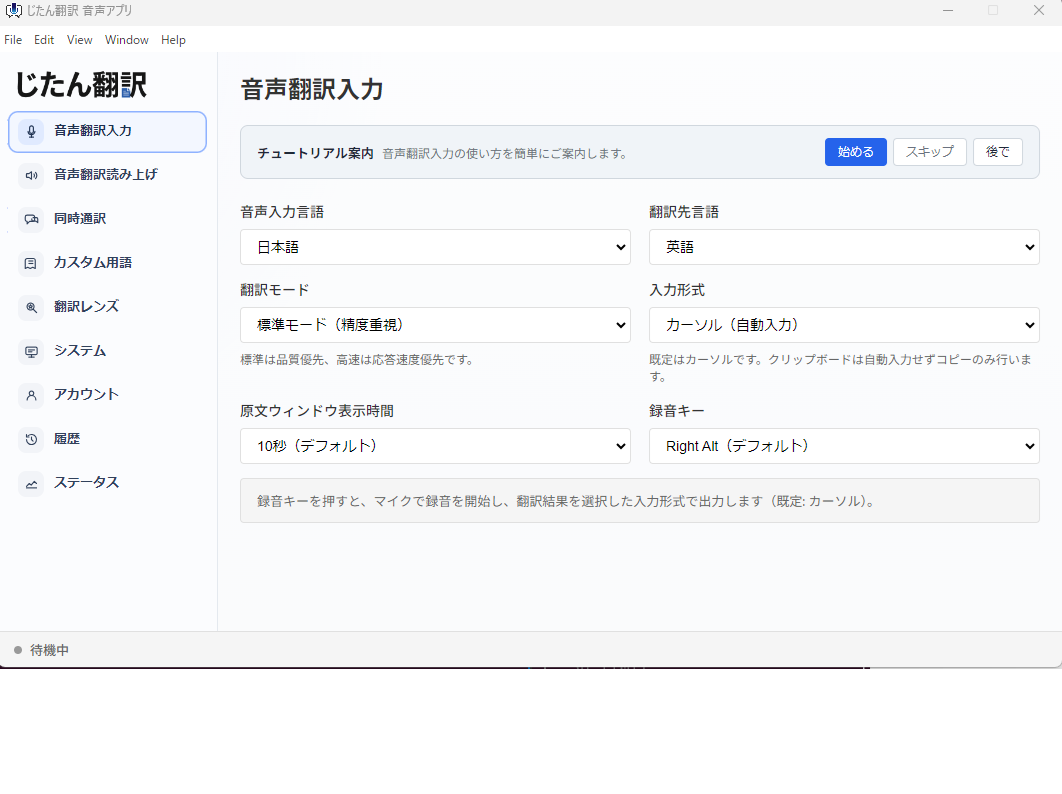
This is where cross-platform translation tools become valuable. Desktop translation apps run independently of the meeting platform. They process the audio playing through your computer, regardless of which application is producing that audio. The same tool works in a Zoom call, a Teams meeting, and a Google Meet session.
For teams that operate across multiple platforms, a desktop translation tool provides consistency. You learn one interface, configure your preferred language once, and use it everywhere. You stop worrying about whether the host has the right plan or whether admin settings have been configured correctly.
When Platform Features Are the Right Choice
Despite the cross-platform challenge, built-in platform features are sometimes the best option:
When your entire organization uses one platform. If your company is all-in on Teams or all-in on Google Workspace, the built-in features are the path of least resistance. Everyone has the same plan, the same admin controls, and the same meeting experience.
For internal meetings where the host is always on a supported plan. If your multilingual meetings are always internal and always hosted by someone with a full-featured license, the platform’s built-in translation works well enough.
When you need transcription as well as translation. Teams in particular combines real-time translated captions with post-meeting transcription. If you need both capabilities, using the built-in features is simpler than juggling multiple tools.
When you want the simplest possible setup. No additional software to install, no separate account to manage. Just turn on captions in the meeting and go.
When Desktop Tools Are the Better Choice
Desktop translation apps make more sense in these situations:
Cross-platform meetings. If your team regularly joins meetings on multiple platforms, a single desktop tool provides a consistent experience.
External meetings where you do not control the host. When clients, partners, or vendors host the meeting, you cannot rely on their plan including translated captions.
Mixed licensing within your team. If some team members have full-featured plans and others do not, a desktop tool ensures everyone gets the same translation capability.
Privacy-sensitive meetings. Desktop tools process audio through their own pipeline rather than the meeting platform’s cloud. Depending on your data handling requirements, this may be preferable.
Quick setup without IT involvement. Desktop tools typically do not require admin approval or organization-wide configuration. An individual user can install and start using them immediately.
How Desktop Translation Apps Work with Meetings
If you have not used a desktop translation app alongside a meeting, here is how the workflow typically looks:
- You install the translation app on your computer.
- Before the meeting starts, you open the app and select your preferred languages.
- You join the meeting on whatever platform it is hosted on.
- The translation app captures the audio playing through your computer speakers or headphones.
- The app translates the audio and displays the text in a separate window or overlay.
The translated text appears alongside your meeting window. You see and hear the meeting normally while reading the translation in your peripheral vision.
The quality depends on the audio your computer receives. A clear audio feed from a participant speaking into a good microphone produces better results than a garbled speakerphone connection. Using a headset yourself helps isolate the meeting audio from background noise.
A Practical Decision Framework
Use this flow to decide which approach fits your situation:
Step 1: Check your meeting landscape. How many different platforms does your team use in a typical month? If the answer is one, platform features may be sufficient. If the answer is two or more, a desktop tool provides better consistency.
Step 2: Check who hosts your multilingual meetings. If you always host, you control the plan and settings. If external parties often host, you need a solution that does not depend on the host.
Step 3: Check your licensing. Does every team member who needs translation have a plan that includes translated captions on every platform they use? If not, a desktop tool fills the gaps.
Step 4: Check your IT policies. Can individual team members install desktop software, or does IT need to approve and deploy it? This affects how quickly you can roll out a desktop tool.
Step 5: Evaluate quality. Run parallel tests. Use the platform’s built-in translated captions in one meeting and a desktop tool in another. Compare the translation quality for your typical meeting content and language pairs.
Step 6: Plan for failure. Every translation method will fail at some point. The host’s plan will not include the feature, the internet connection will degrade, or the translation engine will struggle with your specific vocabulary. The question is not whether your primary tool will fail, but whether you have a backup ready when it does. Document a clear fallback plan so every team member knows what to do when the primary approach is unavailable.
Step 7: Review and adjust quarterly. Meeting platforms update their features and pricing regularly. What works today may not work next quarter. Set a reminder to re-evaluate your translation setup every few months, checking for plan changes, new features, and whether your team’s meeting patterns have shifted.
The Bottom Line
Zoom, Teams, and Google Meet all offer automated meeting translation, but they all share the same limitations: host dependency, plan restrictions, and machine translation quality that works for general conversation but not for high-stakes discussions.
If your team uses one platform and your licenses include translation features, start there. It is the simplest approach. But if your team operates across multiple platforms or regularly joins external meetings, a desktop translation tool provides the independence and consistency that platform-specific features cannot.
The best approach for most teams is a layered one: use platform features when they are available and convenient, and keep a desktop tool as your cross-platform backup. This way, you always have translation support regardless of which platform the next meeting invite lands on.