Translating Training Videos and Webinars: Captions, Voice, and Review
Your company recorded a training video for employees. Now you need to make it accessible to team members who speak a different language. Or you are hosting a live webinar with an international audience and want to provide translation. What are your options, and how far can AI help?
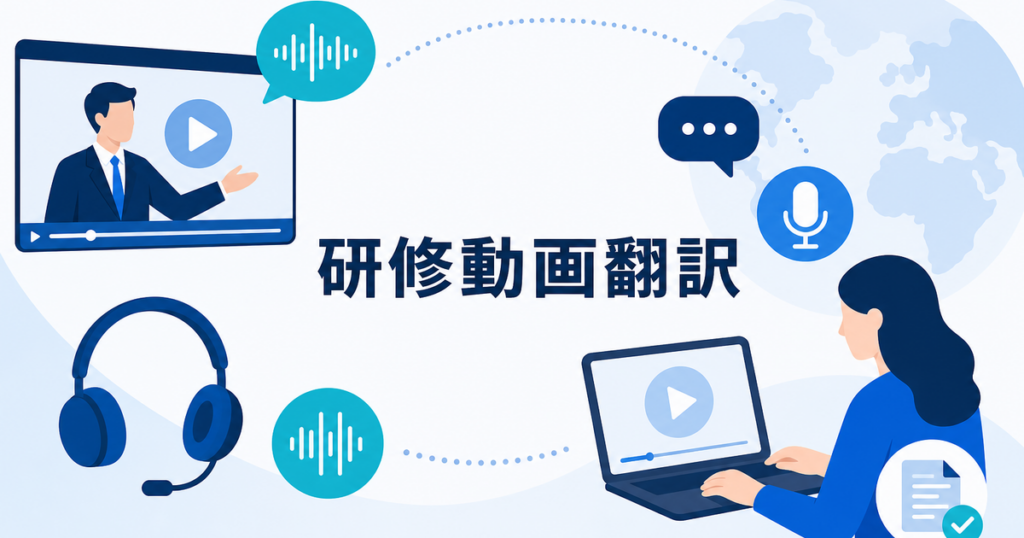
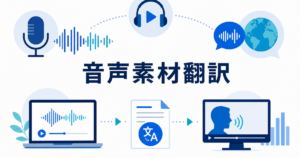
Training video and webinar translation involves three output types: captions, voice, and written materials. Each has different requirements, different tools, and different levels of post-translation review needed. This article covers practical approaches for each.
Understanding the Three Output Types
Captions (Subtitles)
Captions display the spoken content as translated text on screen. They are the most common and least expensive form of video translation. Captions work well when the audience is comfortable reading while watching and when the visual content (demonstrations, diagrams, screen recordings) is the primary value of the video.
Voice (Dubbing or Voiceover)
Voice translation replaces the original audio with a spoken translation. This can be done with AI-generated text-to-speech voices or with human voiceover artists. Voice translation works better for audiences who need to focus on the visual content without splitting attention between the screen and reading captions.
Written Materials (Transcripts and Handouts)
Written translations include transcripts of the video content, downloadable handouts, slide decks, and reference guides that accompany the video. These are useful as standalone resources and as supplements to caption or voice translation.
Most comprehensive training translation projects use a combination of all three: captions or voice for the video itself, plus written materials for reference.
Option 1: AI-Generated Translated Captions
How It Works
AI-generated captions involve two automated steps:
- Speech recognition: The AI transcribes the spoken audio into text. This is the same technology that generates captions on YouTube, Zoom, and other platforms.
- Translation: The transcribed text is translated into the target language.
The result is a caption file (typically SRT or VTT format) that can be loaded into video players alongside the original audio.
Tools
- Video platforms with built-in auto-translation: YouTube and Vimeo offer automated caption generation and translation features. Check each platform's current documentation for supported languages and accuracy expectations.
- Desktop caption tools: Applications that capture computer audio and generate real-time translated captions. These work for live webinars and recorded videos played on your computer.
- Dedicated captioning services: Professional captioning companies that use AI to generate initial captions and offer human review as an optional step.
Source: https://jitantranslate.com/en/blog/voice-translation/real-time-translation-zoom-teams-google-meet/
Quality Expectations
AI-generated captions are a starting point, not a finished product. Common issues include:
- Timing drift: Captions gradually fall out of sync with the audio, especially in longer videos.
- Technical terminology errors: Product names, acronyms, and industry terms are frequently mistranslated.
- Speaker identification: AI captions do not distinguish between speakers, which is confusing in multi-speaker training videos.
- Sentence boundaries: The AI may break captions at awkward points, splitting sentences across caption frames.
Plan to review and correct AI-generated captions before publishing them with training videos. For internal training where minor errors are tolerable, light review may suffice. For external-facing webinars, thorough review is recommended.
Review Process for Captions
- Watch the video with captions active. Note any timing issues, mistranslations, or awkward phrasing.
- Edit the caption file directly. SRT and VTT files are plain text and can be edited in any text editor. Fix mistranslations, adjust timing, and improve sentence breaks.
- Check technical terms against your glossary. Ensure product names and technical terminology are correct throughout.
- Verify caption readability. Captions that are too long for the screen or that display too quickly to read are not useful. Aim for two lines of text per frame, displayed long enough to read at a natural pace.
Option 2: AI Voice Translation (Text-to-Speech Dubbing)
How It Works
AI voice translation generates a spoken translation using text-to-speech technology:
- The original audio is transcribed using speech recognition.
- The transcript is translated into the target language.
- The translated text is converted to speech using AI voice synthesis.
- The synthesized audio is synchronized with the original video.
Current Capabilities
AI-generated voices have improved significantly. Modern text-to-speech systems produce natural-sounding output with appropriate intonation and pacing. Some systems offer multiple voice options, allowing you to choose a voice that matches the tone of the training content.
However, AI dubbing has limitations:
- Emotional range: AI voices handle neutral, informative content well (which covers most training videos) but do not convey enthusiasm, urgency, or humor naturally.
- Technical pronunciation: Specialized terms may be mispronounced. Most systems allow pronunciation correction, but this requires manual setup.
- Timing synchronization: The translated speech may be longer or shorter than the original, causing gaps or overlaps with on-screen actions.
When to Use AI Dubbing
AI dubbing is practical for:
- Internal training videos where professional voice quality is nice to have but not required
- Large-volume projects where recording human voiceover for every video is not feasible
- Rapid turnaround situations where translated training content is needed quickly
For external-facing webinars, marketing videos, or executive presentations, human voiceover or live interpretation produces a more polished result.
When to Use Human Voiceover
Human voiceover is appropriate for:
- Customer-facing training content that represents your brand
- Compliance and safety training where precise wording matters
- Executive or leadership communications embedded in training programs
Human voiceover takes more time and costs more, but the result is more natural and better suited to content where tone matters.
Option 3: Live Webinar Translation
Live webinars require real-time translation because the content is being generated as the event happens.
Caption-Based Live Translation
Most webinar platforms offer real-time captioning with translation:
- Zoom translated captions: Available on specific plans. Displays real-time translated captions for participants.
- Teams live translated captions: Available during Teams webinars and meetings.
- Google Meet translated captions: Available for supported language pairs.
- Chrome live caption: A browser-level option that generates captions for any audio playing in Chrome, including webinar audio played through the browser.
Source: https://support.zoom.com/hc/en/article?id=zm_kb&sysparm_article=KB0059081
Source: https://support.google.com/chrome/answer/10538231?hl=en
Advantages: Easy to set up, no additional software required (on supported platforms), participants control their own caption language.
Limitations: Accuracy depends on audio quality and speaker clarity. Technical terminology may translate incorrectly. There is a delay between speech and caption display.
Desktop Translation for Live Webinars
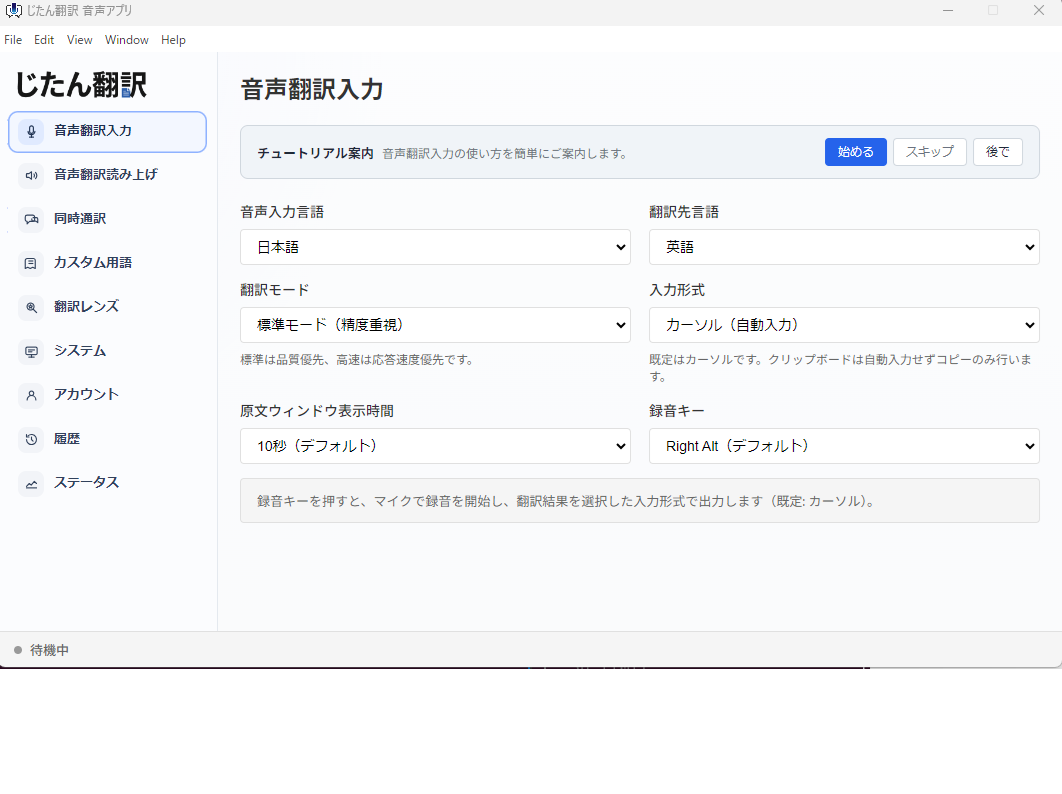
For webinars hosted on platforms without built-in translation, or when you need more control over the translation, desktop translation apps capture the webinar audio and provide translation through a separate interface.
This works for both the presenter (translating audience questions) and the audience (translating the presentation).
Source: https://jitantranslate.com/en/blog/voice-translation/real-time-translation-zoom-teams-google-meet/
Human Interpretation for Live Webinars
For high-profile webinars, product launches, or events with senior executives, human interpretation provides the most professional experience. Some webinar platforms have built-in interpretation channels; others require external interpreter services.
Combining Output Types for Training Programs
A comprehensive training translation strategy uses multiple output types together:
For Recorded Training Videos
- Generate AI captions for the video. Review and correct the caption file.
- Create a translated transcript from the corrected captions. Review the transcript for accuracy and readability.
- Translate supplementary materials (slide decks, handouts, quizzes) using document translation.
- Optionally, produce AI or human voiceover for the video if captions alone are not sufficient.
For Live Webinars
- Enable real-time translated captions during the live event.
- Record the webinar and generate corrected translated captions for the recording.
- Translate the slide deck in advance and share it with participants.
- Send translated follow-up materials after the event: transcript, summary, action items.
Practical Workflow for Translating a Training Video
Step 1: Prepare Source Materials
- Ensure the original video has clear audio. Poor audio quality degrades every subsequent step.
- Prepare a transcript of the original audio. If you do not have one, use AI transcription and correct it.
- Collect all supplementary materials: slides, handouts, reference guides.
Step 2: Translate Text Content
- Translate the transcript using AI translation. Review the output for accuracy, especially for technical terminology.
- Translate all supplementary materials using document translation. Review for formatting and terminology.
- Load your glossary into the translation tool to improve terminology consistency.
Step 3: Generate Captions or Voiceover
- From the reviewed transcript, generate a caption file (SRT or VTT). Adjust timing to match the video.
- If producing voiceover, use the reviewed transcript as input for text-to-speech generation or human voiceover recording.
- Synchronize the captions or voiceover with the video timeline.
Step 4: Review the Final Product
- Watch the complete video with translated captions or voiceover. Check for:
- Timing sync between audio and translation
- Terminology accuracy throughout
- Readability of captions (not too fast, not too long)
- Naturalness of voiceover (if applicable)
- Correct any issues in the caption file or voiceover recording.
Step 5: Package and Distribute
- Embed corrected captions in the video file or provide them as a separate caption file.
- Package translated supplementary materials with the video.
- Distribute through your learning management system or video platform.
Managing Terminology Across Video Content
Training videos often reference the same products, features, and processes across multiple videos. Maintaining terminology consistency across a video library requires:
- A shared glossary that covers all terms used in your training content
- Consistent caption review by the same person or team across all videos
- A terminology log that records how specific terms were translated in previous videos
Without these measures, the same feature may be translated differently in Video 1 and Video 5, confusing learners who watch the series. When new videos are added to the library, check the terminology log before translating so that established translations are carried forward rather than re-created inconsistently.
Cost and Time Considerations
AI-based caption translation is the fastest and most affordable option. A 30-minute training video can be captioned and translated in minutes, with review adding a few hours depending on the content complexity.
AI voice dubbing takes longer because it requires synchronization and pronunciation review, but it is still faster than human voiceover.
Human voiceover and human caption review are the most time-intensive and expensive options, but they produce the most polished output.
For most training programs, the practical approach is AI-generated captions with human review. This captures most of the efficiency of AI while ensuring the accuracy that training content requires.
When to Seek Professional Help
Consider professional translation services for training content when:
- The training covers safety procedures where errors could cause harm
- The content is regulatory or compliance-related
- The video will be used for years and seen by hundreds of employees
- The training is customer-facing and represents your brand
- Multiple videos need consistent terminology across a series
For these situations, the investment in professional review or production is justified by the higher quality output and reduced risk of errors reaching learners.
Tools like Jitan Translate handle the document translation side of training programs — translating slide decks, handouts, transcripts, and reference materials across PDF, DOCX, PPTX, and XLSX formats. Combined with caption or voice translation for the video content, this provides a complete multilingual training workflow.