Live Translation for Product Demos and Client Walkthroughs
You are about to demo your product to a prospective client in another country. The product walkthrough is in English. The prospect's team speaks a different language. You could send translated materials in advance, but the demo itself is live, and the conversation around it matters as much as the slides.
Live translation for product demos is a niche but growing use case. It differs from meeting translation because demos involve screen sharing, step-by-step feature explanations, and technical vocabulary specific to your product. This article covers how to make live translation work in demo settings, from preparation through follow-up.
What Makes Demo Translation Different
A product demo is not just a conversation. It is a performance with visual aids. The presenter is sharing their screen, clicking through the product, explaining features, and answering questions. Adding translation on top of this creates a multi-layered cognitive load for both the presenter and the audience.
Key differences from standard meeting translation:
- Synchronized visual and verbal content: The translation needs to track with what is happening on screen. If you click a button while explaining it, the translation should convey both the visual action and the verbal explanation.
- Product-specific terminology: Feature names, UI labels, and technical specifications need consistent translation throughout the demo.
- Pacing pressure: Demos run on a schedule. You cannot slow down too much without losing the audience's attention.
- Interactive Q&A: Questions from the audience arrive unpredictably and need quick translation so you can respond effectively.
- Decision-making context: Demo audiences are often evaluating your product against competitors. Imprecise translation of a feature capability could create a misunderstanding that affects their evaluation.
Preparing a Translated Demo
Preparation is where translated demos succeed or fail. The more you do before the demo, the smoother the live experience.
Translate Your Materials in Advance
Before the demo, translate everything the audience will see or receive:
- Slide deck: Use document translation for your PowerPoint presentation. Review the translation for terminology accuracy and slide formatting. AI-assisted translation produces a review-ready draft that your team can polish before the demo.
- Product screenshots: If you show the product's English interface during the demo, prepare annotated versions with translated labels that you can reference or share as handouts.
- Handouts and leave-behinds: Feature sheets, pricing tables, case studies — translate all of them before the demo so you can share them immediately after the meeting.
This preparation ensures that the static content is accurate and professional, even if the live conversation translation is approximate.
Source: https://jitantranslate.com/en/blog/pdf/translate-pdf-without-losing-formatting/
Build a Demo Glossary
Create a glossary that maps every product feature name, UI element, and technical term to its approved translation. Share this glossary with the translation tool (if it supports custom terminology) and with any human interpreter.
Example entries:
- Dashboard: The main overview screen. Translate consistently throughout the demo and all materials.
- API rate limit: Technical term. Do not translate; keep the English abbreviation or use the accepted industry term in the target language.
- Onboarding wizard: A specific feature name. Translate the same way every time, in both spoken translation and written materials.
If you use a term during the demo that is not in the glossary, note it and add it afterward. Over time, the glossary covers every term you use in demos, making each subsequent demo more consistent.
Practice With Translation
Run a rehearsal with the translation tool active. Have a colleague listen on the target language side and flag terms or phrases that translated incorrectly. This reveals problems you can fix before the real demo.
Common issues that rehearsals catch:
- Feature names that translate to generic terms instead of product-specific ones
- Jokes or idioms that do not carry over in translation
- Sentences that are too long for the translation system to handle accurately
- Pacing problems where you move to the next slide before the translation catches up
- Technical terms that the system translates literally when they should remain in English
Schedule at least one full rehearsal with translation. The investment of 30 to 60 minutes can prevent embarrassing moments during the actual demo.
Live Translation Options for Demos
Meeting Platform Captions
If you are running the demo through Zoom, Teams, or Google Meet, use the platform's built-in translated captions. These display your speech as translated text on screen for the audience.
Setup: Enable translated captions in the meeting settings before the demo. Select the source and target languages. Inform participants that captions are available and how to enable them on their end.
Zoom's translated captions support certain language pairs depending on your plan.
Source: https://support.zoom.com/hc/en/article?id=zm_kb&sysparm_article=KB0059081
Microsoft Teams provides live translated captions during meetings.
Source: https://learn.microsoft.com/en-us/microsoftteams/meeting-transcription-captions
Google Meet includes translated captions for supported language pairs.
Source: https://support.google.com/meet/answer/10964115?co=GENIE.Platform%3DDesktop&hl=en
Best for: Audiences who are comfortable reading captions while watching the demo. Works well for structured presentations where the presenter speaks clearly and at a measured pace.
Limitation: Captions are text-only. The audience reads the translation but does not hear it. For some audiences, this is fine. For others, especially those who are not used to reading captions while watching a screen share, it can feel disjointed.
Desktop Translation Apps
Desktop translation apps capture system audio and provide translation in a separate window. For demos, this works in two ways:
- You see the audience's questions translated: If the audience asks questions verbally, the app translates their speech for you.
- The audience sees your presentation translated: If you share the app's translation output or relay it through a second channel, the audience receives translated text.
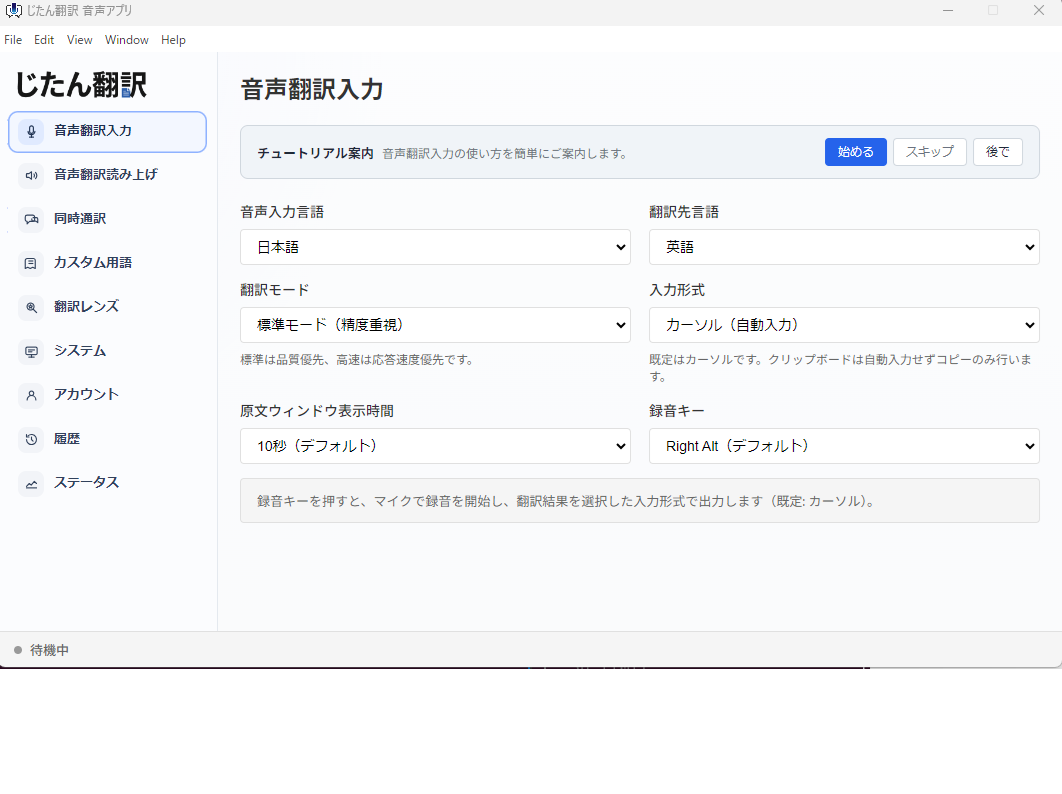
Some desktop apps also provide spoken translation through text-to-speech, which can be shared through the meeting's audio. Multiple language pairs are supported; check the app for current availability.
Source: https://jitantranslate.com/en/blog/voice-translation/real-time-translation-zoom-teams-google-meet/
Best for: Situations where the meeting platform does not support translated captions, or where you need translation for both directions (audience questions and your responses).
Human Interpreter
For high-value demos — enterprise prospects, large deals, executive audiences — a human interpreter provides the most accurate and professional experience.
Setup options:
- Use the meeting platform's interpretation feature. Zoom supports this natively with dedicated audio channels for interpreted languages.
- Have the interpreter join as a participant and provide simultaneous interpretation through a separate audio channel.
- Use a remote interpreter service that connects to the call.
Best for: High-stakes demos where accuracy and professionalism are paramount. Also appropriate when the audience includes senior decision-makers who expect interpretation rather than caption-based translation.
Running the Demo With Live Translation
Adjust Your Speaking Style
When translation is active, modify your demo presentation style:
- Pace: Speak more slowly than usual. Pause between key points to let the translation process.
- Sentence structure: Use short, direct sentences. "Click the settings button in the top right corner" translates better than "What you'll want to do is navigate over to the settings area which you can find in the upper portion of the interface."
- Signposting: Explicitly announce transitions. "Now I'll show you the reporting feature" gives the translation system a clean sentence to work with and helps the audience follow along.
- Repeat key points: State important features or benefits twice, once in context and once as a summary. This increases the chance that the translation conveys the key message.
Handle Questions Carefully
When the audience asks questions:
- Wait for the full translation before responding. Do not guess what they asked based on the first few words.
- Repeat the question in your own words to confirm understanding. "So you're asking whether the API supports batch operations?"
- Answer concisely. Long, rambling answers produce worse translations than focused ones.
- Follow up in writing. After the demo, send a summary of the Q&A with accurate translations of both questions and answers.
Manage Screen Sharing and Translation Simultaneously
If you are sharing your screen during the demo, the audience is looking at the product, not at the translation captions. Consider these approaches:
- Dual-screen sharing: Share the product on one part of the screen and have captions visible on another. Some meeting platforms allow caption positioning that does not overlap the shared screen.
- Separate caption window: Some platforms allow attendees to open captions in a separate window that they can position independently on their screen.
- Separate translation channel: Use a desktop translation app and share its output through a second monitor or a chat window.
Caption-Based vs. Voice-Based Translation
Two modes of live translation are available for demos, and each has trade-offs:
Caption-based translation (meeting platform captions, desktop app text output):
- Less intrusive — the audience reads at their own pace
- Works well for technical demos with many terms that are easier to read than hear
- Does not interfere with the presenter's voice
- Requires the audience to split attention between screen share and text
Voice-based translation (desktop app text-to-speech, human interpreter):
- More immersive — the audience hears the translation in their language
- Better for audiences who prefer listening over reading
- Can feel more professional, especially with a human interpreter
- May interfere with the presenter's audio if not managed through separate channels
Choose the mode based on your audience's preferences and the complexity of the demo content. For highly technical demos with many on-screen elements, captions may work better because the audience can reference them without missing the visual walkthrough. For relationship-driven demos with less screen sharing, voice translation creates a more personal connection.
After the Demo
Send Translated Follow-Up Materials
After the demo, send:
- Translated slide deck: The same presentation, translated and reviewed for accuracy.
- Q&A summary: A written summary of the questions asked and answers given, translated and reviewed.
- Next steps document: Any action items, timelines, or proposals discussed during the demo, translated and reviewed.
These materials provide accurate reference points that compensate for any gaps in the live translation. They also demonstrate professionalism and attention to detail that reflects well on your product.
Collect Feedback
Ask the prospect whether the translation was adequate for understanding the demo. This feedback helps you decide whether to use the same approach for future demos with this client or adjust the strategy. It also gives you data to evaluate whether the translation investment is paying off.
Update Your Glossary
After each demo, update your glossary with any terms that translated incorrectly or were missing. This continuous improvement makes each subsequent demo more accurate and reduces the preparation time over the long run.
Choosing the Right Approach
The right translation approach for a demo depends on the deal size, the audience, and the complexity of the product:
| Deal Size | Audience | Recommended Approach |
|---|---|---|
| Standard | Technical evaluators | Platform captions + translated materials |
| Standard | Business stakeholders | Desktop translation app + translated materials |
| High-value | Any audience | Human interpreter + translated materials |
For products with complex technical features, invest in more translation support. The more technical the demo, the more precise the translation needs to be, and AI-based live translation may not handle specialized terminology accurately enough for an evaluation context.
Common Mistakes to Avoid
- Not rehearsing with translation: The demo that worked perfectly in English falls apart when you add translation delay and terminology errors. Always rehearse with the translation tool active.
- Skipping translated handouts: Relying entirely on live translation means any errors persist with no written correction. Translated handouts provide accurate backup that the audience can reference later.
- Speaking too fast: Presenters naturally speed up when excited about a feature. With translation active, this produces garbled output. Consciously slow your pace.
- Ignoring Q&A translation: You prepared the presentation translation but not the audience's questions. Both directions need translation support.
- Using untested terminology: If your glossary has not been tested in a live translation setting, you may discover during the demo that critical terms translate incorrectly. Test your glossary in rehearsal.
Getting Started
If you have a translated demo coming up, take these steps this week:
- Translate your slide deck and handout materials using AI-assisted document translation
- Build a glossary of product-specific terms with approved translations
- Schedule a rehearsal with the translation tool active
- Prepare a bilingual Q&A summary template for post-demo follow-up
- Confirm which translation mode (captions or voice) suits your audience best
These steps take a few hours and significantly improve the experience for your international audience.