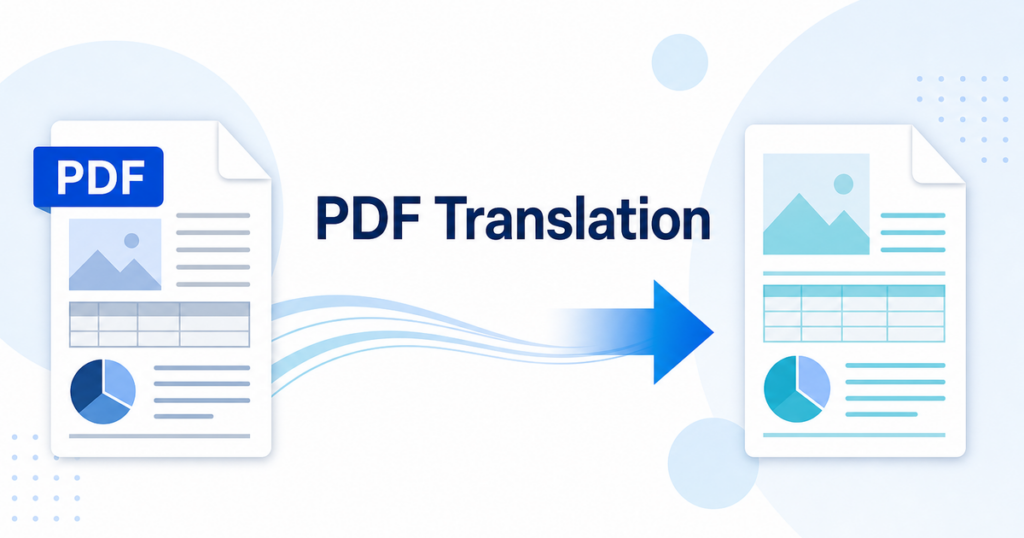

You uploaded a PDF to an online translator, got the translated file back, and the layout is a mess — tables shifted, columns merged, fonts changed, images displaced. If this sounds familiar, you are not alone. PDF was designed as a final-output format, not an editable one, which makes preserving formatting during translation genuinely difficult. This guide explains why PDFs break, how to choose the right workflow for your document type, and what you can do to reduce manual reformatting after translation.
Why PDF Translation Often Breaks Formatting
PDF stands for Portable Document Format. Its job is to display a document exactly the same way on every screen and printer. It was not designed to be edited, reflowed, or translated. When a translation tool processes a PDF, it has to:
- Extract text from a format that embeds text as positioned objects rather than flowing paragraphs.
- Reconstruct the reading order — columns, sidebars, headers, and footers can be ambiguous in a PDF’s internal structure.
- Handle text expansion — target-language text can be longer or shorter than the source, which can cause overflow in fixed layouts that were designed for one language only.
- Manage fonts and encoding — special characters, non-Latin scripts, and embedded fonts may not map cleanly to the target language.
The result is often misaligned tables, overlapping text, broken headers, and images that no longer relate to the correct content.
Native PDF vs Scanned PDF
Not all PDFs are the same. Understanding which type you have is the first step to choosing the right workflow.
Native PDF
A native PDF is generated directly from an application like Word, PowerPoint, InDesign, or a reporting tool. The text inside is selectable — you can highlight and copy it. Tables, charts, and formatting are stored as structured objects.
Translation advantage: Translation tools can extract the text more accurately, and some tools can produce a translated PDF that closely follows the original layout.
Scanned PDF
A scanned PDF is an image of a printed page. The text is not selectable because it is stored as pixels, not characters. Think of a photocopied contract or a faxed form.
Translation challenge: Before translation can begin, the tool must run OCR (Optical Character Recognition) to convert the image into text. OCR accuracy depends on scan quality, resolution, fonts, handwriting, stamps, and layout complexity. Even with good OCR, the reconstructed text often loses table structure and formatting cues.
Quick Test
Open the PDF and try to select a sentence of text. If you can highlight individual words, it is a native PDF. If you can only select the whole page as an image, it is scanned.
Main Workflow Options
Google Translate Documents
Google Translate supports file uploads including PDF, DOCX, PPTX, and XLSX up to a certain file size limit. It is free and fast.
Strengths: Easy to use, no account required for basic use, supports many language pairs.
Limitations: PDF output often suffers from layout shifts, especially in multi-column documents or documents with complex tables. Scanned PDFs with low image quality may produce garbled OCR results. Large files may be rejected.
Source: Google Translate Help
DeepL Document Translation
DeepL supports Word, PowerPoint, Excel, and PDF file translation through its web interface and API. Its translation quality for European languages is widely regarded as strong.
Strengths: High-quality translations, especially for European language pairs. The API supports programmatic document translation for DOCX, PPTX, XLSX, and PDF.
Limitations: Free tier has file size and page count limits. PDF formatting preservation depends on document complexity. Some formatting elements may still shift or break.
Sources:
OCR-First Workflow
For scanned PDFs, an OCR-first approach can improve results:
- Run OCR software (such as Adobe Acrobat Pro, ABBYY FineReader, or an OCR API) to convert the scanned PDF into editable text or DOCX.
- Review and correct the OCR output for errors, especially in tables, stamps, and handwritten notes.
- Translate the corrected DOCX file using your preferred translation tool.
- Manually reformat the translated document to match the original layout.
This approach takes more effort but gives you more control over both OCR accuracy and formatting.
Editable-Source Workflow
If you have the original editable file (DOCX, PPTX, XLSX) or can obtain it, always translate the editable source instead of the PDF.
Why this works better: DOCX and PPTX files store text, styles, and layout as structured data. Translation tools can replace text in place while preserving styles, tables, and images much more reliably than they can reconstruct a PDF layout.
When you have the source: Go back to the author or the system that generated the PDF and request the original file. For internally created documents, this is often the simplest path.
Jitan Translate Workflow
Jitan Translate is an AI-powered translation service designed for business documents. It supports PDF, Word (DOCX), PowerPoint (PPTX), and Excel (XLSX) files, and focuses on reducing manual reformatting by preserving layouts during translation.
When it fits well:
- You have a business document (PDF, DOCX, PPTX, or XLSX) and need a translation that keeps the original layout, text boxes, and formatting as closely as possible.
- You want a review-ready draft that minimizes the time spent on post-translation reformatting.
- You need to translate multiple documents and want a consistent workflow.
How it works: Upload your file, Jitan processes the translation with layout preservation, and you receive a translated file you can open and review in the original application. The workflow is designed for business users who need a practical translation draft, not a pixel-perfect replacement for professional typesetting.
Comparison: Which Workflow Fits Your Situation?
| Factor | Google Translate | DeepL | OCR-First | Editable Source | Jitan Translate |
|---|---|---|---|---|---|
| Best for | Quick one-off translations | High-quality European language pairs | Scanned PDFs | When you have the source file | PDF and Office layout-preserving translation |
| PDF formatting | Basic preservation | Good for simple layouts | Depends on OCR + manual effort | N/A (translates source) | Layout preservation with review |
| Scanned PDF support | Limited | Limited | Strong (with manual review) | N/A | Limited |
| Cost | Free | Free tier + paid plans | OCR tool cost + time | Translation tool cost | Pay-per-use points |
| Post-translation cleanup | Moderate to high | Low to moderate | High | Low | Low to moderate |
| Languages | 100+ | 30+ | Any (via OCR + translator) | Any (via translator) | Multiple pairs; check the app for current availability |
Pre-Upload Checklist
Before you upload any document for translation, run through this list:
- ☐ Confirm the file type. Is it a native PDF or a scanned PDF? If you have the original DOCX, PPTX, or XLSX, use that instead.
- ☐ Check for confidential information. Does the document contain personal data, trade secrets, financial details, or legal content? If so, verify the translation tool’s data handling and privacy policy before uploading.
- ☐ Identify scanned pages. If the PDF is a mix of native and scanned pages, consider separating them. Run OCR on the scanned pages separately.
- ☐ Note tables and forms. Complex tables, forms, and multi-column layouts are the most likely elements to break during translation. Set expectations accordingly.
- ☐ Estimate text expansion. Target-language text may expand or contract, so tight layouts may need manual adjustment after translation.
- ☐ Remove unnecessary pages. Translate only the pages you need. Appendices, blank pages, and duplicate content waste processing time and may add cost.
- ☐ Check embedded fonts. If the PDF uses custom or non-standard fonts, the translated version may substitute fonts, which can affect spacing and layout.
Post-Translation Review Checklist
After you receive the translated document:
- ☐ Verify page count. If pages are missing or extra pages appeared, something went wrong during processing.
- ☐ Check headers and footers. These are often dropped or misplaced during PDF translation.
- ☐ Inspect tables. Compare tables side by side with the original. Look for merged cells, missing borders, and misaligned columns.
- ☐ Review images and captions. Ensure images are still in the correct position and captions match.
- ☐ Read a sample of translated text. Check for untranslated segments, obvious errors, and tone consistency.
- ☐ Test text flow. Look for text overflow in boxes, cells, or columns where the target language is more verbose.
- ☐ Confirm page numbers. If page numbers were present, verify they are correct in the translated version.
- ☐ Save a comparison copy. Keep both the original and translated files side by side for review.
When Human Review Is Still Needed
AI translation has improved significantly, but certain situations still require human judgment:
- Legal documents. Contracts, NDAs, and regulatory filings contain terminology and nuance that automated tools may miss. Use AI translation for a review-ready draft, then have a qualified reviewer check critical terms and obligations.
- Medical and safety documents. Dosage instructions, safety warnings, and clinical information must be accurate. Errors in these documents can cause real harm.
- Brand-sensitive content. Marketing copy, executive communications, and customer-facing materials often require tone adjustments that go beyond literal translation.
- Documents for official submission. Government forms, immigration documents, and court filings may require a qualified human translation provider or an official acceptance process, depending on the institution and jurisdiction.
A practical approach is to use AI translation for the first draft, then apply human review where accuracy and nuance matter most. This reduces turnaround time and cost while maintaining quality where it counts.
A Practical Path Forward
Translating PDFs without losing formatting is not a solved problem, but the right workflow can significantly reduce the cleanup work:
- If you have the source file (DOCX, PPTX, XLSX), translate that instead of the PDF.
- If the PDF is scanned, use OCR first, review the output, then translate.
- If the PDF is native and simple, tools like DeepL or Google Translate may produce acceptable results with moderate cleanup.
- For PDF and Office files that need layout preservation, a specialized tool like Jitan Translate can produce a review-ready draft with less manual reformatting.
The key is to match the workflow to your document type, accuracy requirements, and time constraints.
If you translate PDF or Office documents as part of your business workflow, Jitan Translate offers AI-powered translation designed to preserve layouts and reduce manual reformatting. Upload a PDF, DOCX, PPTX, or XLSX, receive a translated file, and review it in the original application. It is built for operations, sales, and HR teams who need a practical translation draft without rebuilding documents from scratch.