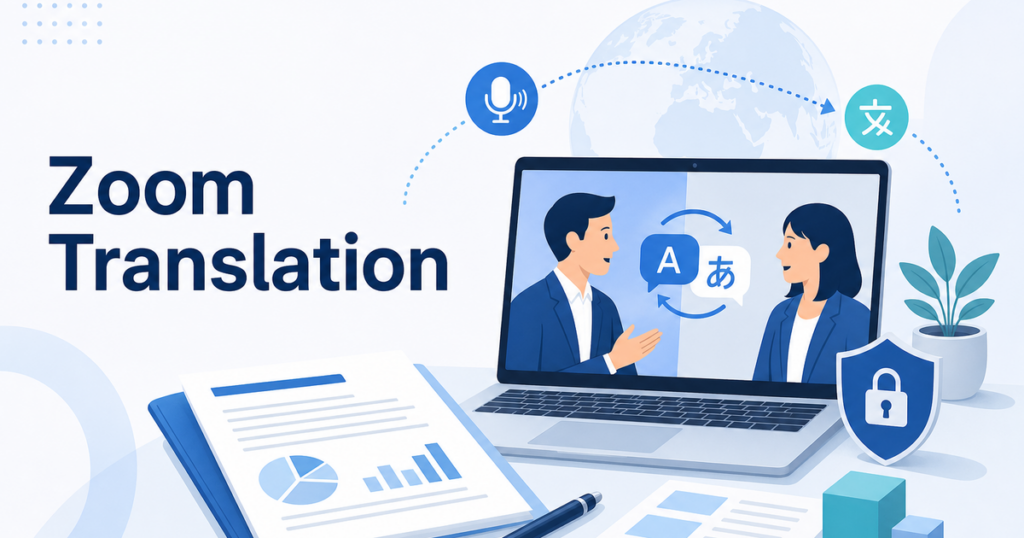
You are on a Zoom call with partners in Tokyo. They speak Japanese. You speak English. The meeting is happening now, and you need to understand each other. What are your options for real-time translation?
This article covers every practical approach to translating a Zoom meeting as it happens — from built-in Zoom features to external tools — so you can choose the right one for your situation.
Option 1: Zoom's Built-In Translated Captions
Zoom offers translated captions that display real-time translations of spoken audio as on-screen text. When enabled, participants see captions in their preferred language while someone speaks in another.
Source: Zoom translated captions support article
How It Works
A participant speaks in one language. Zoom generates captions using speech recognition, translates those captions, and displays the translation on screen for participants who selected a different language. The result is not simultaneous interpretation — it is translated captions, which means there is a slight delay and the output is text, not audio.
What You Need
Zoom's translated captions are available on specific Zoom plans. Check Zoom's current documentation for plan requirements and supported language pairs, as these change over time. The meeting host or admin needs to enable the feature in Zoom settings before it is available in meetings.
Source: Zoom translated captions support article
Limitations
Translated captions work best when one person speaks at a time in a quiet environment. Overlapping speech, heavy accents, background noise, and fast talking all reduce accuracy. Technical jargon and company-specific terminology may not translate correctly because the engine has no context about your business.
The output is also text-only. If you need spoken translation — hearing the other language in your own — Zoom captions do not provide that.
Best For
Meetings where participants are comfortable reading captions, where the conversation is relatively structured (one speaker at a time), and where the language pairs are well-supported by Zoom's caption engine.
Option 2: Zoom's Language Interpretation Feature
Zoom also offers a language interpretation feature designed for multilingual meetings. This is a different capability from translated captions.
How It Works
With language interpretation, you designate one or more participants as interpreters. When interpretation is active, participants can choose to listen to the original audio or to an interpreter's audio channel. The interpreters listen to the original speaker and provide simultaneous interpretation verbally.
This is not AI translation. It is a tool that enables human interpreters to work within Zoom. You still need actual bilingual people to serve as interpreters.
What You Need
Language interpretation requires designated interpreters who are fluent in both languages. Zoom provides the audio channel infrastructure; it does not provide the interpreters. If you have bilingual team members or hire professional interpreters, this feature gives them a dedicated channel within the Zoom meeting.
Best For
High-stakes meetings where accuracy is critical: legal proceedings, executive negotiations, medical consultations, and any situation where mistranslation has real consequences. Human interpretation is more accurate and nuanced than any AI solution currently available.
Option 3: Third-Party Meeting Translation Bots
Several third-party services offer meeting bots that join your Zoom call as a participant, listen to the audio, and provide real-time translation. These bots typically connect through Zoom's API or join as a regular participant.
How They Work
The bot joins the meeting, captures the audio stream, processes it through speech recognition and translation, and outputs translated text (and sometimes audio) back to the meeting. Some bots display captions in the Zoom window, while others require participants to open a separate browser window to see the translation.
Considerations
Using a third-party bot means your meeting audio is being processed by an external service. Evaluate the privacy implications before using bots for confidential meetings. Check the service's data handling policies, retention periods, and security practices.
Also consider the meeting experience. A bot joining as a participant adds a non-human presence to the meeting. Some participants may find this distracting or may have concerns about recording and transcription.
Best For
Teams that need translated captions beyond what Zoom's built-in feature offers, or teams on Zoom plans that do not include translated captions. Also useful when you need translation into languages that Zoom's caption engine does not support well.
Option 4: Desktop Translation Apps
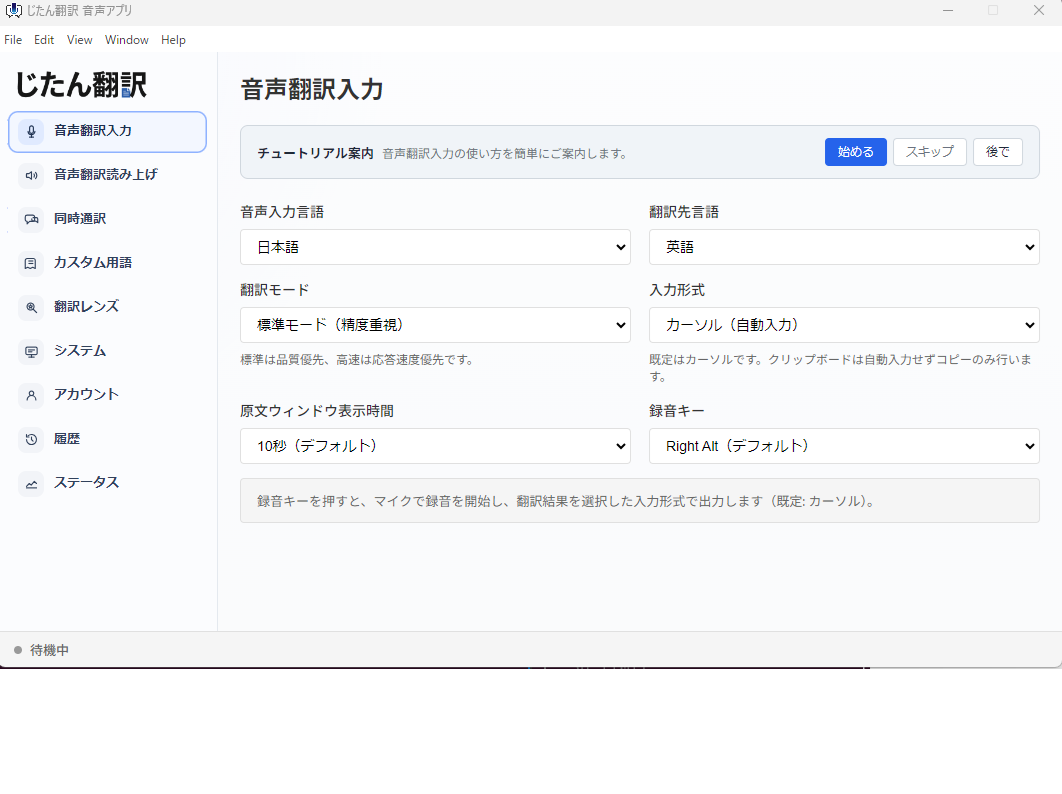
Desktop translation apps provide another option that works alongside Zoom rather than inside it. These apps capture audio from your computer — including the Zoom meeting audio — and provide real-time translation through a separate interface.
How They Work
You run the desktop app alongside Zoom. The app captures the audio playing through your computer speakers or headphones, recognizes the speech, translates it, and displays the translation in its own window. Some apps also provide spoken output using text-to-speech.
The key advantage is that this approach is platform-independent. It works with Zoom, but it also works with any other meeting platform, video player, or audio source. You are not locked into a specific meeting tool's translation features.
Practical Setup
To use a desktop translation app with Zoom:
- Install and configure the desktop app.
- Start your Zoom meeting.
- Set the desktop app to capture system audio or microphone input, depending on whether you want to translate incoming speech or your own speech.
- Position the translation window where you can see it during the meeting.
Some desktop apps offer features like push-to-talk for translating your own speech in real time, which is useful if you need to speak and have your words translated for other participants.
Best For
Teams that use multiple meeting platforms and want a consistent translation solution across all of them. Also useful when the meeting platform's built-in translation does not meet your needs and you cannot use third-party bots due to privacy policies or IT restrictions.
Option 5: Professional Interpreter Services
For the highest accuracy, hire professional interpreters. They can join your Zoom meeting as participants (using Zoom's language interpretation feature or simply as a separate participant on mute) and provide real-time interpretation.
When This Makes Sense
- Legal and compliance meetings where accuracy is non-negotiable.
- Executive-level meetings where nuance and tone matter.
- Medical or healthcare discussions where incorrect translation could cause harm.
- Negotiations where every word carries weight.
Professional interpretation is the most expensive option but also the most reliable. For critical meetings, the cost is justified by the risk reduction.
Choosing the Right Approach
For Quick Internal Meetings
Use Zoom's built-in translated captions if available on your plan. They are the simplest option and require no additional setup. If captions are not available, a desktop translation app provides a reasonable fallback.
For Client-Facing Meetings
Consider the client's expectations. If they expect professional interpretation, arrange for a human interpreter. If translated captions are acceptable, use Zoom's built-in feature or a desktop app. For external meetings, test your translation setup beforehand with a colleague to avoid technical issues during the actual meeting.
For Large Multilingual Meetings
Zoom's language interpretation feature with professional interpreters is the most reliable approach for large meetings with multiple languages. The audio channel system lets each participant choose their preferred language without affecting others.
For Cross-Platform Teams
If your team switches between Zoom, Teams, and Google Meet, a desktop translation app gives you a consistent experience regardless of which platform the meeting is on. This avoids the need to learn and configure different translation features in each meeting tool.
For a broader comparison of translation options across meeting platforms, this guide to real-time translation for Zoom, Teams, and Google Meet covers the full landscape.
Tips for Better Real-Time Meeting Translation
Regardless of which approach you use, these practices improve the quality of real-time translation in meetings:
- Speak clearly and at a moderate pace. Fast speech and mumbling degrade both speech recognition and translation quality.
- Pause between sentences. Translation engines process better when there are natural breaks in speech.
- Avoid jargon and idioms. Technical terms and cultural expressions are the weakest point of AI translation. Use plain language when possible.
- Use a good microphone. Audio quality directly affects speech recognition accuracy, which affects translation accuracy.
- Minimize background noise. Conference rooms with echo, HVAC noise, or side conversations produce worse results than quiet environments.
- Mute when not speaking. This prevents the translation engine from processing non-speech audio.
- Repeat or rephrase important points. If a translation seems off, say the point again in different words. This gives the engine another chance to get it right.
Preparing Participants
Let all participants know before the meeting that translation will be used. This sets expectations and gives them time to prepare:
- Let them know whether translation is text (captions) or audio.
- If using captions, tell them where to find the caption display.
- If using a desktop app, share setup instructions before the meeting.
- Encourage non-native speakers to speak slowly and clearly.
A brief orientation at the start of the meeting — "We are using translated captions today; please speak one at a time" — prevents most issues.
Troubleshooting Common Translation Issues in Zoom Meetings
Even with the right tool, things go wrong. Here are the most common issues and how to fix them:
Captions Are Inaccurate or Gibberish
This is usually an audio quality problem. Check that the speaker is using a good microphone, not a laptop speakerphone in a large room. Ask the speaker to slow down and speak clearly. If the issue persists, the language pair may not be well-supported — try switching to a desktop translation app that handles your specific pair better.
Translation Delay Is Too Long
Some delay is inevitable with AI translation — the system needs to hear enough speech to produce a coherent sentence. If the delay is excessive, it may indicate a slow internet connection on the caption provider's side. Switching to a different translation tool or refreshing the meeting connection can help.
Participants Cannot See Captions
If Zoom captions are enabled but participants cannot see them, they may need to turn on caption visibility in their own Zoom settings. Each participant controls whether captions are displayed on their screen. Share a quick instruction at the start of the meeting: "Click the CC button to enable captions."
Meeting Audio Is Not Reaching the Translation App
For desktop translation apps, this is usually a system audio configuration issue. Make sure the app is set to capture the correct audio source (system audio, not microphone). On some operating systems, you may need to grant audio capture permissions to the app.
The Bottom Line
Zoom's built-in translated captions are the easiest starting point for most meetings. Human interpretation is the gold standard for high-stakes conversations. Desktop translation apps provide flexibility across platforms. Third-party bots add capability but introduce privacy considerations.
Choose based on the meeting's importance, your participants' needs, and your organization's policies. And whatever option you choose, test it before relying on it in a real meeting.