Microsoft Teams offers multiple ways to handle multilingual meetings. There is the Interpreter feature, live captions, and translated captions. And then there are desktop translation apps that work alongside Teams. Which one should you use?
The answer depends on your meeting type, your participants, and what you need from the translation. This article compares all the options so you can make the right call.
Teams Built-In Options: Three Features, Different Purposes
Teams has evolved its multilingual meeting capabilities significantly. What used to be a single caption feature is now a set of distinct tools. Understanding the difference between them is the first step.
Live Captions (Same-Language)
Live captions display a text transcript of what is being said in the meeting, in the same language the person is speaking. This is not translation — it is transcription. If someone speaks English, the captions show English text.
Live captions help participants who are deaf or hard of hearing, people in noisy environments, and anyone who prefers to read along. They do not help participants who speak a different language.
Translated Captions
Translated captions take the live transcript and translate it into another language. A Japanese-speaking participant can read captions in Japanese while an English-speaking participant presents in English.
Translated captions are available on specific Teams plans and must be enabled by the Teams admin. Check Microsoft's documentation for current plan requirements and supported languages.
Source: Teams captions and transcription admin documentation
Teams Interpreter
The Interpreter feature is the newest and most capable option. It provides real-time spoken interpretation during Teams meetings and calls. When enabled, participants can choose to hear a simulated interpretation of what another participant is saying.
Source: Teams Interpreter support article
Unlike translated captions (which are text), Interpreter produces spoken output. Participants hear the translation in their selected language, closer to the experience of having a human interpreter in the room.
Comparing the Three Teams Options
| Feature | Output | Plan Required | Best For |
|---|---|---|---|
| Live Captions | Text (same language) | Most Teams plans | Accessibility, noisy environments |
| Translated Captions | Text (different language) | Specific Teams plans | Reading along in another language |
| Interpreter | Audio (different language) | Check current requirements | Immersive multilingual meetings |
Accuracy Differences
All three features use AI speech recognition and translation, so accuracy depends on the same factors: audio quality, speaker clarity, language pair, and technical jargon. The Interpreter feature generally benefits from more recent AI models because it is newer, but the fundamental accuracy limitations of AI translation apply to all three.
When Teams Built-In Features Are Not Enough
Teams' built-in translation features work well for internal meetings where everyone is on Teams and the organization controls the admin settings. But several common scenarios push teams toward alternative solutions.
External Meetings With Clients or Partners
When you join an external meeting hosted on another organization's Teams instance, you may not have access to the same translation features. The host organization's admin settings control what is available. If they have not enabled translated captions or Interpreter, you are out of luck — even if your own organization has these features enabled.
This is the most common reason teams look beyond Teams' built-in translation. You cannot control the host's settings.
Cross-Platform Meetings
Your client uses Zoom. Your partner uses Google Meet. Your team uses Teams. In mixed-platform meetings, you need a translation solution that works regardless of which platform is hosting the call. Teams' built-in features only work within Teams.
Language Pairs Not Supported by Teams
Teams supports many language pairs but not all of them. If you need translation between two languages that Teams does not support, you need an external tool. Check Microsoft's current documentation for the latest list of supported languages.
Source: Teams captions admin documentation
Admin Restrictions
Some organizations disable translation features for security or compliance reasons. If your IT team has turned off translated captions or Interpreter, you cannot use them regardless of your plan. In regulated industries, this is not uncommon.
Desktop Translation Apps: The Cross-Platform Alternative
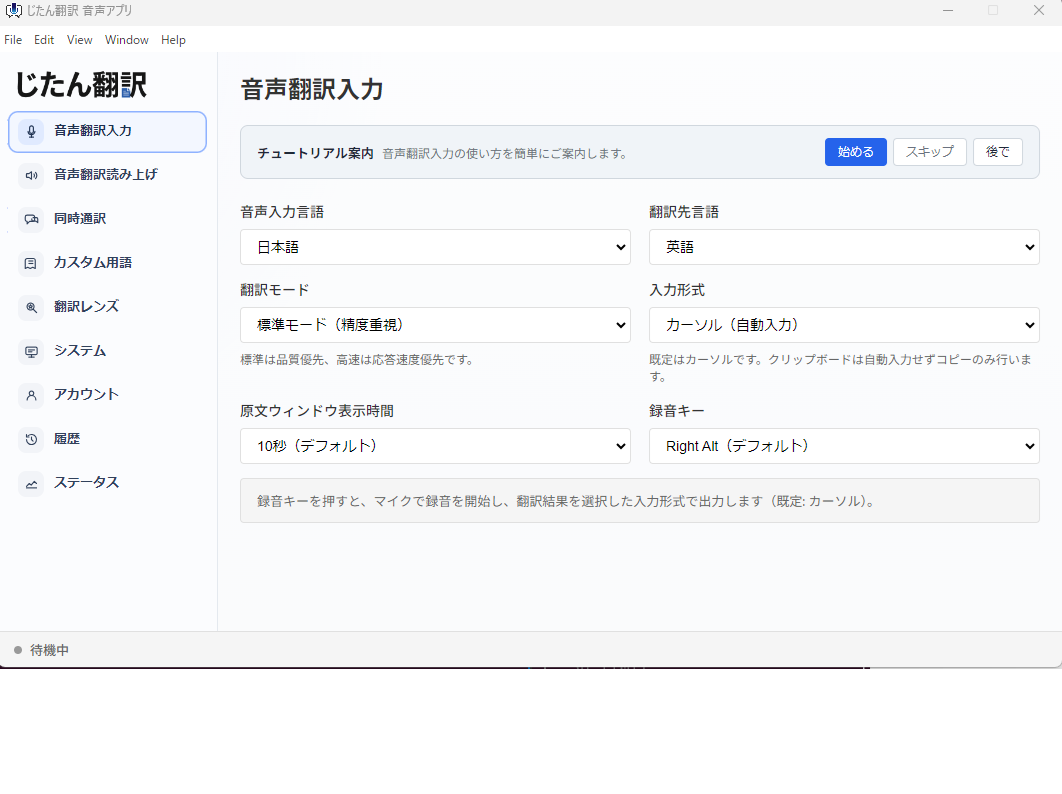
Desktop translation apps solve the problems above by operating independently of the meeting platform. They capture audio from your computer and provide translation through their own interface.
How Desktop Apps Work With Teams
The setup is straightforward:
- Install the desktop translation app on your computer.
- Start your Teams meeting.
- Configure the app to capture system audio (the Teams meeting audio coming through your speakers or headphones).
- The app recognizes the speech, translates it, and displays the translation.
Some desktop apps can also capture your microphone input, translate your speech in real time, and output the translation as audio that other meeting participants can hear. This effectively turns you into a bilingual participant.
Advantages Over Teams Built-In Features
- Platform independence: The same app works with Teams, Zoom, Google Meet, Webex, and any other meeting platform. You learn one tool instead of four.
- No admin dependencies: You do not need anyone to enable features or change settings. The app runs on your computer, using your audio.
- Works in external meetings: You bring your translation capability to any meeting, regardless of who is hosting.
- Consistent experience: The translation quality and interface are the same whether you are in a Teams meeting, a Zoom call, or watching a recorded webinar.
Limitations
- Separate window: The translation appears in the app's window, not integrated into the Teams interface. You need to arrange your screen to see both.
- Audio capture quality: System audio capture works well on most systems, but some configurations (especially virtual audio devices) can cause issues.
- Not managed by IT: Desktop apps may not be approved by your IT department. Check before installing.
Choosing the Right Tool for Your Meeting
For Internal Teams Meetings (All Participants on Your Teams Instance)
Use Teams Interpreter if available on your plan. It provides the most immersive experience — participants hear the translation as audio, which is closer to natural multilingual conversation than reading captions.
If Interpreter is not available, translated captions are the next best option. They require participants to read rather than listen, but they are effective for structured meetings.
For External Meetings (Hosted on Another Organization's Platform)
A desktop translation app is your most reliable option. It works regardless of the host's settings and across any meeting platform. Bring your own translation capability to every meeting.
For Cross-Platform Teams
If your team regularly uses multiple meeting platforms, standardize on a desktop translation app. It provides a consistent experience and eliminates the need to learn different translation features in each platform. For a broader comparison, this guide to real-time translation across meeting platforms covers the full landscape.
For High-Stakes Meetings
Hire a professional human interpreter. AI translation — whether built into Teams or from a desktop app — is not reliable enough for legal proceedings, medical consultations, executive negotiations, or any situation where a mistranslation has real consequences. Use Teams' language interpretation channel to integrate the interpreter into the meeting audio.
Tips for Better Meeting Translation
Regardless of which tool you use, these practices improve translation quality:
- One speaker at a time. Overlapping speech confuses both speech recognition and translation.
- Speak at a measured pace. Fast speech reduces accuracy across all AI translation systems.
- Use a quality microphone or headset. Audio input quality is the single biggest factor in translation accuracy.
- Minimize background noise. Mute yourself when not speaking, and encourage others to do the same.
- Avoid jargon where possible. AI translation handles common language better than specialized terminology.
- Rephrase important points. If a translation seems wrong, say the same thing differently to give the system another chance.
The Hybrid Approach
Many teams use a combination: Teams' built-in features for internal meetings where they are available, and a desktop app for external meetings and cross-platform calls. This is not redundant — it is pragmatic. Each tool handles different scenarios better.
The key is to establish your team's standard approach before the meeting starts, not during it. Scrambling to set up translation while a meeting is already underway is a recipe for missed communication and frustration.
What to Evaluate When Choosing
When comparing translation options for Teams meetings, consider these factors:
- Where your meetings happen: Internal Teams only, or external and cross-platform?
- Who controls the settings: Your IT team or the host organization?
- What output you need: Text captions, spoken audio, or both?
- Which languages: Are your required language pairs supported?
- Privacy requirements: Does your organization allow meeting audio to be processed by external services?
- Budget: Built-in features are included with your plan. Desktop apps and human interpreters add cost.
Answer these questions, and the right choice becomes clear for each meeting type.
Setting Up Teams Translation Features: Admin Requirements
For the built-in Teams translation features, your IT administrator needs to enable them. Here is what to know:
Translated Captions Setup
Translated captions are controlled through the Teams admin center. The admin needs to enable the transcription and caption features at the organization level. Individual users cannot turn these on if the admin has disabled them. If your IT team has not enabled translated captions, submit a request with the business justification — many admins are unaware that teams need this feature.
Source: Teams captions admin documentation
Interpreter Feature Availability
The Interpreter feature is newer and may have different plan requirements than translated captions. Check Microsoft's current documentation for which Teams plans include it. If your organization is on an older plan, you may need to upgrade or wait for the feature to become available.
Source: Teams Interpreter support article
What to Do If Admin Will Not Enable Features
If your IT team declines to enable Teams translation features, desktop translation apps become your primary option. They work without admin approval because they run as a desktop app on your computer and capture system audio independently of Teams, but the translation processing model depends on the provider. This is a common workaround in organizations with restrictive IT policies.
Preparing Your Team for Multilingual Meetings
Regardless of which translation method you use, meeting preparation makes a significant difference in translation quality:
- Share an agenda in advance in both languages when possible. This gives participants context that helps them follow the translated conversation.
- Assign a meeting facilitator who manages the translation flow — reminding people to speak one at a time, repeating unclear points, and watching for translation errors that need clarification.
- Record the meeting (with permission) so participants can review sections they may not have fully understood during the live translation.
- Follow up with written summaries in both languages. AI meeting translation captures the gist but may miss details. A written summary ensures nothing important falls through the cracks.
These preparation steps take 10-15 minutes before a meeting and significantly improve the multilingual experience for everyone involved.