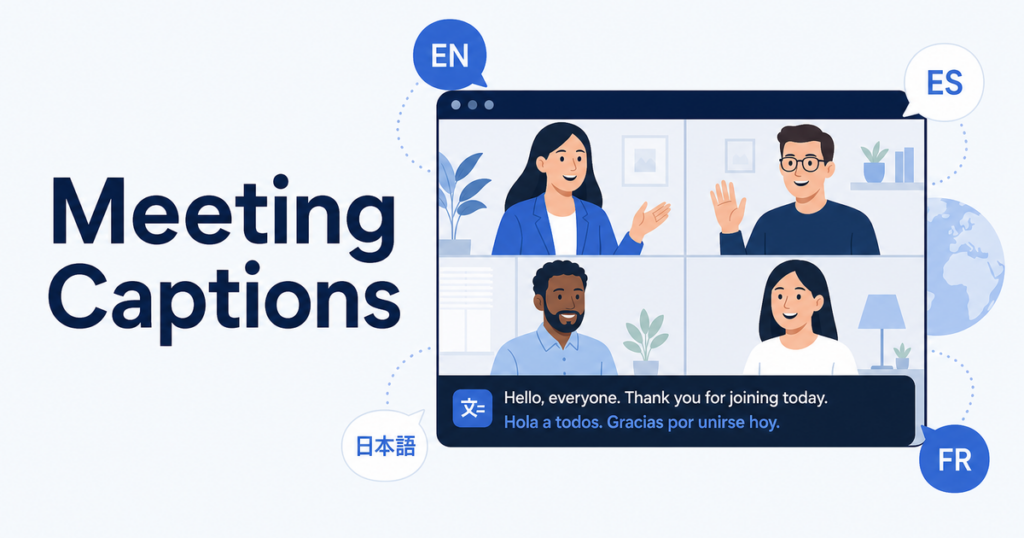
If you are searching for how to translate Google Meet, the main built-in option is translated captions. They can show real-time translated text during a meeting, but availability depends on the meeting host’s Google Workspace plan, admin settings, and Google’s current supported languages.
Google Meet is straightforward, browser-based, and tightly integrated with Calendar and Gmail. For multilingual teams, that makes translated captions attractive, but the feature still has clear boundaries: which plans include it, who controls it, and how reliable the translation actually is in a business context.
For broader context, compare Meet against Zoom and Teams meeting translation options and the difference between live captions and voice interpretation. This article focuses on Google Meet’s translated captions and practical backup options.
How Meet Translated Captions Work
Meet translated captions follow the same basic pattern as other platforms: the system captures the speaker’s audio, converts it to text using speech recognition, then translates that text into the viewer’s chosen language. The translated text appears as captions at the bottom of the meeting window.
The entire process is automated. No human translators are involved. Google uses its own machine translation engine, the same underlying technology that powers Google Translate, adapted for real-time speech.
In practice, the captions appear with a slight delay. The system needs to process enough audio to generate coherent text, translate it, and render it on screen. For speakers who pause naturally between thoughts, this works well. For fast talkers who string ideas together without breaks, the captions can lag or produce less coherent output.
Source: Google Meet translated captions
The Host Dependency Problem
This is the single most common frustration for teams using Meet translated captions: the feature depends on the meeting host’s account and settings.
When you join a Google Meet call, your ability to see translated captions is determined by who organized the meeting. If the host’s Google Workspace plan includes translated captions and the host has the feature enabled, participants can turn on translated captions in their preferred language. If the host’s plan does not include the feature, nobody in the meeting gets it.
This creates a few practical problems:
External meetings are unpredictable. If a client or partner hosts a Google Meet call on a plan without translated captions, your team has no way to enable them. You are dependent on the other party’s subscription tier.
Different plans across your own team. Some organizations have users on different Google Workspace tiers. If a team member on a lower-tier plan schedules a meeting, translated captions may not be available even though other participants have higher-tier plans.
Host controls can override. Even on plans that include translated captions, the host can use meeting controls to restrict certain features. Google Meet gives the host control over various aspects of the meeting experience.
Source: Google Meet host controls
Plan Availability: What to Check
Google has adjusted which Workspace plans include translated captions over time, and the current mapping may differ from what you find in older blog posts or forum discussions.
Rather than listing specific plan names that may change, here is how to verify whether your organization has access:
- Open Google Meet and start a test meeting.
- Click the Captions icon (it looks like a speech bubble with “CC”) at the bottom of the screen.
- Look for a language selector. If you see the option to choose a different language for captions, translated captions are available on your account.
- If you only see same-language captions, your plan may not include the translation feature.
If you are a Google Workspace admin, you can also check the admin console under the Meet settings to see which caption features are enabled for your organization. Admins can enable or disable translated captions at the organizational unit level, which means different teams within the same company may have different access.
Language Support and Quality
The number of languages available for translated captions in Google Meet has grown steadily, but not all language pairs are equal in quality. Google’s translation engine performs better on some language pairs than others, typically those with large training datasets.
For widely spoken languages like Spanish, French, German, and Portuguese, the translation quality is generally good enough for following the main points of a meeting. For less common language pairs, the quality drops. Idiomatic expressions, slang, and culturally specific references often translate poorly or not at all.
Business-specific terminology presents the same challenge it does on every platform. Google’s translation engine does not know your company’s product names, internal jargon, or industry-specific abbreviations. You will see approximations that capture the general meaning but may miss the precise term.
Check Google’s current documentation for the latest list of supported languages. The list changes over time as Google adds new language pairs.
Source: Google Meet translated captions supported languages
Meet’s Gemini-Powered Features
Google has been integrating its Gemini AI models into Workspace products, and Meet is part of that rollout. Some Gemini-powered features in Meet include AI-generated meeting notes, summaries, and enhanced transcription capabilities.
These features are distinct from translated captions. Meeting notes and summaries are generated after the meeting (or in real time as a separate panel) and provide a synthesized overview of what was discussed. They are not a real-time translation tool.
However, the combination of translated captions during the meeting and AI-generated notes afterward can provide a more complete multilingual experience. Participants follow along during the meeting using translated captions, then review the AI-generated summary afterward to confirm their understanding.
The limitation: Gemini features in Meet have their own plan requirements, which may differ from translated captions. Do not assume that having one gives you the other.
Source: Google Meet notes and Gemini features
Practical Limits in Business Use
Meeting Size and Performance
In large meetings with many participants, caption performance can degrade. The speech recognition engine works best when there is a clear audio feed from the active speaker. Background noise, multiple people talking at once, and poor microphone quality all reduce caption accuracy.
For meetings with more than 20-30 participants, consider whether everyone needs captions or whether a smaller group of non-native speakers can use them while others follow along without.
Audio Quality Matters More Than You Think
Translated captions are only as good as the audio they receive. A participant joining from a noisy coffee shop with a laptop microphone produces captions that are significantly worse than someone in a quiet room with a quality headset.
If your multilingual meetings are important enough to need translated captions, they are important enough to ask participants to use headsets. This single step improves caption quality more than any software setting.
No Custom Terminology
Google Meet does not provide a way to add custom vocabulary or terminology. If your team regularly discusses specialized topics, the captions will struggle with your specific terms. There is no workaround within Meet itself for this limitation.
A practical approach is to circulate a short glossary of key terms before the meeting and ask the presenter to speak those terms slowly and clearly. When the speech recognition engine captures the term accurately, the downstream translation has a better chance of producing a useful result, even without custom vocabulary support.
Captions Are Not a Record
Translated captions in Google Meet are ephemeral. They appear during the meeting and disappear when it ends. They are not automatically saved as a transcript unless you have separate transcription features enabled. If you need a written record of what was discussed, do not rely on captions alone.
Desktop Alternatives When Meet Falls Short
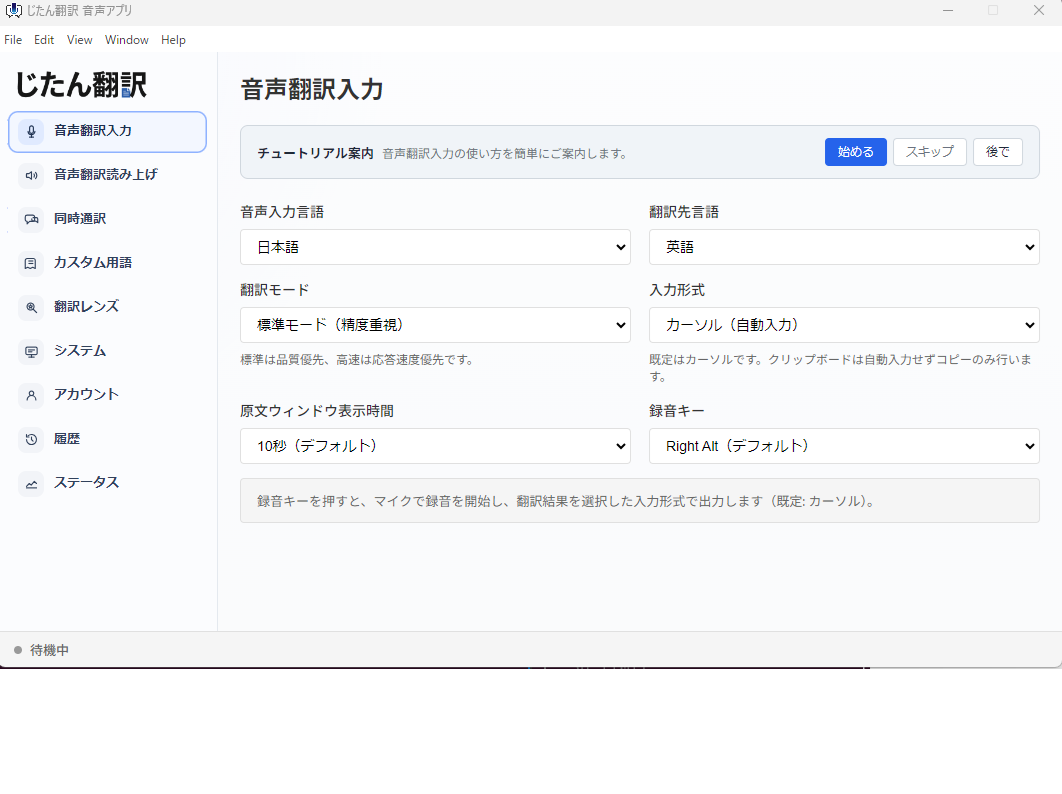
When Google Meet’s translated captions are not available on the host’s plan, or when the translation quality does not meet your needs, desktop translation apps offer a practical alternative.
A desktop translation app runs on your computer and works with the audio playing through your system. It does not depend on the meeting platform’s built-in features or the host’s subscription plan. You install it locally, and it works with any audio source, whether that is Google Meet, Zoom, Teams, or a web-based conferencing tool.
The benefits for Google Meet users specifically:
- No dependency on the host’s plan. You get translation regardless of who organized the meeting.
- Consistent experience across platforms. If your team uses Meet for internal calls but clients use Zoom or Teams, the same desktop tool works everywhere.
- Your choice of translation engine. Desktop tools may use different translation backends, giving you options if Google’s translation quality is insufficient for your language pair.
The tradeoff is that desktop tools process the audio they hear through your system, so the quality depends on your audio setup. Using a headset and joining from a quiet environment produces the best results.
Comparing Meet to Other Platforms
If your team is choosing a meeting platform partly based on translation capabilities, here are the key differences:
Google Meet integrates translated captions naturally into the browser experience but ties availability to the host’s Workspace plan. The feature is easy to use when available but completely unavailable when it is not.
Zoom offers translated captions with its own plan dependencies and host controls. The feature set is similar, but the host dependency is the same. Zoom also offers a separate interpreter feature with human interpreters.
Microsoft Teams provides translated captions, transcription, and an interpreter mode. Teams tends to have more granular admin controls, which can be either a benefit or a barrier depending on your organization’s IT policies.
None of these platforms solve the fundamental problem: translation features depend on the host’s subscription. For teams that regularly join meetings hosted by others, a desktop translation tool provides independence from platform limitations.
Recommendations
- Check your Google Workspace plan before your next multilingual meeting. Do not discover during the call that translated captions are unavailable.
- Test with a real meeting scenario. Set up a short test call with participants who need translation and evaluate whether the quality meets your standards.
- Ask participants to use headsets. This is the single most effective step for improving caption quality.
- Pair captions with follow-up documentation. After the meeting, share a summary in both languages so participants can confirm their understanding.
- Keep a desktop translation tool ready as backup. When Meet’s built-in captions are not available or sufficient, you have an immediate alternative.
- For high-stakes meetings, consider human interpreters. Machine translation is a support tool, not a replacement for professional interpretation when accuracy is critical.
- Test with the actual language pair you will use. Translation quality varies significantly between language pairs. What works well for English-Spanish may be noticeably weaker for less common pairs. Run your test call with the same source and target languages you will use in production.
Google Meet translated captions are a solid feature for teams already on supported Workspace plans. The key is knowing their limits before you depend on them, and having a backup plan ready when those limits become apparent.