
When people search for Microsoft Teams live translation, they usually mean live translated captions (also called translated captions): spoken meeting audio shown as text in another language on each participant's screen. That is different from same-language live captions, post-meeting transcription, or the newer interpreter mode that delivers translated speech.
If Teams translated captions are unavailable
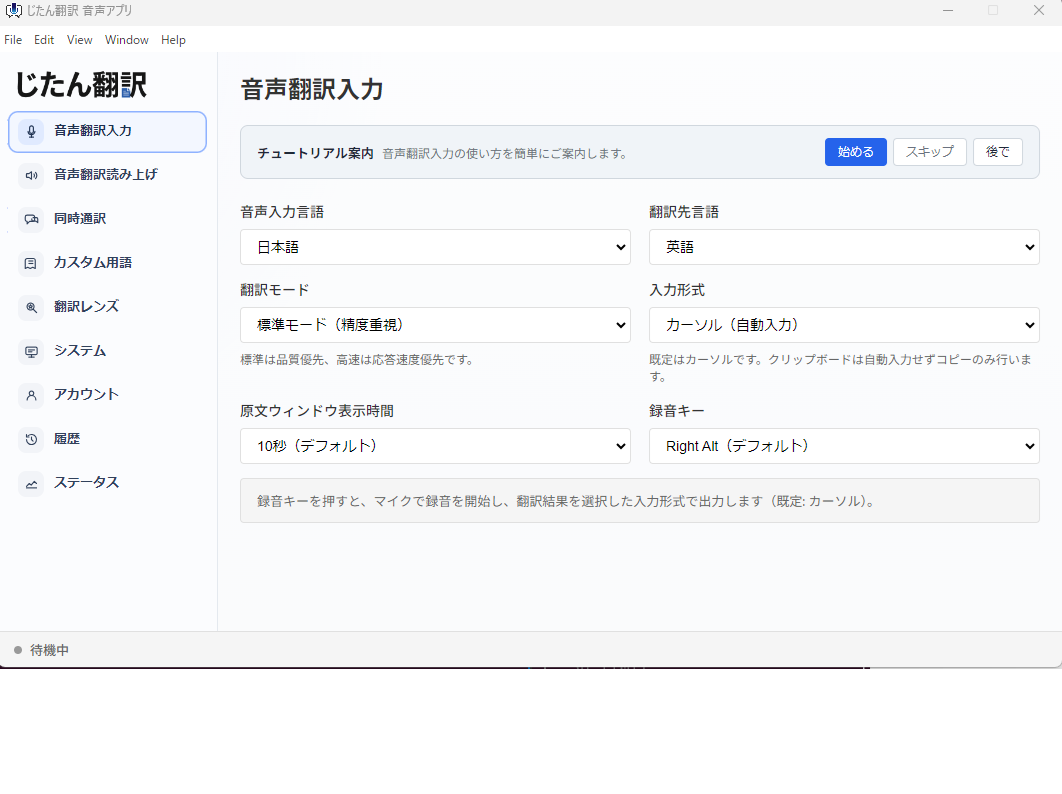
When the host, tenant policy, or license does not allow translated captions, a desktop translation app can translate the audio on your own PC. Try Jitan Translate for Windows.
Short answer: Teams can support live translated captions, but availability depends on your Microsoft 365 / Teams Premium / Copilot licensing, tenant admin policies, meeting role, and Microsoft's current official requirements—not every account gets every feature by default. Supported languages also change over time, so confirm the latest list on Microsoft's official documentation before you plan a rollout.
This is an unofficial guide for IT and meeting organizers. Use it to understand setup, licensing, and privacy basics, then verify final decisions against Microsoft's official Teams pages for your tenant and region.
This article explains what each Teams multilingual feature does, how to turn on translated captions, what licenses typically matter, and what happens to meeting data. For broader platform context, see our Zoom vs Teams vs Google Meet meeting translation comparison and live captions vs voice interpretation in meetings.
The Four Multilingual Features in Teams
Before diving into setup and licensing, it helps to understand what Teams actually offers, because the names are similar but the capabilities differ significantly.
Live captions display the spoken words as text on screen in the same language being spoken. If someone is speaking English, the captions appear in English. This is useful for accessibility and for participants in noisy environments, but it does not translate between languages.
Translated captions take the live captions a step further. They display the spoken content translated into a language the participant chooses. A participant speaking French sees English captions, or vice versa. This is the feature most people are looking for when they ask about meeting translation in Teams.
Transcription creates a written record of the meeting after it ends. It can generate a transcript in the language spoken during the meeting and, in some configurations, translate that transcript into other languages. Transcription is a post-meeting feature, not a real-time one.
Interpreter is a newer feature that provides real-time speech-to-speech translation. A participant speaks in one language, and other participants hear a synthetic voice speaking in their chosen language. This goes beyond captions by delivering actual translated audio.
Source: Microsoft Teams interpreter documentation
Setting Up Translated Captions
Setting up translated captions in Teams involves both admin-level configuration and user-level action.
Admin Configuration
The Teams administrator controls whether translated captions are available to users in the organization. This is managed in the Teams admin center under meeting policies.
Key admin settings to check:
- Allow captions. This must be enabled for any captions, translated or otherwise, to appear in meetings.
- Allow transcription. Some translated caption features tie into the transcription engine. Enabling transcription at the policy level ensures the full pipeline is available.
- Allow participation in interpreter mode. This is a separate toggle that controls whether the real-time interpreter feature is available.
Admins can apply these settings at the organization level, to specific groups, or to individual users. For companies with mixed licensing, this granularity matters because some features may only be available to users on higher-tier plans.
Source: Microsoft Teams captions and transcription admin documentation
User Action During a Meeting
Once the admin has enabled the feature, individual users turn on translated captions during a meeting:
- Join the meeting.
- Select More actions (the three-dot menu).
- Choose Language and speech and then Turn on translated captions.
- Select the source language and the target language.
Each participant controls their own caption language. One person can view Japanese captions while another views Spanish, all in the same meeting. This per-participant control is one of the strengths of Teams translated captions compared to some other platforms.
Licensing: Where Things Get Complicated
Licensing is the part that catches most organizations off guard. Not all Microsoft 365 plans include all Teams multilingual features, and the feature mapping has changed over time as Microsoft has adjusted what goes into which tier.
Here is what you need to know without tying yourself to a specific plan name that may change:
Live captions in the spoken language are broadly available across Microsoft 365 plans that include Teams. This is the most widely included feature.
Translated captions have historically required higher-tier plans. If your organization is on a business basic or equivalent plan, you may find that live captions work but translated captions do not. Check the Microsoft 365 comparison page for your region and plan to confirm.
Transcription availability also varies by plan. Some plans include transcription for recorded meetings but not for all meetings. Others include it universally.
Interpreter mode is the newest feature and may have the most restrictive licensing requirements. Because it involves real-time speech synthesis in addition to translation, it consumes more compute resources and may be limited to premium plans.
The practical advice: before you commit to using Teams for multilingual meetings, verify exactly which features your current licenses include. Do not assume that because live captions work, translated captions will too. Test with a real user account, not an admin account, because admin accounts sometimes have access to features that regular user accounts do not.
Source: Microsoft Teams app permissions
Privacy and Data Handling
For organizations in regulated industries or those handling sensitive information, understanding what happens to meeting audio and captions is important.
Where Processing Happens
Teams captions and transcription are processed by Microsoft's cloud services. The audio from your meeting is sent to Microsoft's servers, converted to text, and, if translated captions are enabled, translated. The results are sent back to participants' devices for display.
This means the meeting audio leaves your network. For organizations with strict data residency requirements, this is a consideration. Microsoft does offer regional data processing options for some services, but the specifics depend on your tenant configuration and plan.
Transcript Storage
When transcription is enabled, Teams creates a written record of the meeting. This transcript is stored in the meeting organizer's OneDrive or SharePoint, depending on how the meeting was set up. The transcript persists after the meeting ends and can be accessed by participants with appropriate permissions.
Transcripts may contain sensitive information discussed during the meeting. Your organization's data retention policies should account for these transcripts. If your compliance requirements mandate deletion of meeting records after a certain period, ensure that Teams transcripts are included in that deletion schedule.
Who Sees What
Translated captions are visible only to the participant who enabled them. Other participants do not see what language you have selected or what the translated text says. This is a privacy-positive design because it means you can use translated captions without signaling to the rest of the meeting that you need them.
Transcripts, however, are visible to all participants who have access to the meeting recording or meeting details. If the meeting was recorded, the transcript is attached to the recording. Be aware of this difference when deciding which features to use for sensitive meetings.
Common Setup Mistakes
Organizations run into a handful of recurring problems when rolling out Teams translated captions:
Assuming all users have the feature. In organizations with mixed licensing, some users may have access to translated captions while others do not. This creates confusing situations where one participant can turn on translated captions but another cannot.
Blocking the feature at the admin level without realizing it. Teams admin policies can restrict features at the organization, group, or user level. An admin may have disabled captions or transcription as part of a security policy review without connecting that decision to the multilingual meeting use case.
Not testing with external participants. When you invite someone from outside your organization to a Teams meeting, their ability to use translated captions depends on your tenant settings and their own Teams configuration. Guest access has its own set of policy controls that may be more restrictive than internal user policies.
Ignoring the interpreter feature setup. Interpreter mode in Teams is not automatically available just because translated captions are. It requires separate admin enablement and may have different licensing requirements. If your team expects real-time translated audio, confirm that interpreter mode is enabled and included in your plan.
A Quick Licensing Test
Before scheduling your first multilingual Teams meeting, have a non-admin user try to turn on translated captions in a test call. This catches two common problems: features that are included in the plan but blocked by admin policy, and features that appear available to admin accounts but are not included in standard user licenses. Testing with a regular user account is the only reliable way to confirm what your team will actually see during a real meeting.
Teams Captions vs Desktop Translation Tools
When Teams' built-in features are not available or sufficient, desktop translation tools provide an alternative. These tools run on your computer and work with whatever audio is playing through your system.
The key differences:
Independence from licensing. Desktop tools do not depend on your Teams plan. You install them on your machine and they work with any meeting platform.
Consistency across platforms. The same desktop tool works in Teams, Zoom, Google Meet, Webex, or any other conferencing platform. You do not need to figure out the translation features of every platform your team uses.
No admin approval needed. If you are joining a meeting hosted by another organization, you cannot control their Teams settings. A desktop tool runs on your machine and does not require any changes to the host's meeting configuration.
Different data handling. Desktop tools process audio locally or through their own cloud services, separate from Microsoft's infrastructure. This may matter for organizations with specific data handling requirements.
The tradeoff is that desktop tools translate the audio they hear through your system, which means audio quality depends on your speakers, microphone setup, and the meeting platform's audio output. In practice, using a good headset produces reliable results.
When to Use Which Approach
For organizations already on Microsoft 365 plans that include translated captions, the built-in Teams feature is the easiest starting point. It requires no additional software, integrates with the meeting experience, and each participant can choose their own language.
For organizations where licensing is inconsistent across the team, or where team members regularly join meetings on multiple platforms, a desktop translation tool provides a more uniform experience. Everyone uses the same tool regardless of which platform hosts the meeting.
For high-stakes meetings involving legal, financial, or regulatory content, neither machine-translated captions nor desktop tools are sufficient on their own. In these cases, professional human interpreters remain the gold standard. Technology can supplement but should not replace human interpretation when accuracy is non-negotiable.
Getting Started
If you want to evaluate Teams translated captions for your team:
- Check your current Microsoft 365 licenses to confirm which Teams multilingual features are included.
- Review your Teams admin policies to ensure captions and transcription are not blocked.
- Run a test meeting with participants who need translation. Have them enable translated captions and evaluate the quality for your typical meeting content.
- Compare the experience with a desktop translation tool running alongside the same meeting.
- Document what works and what does not, and share those findings with the broader team.
Taking a structured evaluation approach saves your team from discovering limitations in the middle of an important client call.