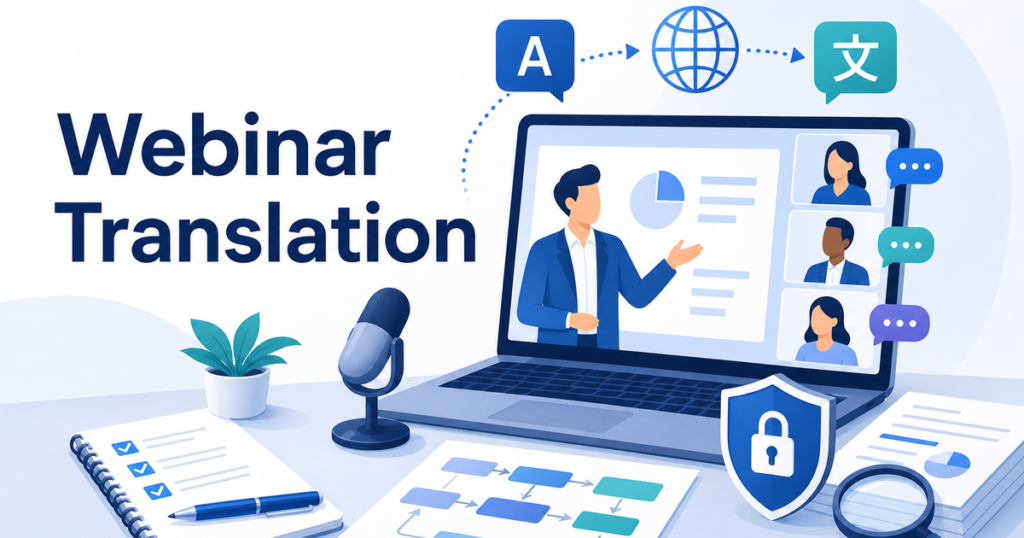
Global webinars and virtual conferences have become a standard part of how businesses reach clients, train employees, and share expertise. But when your audience speaks multiple languages, a single-language presentation leaves a significant portion of attendees struggling to follow along. Real-time translation for webinars changes that equation, making it possible to engage a multilingual audience without hiring a team of interpreters for every session.
This guide covers the main approaches available today, compares built-in platform features with third-party tools, and walks through a practical preparation checklist so your next multilingual event runs smoothly.
Why Real-Time Translation Matters for Online Events
The United States is home to over 67 million people who speak a language other than English at home, according to the U.S. Census Bureau. Globally, that number stretches into the billions. If your webinar is English-only, you are effectively excluding potential customers, partners, and employees who might otherwise participate fully.
Real-time translation addresses several concrete business problems:
- Audience reach. Translated webinars let you market the same event to attendees across regions without running separate sessions for each language.
- Employee training. Multilingual workforces benefit when training materials and live sessions are accessible in the languages employees are most comfortable with.
- Client engagement. Prospects and customers who hear content in their own language are more likely to trust your message and take action.
- Compliance and inclusion. Providing language access signals a commitment to equity and can help meet internal diversity goals.
How Real-Time Translation Works in Webinars
Real-time translation for online events generally falls into two categories: caption-based translation and voice-based interpretation.
Caption-Based Translation
Caption-based systems listen to the speaker's audio, convert it to text using automatic speech recognition (ASR), and then translate that text into the target language. The translated text appears as on-screen captions that attendees can read in near real time.
This is the approach used by built-in features in platforms like Zoom, Microsoft Teams, and Google Meet. Each of these platforms offers translated captions to varying degrees depending on the plan and configuration.
- Zoom offers translated captions on certain plans, allowing attendees to select their preferred caption language.
Source: https://support.zoom.com/hc/en/article?id=zm_kb&sysparm_article=KB0059081
- Microsoft Teams provides translated captions through its built-in captions feature, with language options depending on the meeting organizer's settings.
Source: https://learn.microsoft.com/en-us/microsoftteams/meeting-transcription-captions
- Google Meet supports translated captions that let participants view captions in a language different from the one being spoken.
Source: https://support.google.com/meet/answer/10964115
Voice-Based Interpretation
Voice-based systems go a step further by generating spoken translation, not just text. This can be done through human interpreters working remotely or through AI-powered voice translation tools that produce audible output in the target language.
Some platforms, such as Teams, offer an interpreter feature that provides a spoken translation experience within the meeting itself.
Source: https://support.microsoft.com/en-us/office/interpreter-in-microsoft-teams-meetings-and-calls-c7efe2bb-535d-42ab-a5c4-d2d91619b46d
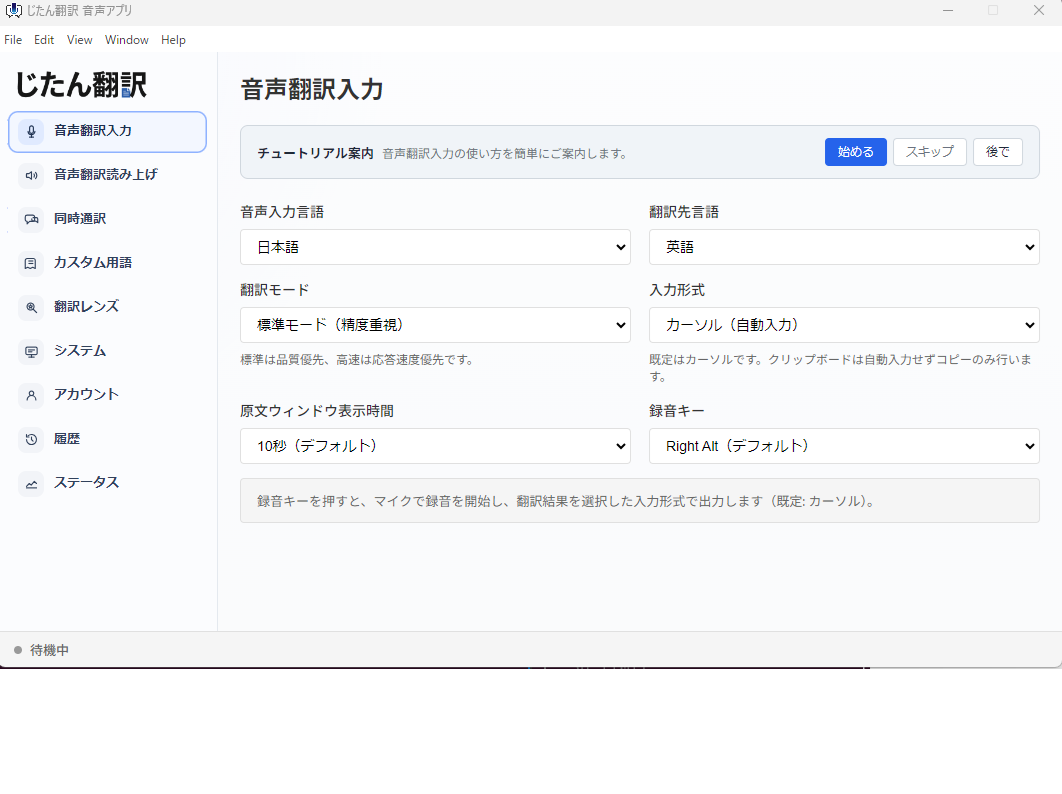
Third-party desktop applications can also intercept computer audio and provide real-time spoken translation. These tools work alongside any webinar platform because they process the audio directly from the computer rather than integrating with the meeting software.
Built-In Platform Features vs Third-Party Tools
Choosing between built-in translation features and third-party tools depends on your event format, budget, and quality requirements.
Built-In Platform Features
Advantages:
- No additional software to install or manage
- Attendees can toggle captions on and off independently
- Tight integration with the meeting experience
Limitations:
- Available only on specific plans or tiers
- Language options may be limited
- Caption accuracy can vary based on speaker accent, background noise, and technical jargon
- Voice interpretation features may not be available in all regions
Third-Party Tools and Bots
Advantages:
- Can work across any webinar or video conferencing platform
- May support a wider range of languages
- Desktop-based tools capture audio from the computer without joining the meeting as a separate participant. The audio may be processed locally or in the cloud depending on the provider, so review the provider's privacy policy.
Limitations:
- Requires attendees or organizers to install additional software
- Bot-based tools may join the meeting as a participant, which can raise privacy concerns
- Quality varies significantly between providers
Human Interpreters
Advantages:
- Highest accuracy, especially for specialized or technical content
- Can handle nuance, humor, and cultural context
- Required for certain regulated or high-stakes settings
Limitations:
- Expensive, especially for events lasting several hours
- Requires advance booking and coordination
- May not be practical for smaller or frequent internal events
Key Use Cases for Webinar Translation
Marketing Webinars and Product Launches
When presenting a product to a global audience, real-time captions or voice translation let prospects follow the presentation in their preferred language. This can significantly broaden your registration funnel without the cost of running duplicate sessions.
Employee Training and Onboarding
Companies with multilingual teams often struggle to deliver consistent training across language barriers. Real-time translation allows a single trainer to deliver content that all employees can understand, reducing the need for separate training sessions or translated slide decks.
Partner and Channel Events
Vendor-partner webinars that include international resellers, distributors, or affiliates benefit from translation because it ensures alignment across regions without requiring each partner to have fluent English speakers on every call.
Industry Conferences and Panels
Virtual conferences often feature panel discussions with international experts. Real-time translation helps audiences follow multi-speaker conversations even when participants speak different languages or have strong accents.
Step-by-Step Preparation Checklist
A multilingual webinar requires more preparation than a single-language event. Use this checklist to reduce the chance of technical problems on event day.
Two Weeks Before the Event
- Choose your translation approach. Decide whether you will use built-in platform captions, a third-party desktop tool, human interpreters, or a combination.
- Verify platform capabilities. Confirm that your webinar platform supports your chosen translation method on your current plan. Test the feature with a small group.
- Select target languages. Identify which languages your audience needs. Survey registrants if you are unsure.
- Brief your speakers. Let presenters know that translation is active. Ask them to speak clearly, avoid slang and idioms, and pause briefly between major points to give the translation system time to catch up.
One Week Before the Event
- Run a full rehearsal. Conduct a test session with the same setup you plan to use for the live event. Have someone monitor the translated output for accuracy and timing.
- Prepare speaker notes. Provide speakers with guidelines on pacing, enunciation, and avoiding jargon that might not translate well.
- Test audio quality. Poor audio is the single biggest enemy of real-time translation. Use a good microphone, minimize background noise, and test the audio chain from the speaker's mouth to the translation output.
- Set up attendee instructions. Prepare a short guide showing attendees how to enable captions or access the translated audio stream. Include this in your reminder email or event landing page.
Day of the Event
- Arrive early and test everything. Join the session 15 to 30 minutes early. Verify that translation is active and producing output in all target languages.
- Assign a monitoring role. Have a team member watch the translated output during the event. If quality degrades or the system drops captions, they can troubleshoot in real time.
- Have a backup plan. If the translation tool fails mid-event, be ready to switch to an alternative or pause while the issue is resolved.
Common Pitfalls to Avoid
Relying Solely on Translation Without Rehearsal
Translation tools perform better with clear, well-paced speech. If your presenters talk fast, use heavy jargon, or have strong accents, the translation quality will drop. A rehearsal lets you identify these issues before they affect your live event.
Ignoring Attendee Instructions
Many attendees will not know that translation is available unless you tell them. A quick visual instruction at the start of the webinar, such as a slide explaining how to enable captions, can significantly increase adoption.
Assuming All Platforms Work the Same Way
Each webinar platform handles translation differently. Zoom, Teams, and Google Meet each have different setup steps, plan requirements, and language options. Do not assume that what works on one platform will work identically on another.
Overlooking Privacy and Consent
Some third-party translation tools process audio on external servers. If your webinar includes confidential information, verify where the audio data goes and whether it is stored. Inform attendees if a third-party service is capturing meeting audio.
Measuring the Impact of Webinar Translation
After your event, assess whether the translation investment paid off:
- Engagement metrics. Compare attendance duration and participation rates between translated and non-translated sessions.
- Attendee feedback. Include a question about translation quality in your post-event survey.
- Follow-up actions. Track whether translated sessions lead to more inquiries, demo requests, or training completions from non-English-speaking attendees.
- Cost analysis. Compare the cost of translation against the additional reach and engagement it generated.
What to Look for in a Webinar Translation Tool
When evaluating tools for real-time webinar translation, consider the following criteria:
- Latency. How quickly does the translated output appear or play? Delays longer than a few seconds make it difficult for attendees to follow along.
- Language coverage. Does the tool support all the languages your audience needs?
- Integration. Does it work with your webinar platform, or does it require a separate setup?
- Privacy. Where is the audio processed? Is data stored, and if so, for how long?
- Cost. Is pricing per event, per attendee, or subscription-based? Does it fit within your event budget?
Desktop-based translation tools offer a practical middle ground for many teams. They process computer audio directly, work with any webinar platform, and do not require meeting bots that raise privacy questions. For recurring webinars and training sessions, this approach can be more cost-effective than hiring interpreters while delivering better results than caption-only solutions.
Post-Event Translation: Extending the Value
Translation does not stop when the webinar ends. The recording and transcript of your event are valuable assets that continue to serve multilingual audiences long after the live session.
Translated Transcripts
If your translation tool captures a transcript, you can have it reviewed and corrected after the event. A polished, translated transcript adds value as a downloadable resource, a blog post, or a knowledge base article. Attendees who missed sections of the live event can catch up by reading the transcript in their own language.
Subtitled Recordings
Adding translated subtitles to the webinar recording makes it accessible for on-demand viewing. This is particularly useful for onboarding libraries, partner portals, and training archives where employees or partners access content at their own pace.
Some AI translation tools can generate subtitle files directly from the event audio, giving you a head start on the subtitling process. A human reviewer can then correct any errors before the recording is published.
Repurposing Translated Content
Webinar content can be repurposed into shorter clips, social media posts, and email summaries. Having translated transcripts makes this repurposing process faster because your content team does not need to start from scratch for each language.
Handling Q&A and Audience Participation
One of the trickiest parts of a multilingual webinar is the question and answer session. Attendees may ask questions in different languages, and speakers need to understand and respond in real time.
Strategies for Multilingual Q&A
- Written questions only. Ask attendees to type questions in the chat or Q&A panel. A bilingual moderator translates written questions before reading them to the speaker. This is the simplest and most reliable approach.
- Translated captions for questions. If attendees speak questions aloud, real-time captions can translate the question for the speaker. The speaker then responds in their own language, and the response is translated back for the audience.
- Moderated Q&A. A bilingual moderator fields all questions, translates them verbally to the speaker, and then translates the speaker's response for the audience. This produces the highest quality but requires a skilled moderator.
Preparing the Moderator
The moderator plays a crucial role in multilingual webinars. They need to be comfortable switching between languages, managing the technical aspects of the translation tool, and keeping the event on schedule. Brief the moderator thoroughly on the translation setup and give them a chance to practice during the rehearsal.
Bringing It All Together
Real-time translation for webinars is no longer a luxury reserved for large enterprises with big budgets. Built-in platform features, third-party desktop tools, and AI-powered voice translation have made multilingual events accessible to organizations of all sizes.
The key to success is preparation. Choose the right approach for your audience, rehearse with the actual setup, brief your speakers, and make sure attendees know how to access the translation. Extend the value of your translation investment by repurposing transcripts and recordings for on-demand access. With the right tools and planning, your next webinar can reach a global audience as effectively as a local one.