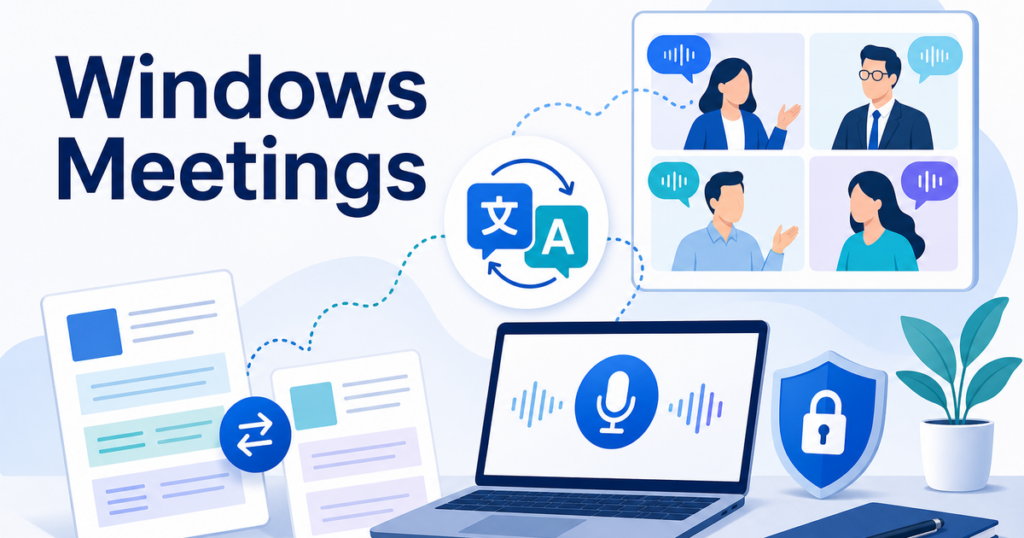
Windows remains the dominant operating system in business environments, powering the laptops and desktops that most professionals use for their daily work. If you attend multilingual meetings on a Windows machine, you have several options for real-time voice translation, from built-in operating system features to platform-specific tools to dedicated desktop applications.
This article focuses specifically on the Windows meeting translation landscape. It covers the tools available to Windows users, explains how to set them up, compares their strengths and weaknesses, and helps you choose the right approach for your meeting workflow.
The Windows Advantage for Meeting Translation
Windows offers a particularly strong environment for real-time translation because of its flexibility with audio routing. Unlike more locked-down operating systems, Windows allows applications to capture and process audio from other applications relatively easily. This means desktop translation tools on Windows can intercept meeting audio from any source without requiring special platform integrations.
This capability matters because most professionals juggle meetings across multiple platforms throughout a typical week. A sales call might be on Zoom, a team standup on Teams, a partner meeting on Google Meet, and a client call on Webex. Having a single translation tool that works across all of these is more practical than learning and configuring separate translation features in each platform.
Option 1: Built-In Windows Live Captions
Windows 11 includes a built-in live captions feature that can provide real-time captioning for any audio playing on your computer, including meeting audio.
According to Microsoft's documentation, live captions on Windows can caption any audio content playing on your device, including meetings, videos, and voice calls. The feature works system-wide and does not require a specific application to support it.
Source: https://support.microsoft.com/en-us/windows/live-captions-frequently-asked-questions-faq-690e4fd3-d033-44eb-a735-9939516652a6
What Windows Live Captions Offer
- System-wide captioning that works with any application producing audio
- No additional software installation required
- Caption customization options for size, color, and position
- Available on Windows 11 (version 22H2 and later)
Limitations of Windows Live Captions
- Captioning only, no voice output in another language
- Translation capabilities may be limited depending on your Windows version and region
- Accuracy depends on audio quality and speaker clarity
- Does not save or export transcripts by default
For basic meeting comprehension, Windows live captions provide a zero-cost starting point. However, they lack the translation depth and voice output that dedicated tools offer.
Option 2: Platform-Specific Translation Features
Each major meeting platform offers its own translation capabilities on Windows.
Zoom Translated Captions
Zoom provides translated captions that display real-time translations of spoken content during meetings. Attendees can select their preferred caption language independently.
Source: https://support.zoom.com/hc/en/article?id=zm_kb&sysparm_article=KB0059081
Zoom's approach works well for large meetings and webinars where attendees need to read translated text. However, the feature is tied to specific Zoom plans, and its availability depends on the meeting host's account type.
Microsoft Teams Captions and Interpreter
Teams offers both translated captions and an interpreter feature. Translated captions work similarly to Zoom, providing real-time text translations. The interpreter feature goes further by providing a voice-based translation experience within the meeting.
Source: https://learn.microsoft.com/en-us/microsoftteams/meeting-transcription-captions
Source: https://support.microsoft.com/en-us/office/interpreter-in-microsoft-teams-meetings-and-calls-c7efe2bb-535d-42ab-a5c4-d2d91619b46d
For organizations that run primarily on Teams, these built-in features are often the most convenient option. They require no additional software and integrate directly with the meeting experience.
Google Meet Translated Captions
Google Meet supports translated captions that let participants view captions in their preferred language while someone speaks in another language.
Source: https://support.google.com/meet/answer/10964115
Google Meet's translated captions work in the Chrome browser on Windows, making them accessible without installing additional software.
Option 3: Desktop Translation Applications
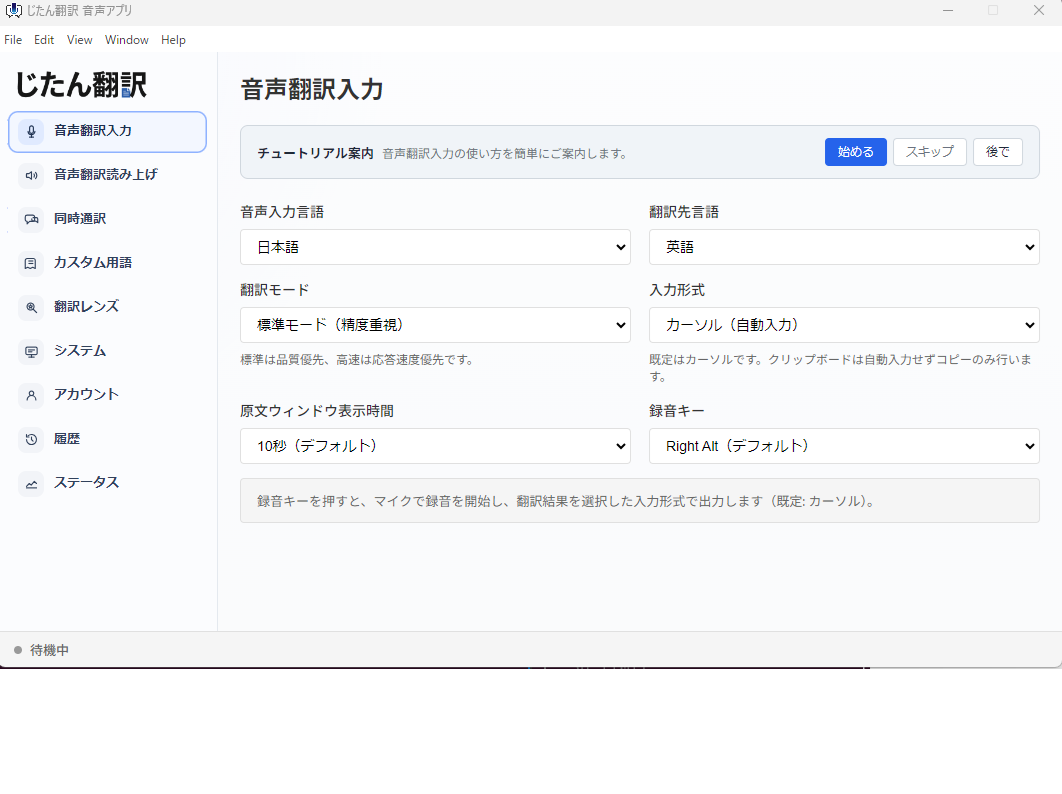
Desktop translation apps provide a platform-agnostic approach to meeting translation on Windows. Instead of relying on individual platform features, these tools capture and translate audio from any source on your computer.
How Desktop Translation Apps Work on Windows
On Windows, desktop translation apps typically work by:
- Capturing audio from the system audio output or a specific application
- Processing the audio through speech recognition
- Translating the recognized text into the target language
- Displaying translated captions on screen or playing spoken translation through speakers or headphones
Because Windows allows flexible audio routing, these apps can work with Zoom, Teams, Google Meet, Webex, Slack calls, and any other application that produces meeting audio.
Benefits for Windows Users
- Single tool for all platforms. Instead of learning different translation features for each meeting app, you use one tool everywhere.
- Works with any audio source. Beyond meetings, you can translate training videos, recorded webinars, podcasts, and any other audio playing on your computer.
- No host dependency. Platform-specific translation often requires the meeting host to have the right plan or settings. Desktop tools work regardless of what the host has configured.
- Consistent experience. The same translation engine, the same interface, and the same settings across all your meetings.
Choosing a Desktop Translation Tool
When evaluating desktop translation apps for Windows meetings, consider these factors:
- Latency. How quickly does the translated output appear? For meetings, anything beyond three to five seconds starts to feel disconnected from the conversation.
- Language pairs. Does the tool support the languages you encounter in your meetings? Check for the specific pairs you need, not just total language count.
- Audio capture reliability. Does the tool reliably capture audio from all your meeting applications, or does it struggle with certain apps?
- Output format. Does it provide text captions, spoken translation, or both? For meetings, both options are valuable depending on whether you need to listen or read.
- Resource usage. Translation processing uses CPU and memory. Make sure the tool does not slow down your computer during meetings, especially if you are also sharing your screen or running other applications.
Setting Up a Windows Meeting Translation Workflow
Here is a practical workflow for getting the most out of real-time voice translation on Windows.
Step 1: Choose Your Primary Tool
If you use one meeting platform exclusively, start with that platform's built-in translation features. If you use multiple platforms, a desktop translation app is likely the better choice.
Step 2: Configure Audio Properly
Audio configuration is critical on Windows. The most common setup issues involve:
- Audio routing conflicts. Make sure the translation tool can capture meeting audio without interfering with your ability to hear the meeting. Using headphones prevents feedback loops where translated output gets picked up and re-translated.
- Microphone settings. If the translation tool needs to capture your microphone for two-way translation, ensure it does not also capture the meeting audio from your speakers.
- Default audio device. Windows can be particular about default audio devices. Verify that your meeting app and translation tool are using the correct audio devices.
Step 3: Test with a Non-Critical Meeting
Before relying on translation for an important call, test your setup during a low-stakes meeting. Check that the translation output is readable, that latency is acceptable, and that the tool handles the speakers' accents and vocabulary adequately.
Step 4: Create a Quick-Start Routine
Once your setup is working, document the steps so you can replicate them quickly. A typical quick-start routine might include:
- Open the translation tool
- Select the source and target languages
- Join the meeting
- Verify that translation is active and producing output
- Adjust caption size and position for readability
Having this routine documented saves time and reduces the chance of configuration errors before important meetings.
Common Windows-Specific Issues and Fixes
Audio Capture Not Working
If the translation tool is not capturing meeting audio, check:
- Is the correct audio device selected in both the meeting app and the translation tool?
- Is exclusive mode disabled for the audio device in Windows sound settings?
- Does the translation tool need elevated permissions to capture system audio?
High CPU Usage During Translation
Translation processing can be CPU-intensive, especially on older hardware. If you notice lag during meetings:
- Close unnecessary applications to free up resources
- Lower the translation tool's processing quality if it offers that option
- Check for updates to both the translation tool and your audio drivers
Captions Disappearing or Freezing
If translated captions stop updating during a meeting:
- Check your internet connection, as most translation tools require cloud processing
- Restart the translation tool without leaving the meeting
- Switch to a different audio capture mode if the tool offers one
Windows Compared to Other Platforms
For context, it is worth noting how Windows compares to other operating systems for meeting translation.
Chrome OS offers built-in live captions through the Chrome browser, which works for Google Meet and other web-based meetings. Source: https://support.google.com/chrome/answer/10538231
macOS provides live captions as an accessibility feature that works across the system. Source: https://support.apple.com/guide/mac-help/mchldd11f4fd/mac
Each platform has its own strengths, but Windows stands out for the flexibility it gives desktop applications in capturing and processing audio from other apps. This flexibility makes Windows a particularly good fit for dedicated translation tools that need to work across multiple meeting platforms.
Advanced Tips for Power Users
Once you have a basic Windows translation setup working, these advanced tips can help you get even more value from your tools.
Using Virtual Audio Devices
Windows supports virtual audio devices that can route audio between applications with more flexibility than the default audio system. Tools like VB-Cable or Virtual Audio Cable let you create separate audio channels for your meeting audio and your translation output, preventing conflicts and feedback loops.
This approach is particularly useful when you need to:
- Translate meeting audio while also participating in the conversation yourself
- Record both the original audio and the translated output simultaneously
- Use multiple translation tools for different language pairs at the same time
Custom Dictionaries and Glossaries
Some desktop translation tools allow you to upload custom dictionaries that override the default translation for specific terms. If your meetings frequently involve company-specific terminology, product names, or industry jargon, setting up a custom dictionary improves translation quality significantly.
Maintain this dictionary as a shared resource within your team so that everyone benefits from the corrections and additions made by individual users.
Keyboard Shortcuts and Quick Toggle
Look for translation tools that offer keyboard shortcuts for common actions like starting and stopping translation, switching languages, and adjusting caption size. During a meeting, being able to control the translation tool without moving your mouse away from your notes or shared screen saves time and reduces disruption.
Some tools allow you to assign a dedicated key for push-to-translate mode, where translation is active only while you hold the key. This can be useful during meetings where only certain segments need translation.
Monitoring Translation Quality in Real Time
During important meetings, keep an eye on the translation output quality. If you notice a sudden drop in accuracy, it may indicate that the audio quality has changed, the speaker has switched to a topic with unfamiliar vocabulary, or the internet connection to the translation service has degraded.
Being aware of these patterns helps you decide when to rely on the translation and when to ask for clarification from the meeting participants.
Final Recommendations
For Windows users who attend multilingual meetings, the best approach depends on your specific situation:
- Teams-only organizations should start with Teams' built-in translated captions and interpreter features.
- Multi-platform users benefit most from a desktop translation app that works across Zoom, Teams, Meet, and other conferencing tools.
- Occasional users can start with Windows live captions for basic comprehension and upgrade to a dedicated tool if they need translation rather than just captioning.
- Power users should explore virtual audio devices and custom dictionaries to optimize their translation setup for their specific meeting environment.
The key is to choose an approach, test it thoroughly, and build a consistent routine so that translation becomes a natural part of your meeting workflow rather than a source of technical friction.