You are sitting in a multilingual meeting. Someone mentions that the platform supports captions. Another person asks about translation. Someone else wants to know if the meeting will be transcribed. A fourth person asks for AI-generated notes. Four people asked for four different things, and they all sound similar enough to be confusing.
These terms get mixed up constantly in conversations about multilingual meetings. They are related but not interchangeable. Each serves a different purpose, involves different technology, and produces different output. Understanding the distinctions helps you ask for what you actually need and choose the right tool for the situation.
This article clarifies what each term means, how they relate to each other, and when to use each one.
The Four Concepts at a Glance
Before diving into details, here is the quick reference:
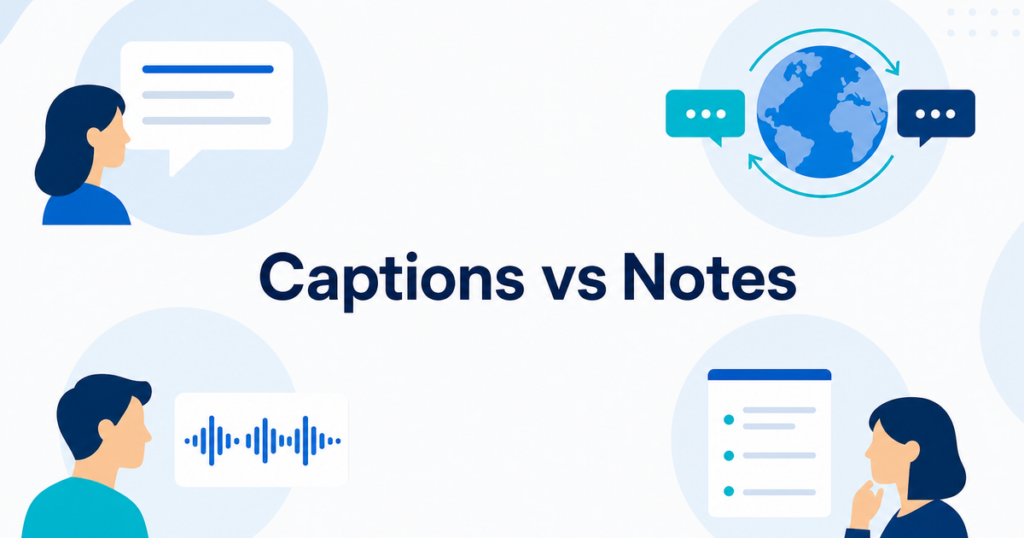
Captions are text that appears on screen in real time, showing what is being said in the same language as the spoken audio.
Translation converts spoken or written content from one language to another, either in real time or after the fact.
Transcripts are written records of what was said during a meeting, created during or after the event.
AI Notes are summaries or action items generated by AI from meeting content, providing a synthesized overview rather than a verbatim record.
Each of these builds on the one before it. Captions are the raw text. Translation converts that text to another language. Transcripts save the text for later. AI notes distill the text into key points. Understanding this progression makes the distinctions clearer.
Captions: Real-Time Same-Language Text
What Captions Do
Captions take spoken audio and convert it to text in real time. The text appears on screen as the person speaks, typically with a delay of one to three seconds.
The key characteristic of captions is that they are same-language. If the speaker is talking in English, the captions are in English. If the speaker is talking in French, the captions are in French.
Where You Find Captions
Captions are available in several places:
- Meeting platforms. Zoom, Microsoft Teams, and Google Meet all offer live captions as a built-in feature. These process the meeting audio and display text to participants.
- Operating systems. Windows 11, macOS, and Chrome all provide system-wide live caption features that work with any audio playing on your computer.
- Video platforms. YouTube and other video services provide auto-generated captions for uploaded content.
Source: Windows live captions | Chrome live caption | Mac live captions
What Captions Are Good For
- Following a meeting in a noisy environment
- Supporting participants who are hard of hearing
- Reading along when you cannot use speakers
- Confirming specific words or terms that were unclear in audio
What Captions Cannot Do
- Captions do not help if you do not understand the language being spoken. Reading French captions does not help if you do not read French.
- Captions are ephemeral in most meeting platforms. They appear and disappear. Unless you have a separate transcription feature enabled, the text is not saved.
- Caption accuracy depends on audio quality, speaker clarity, and background noise. Accents, technical jargon, and rapid speech all reduce accuracy.
Translation: Converting Between Languages
What Translation Does
Translation converts content from one language to another. In the meeting context, this means taking the spoken audio (or the captions generated from it) and producing text or audio in a different language.
Translation can happen in several forms:
Real-time translated captions. The meeting platform or a desktop app translates the spoken audio into captions in your chosen language as the meeting happens. This is the most common form of meeting translation.
Real-time interpreted audio. An AI system or human interpreter provides spoken translation that you hear through a separate audio channel. Teams’ Interpreter feature does this with AI. Zoom’s interpretation feature does this with human interpreters.
Post-meeting translation. After the meeting, you translate the transcript or notes into another language. This is useful for creating multilingual records of the discussion.
Where You Find Translation
- Platform translated captions. Zoom, Teams, and Google Meet all offer some form of translated captions, though availability depends on the host’s plan.
Source: Zoom translated captions | Google Meet translated captions | Teams interpreter
-
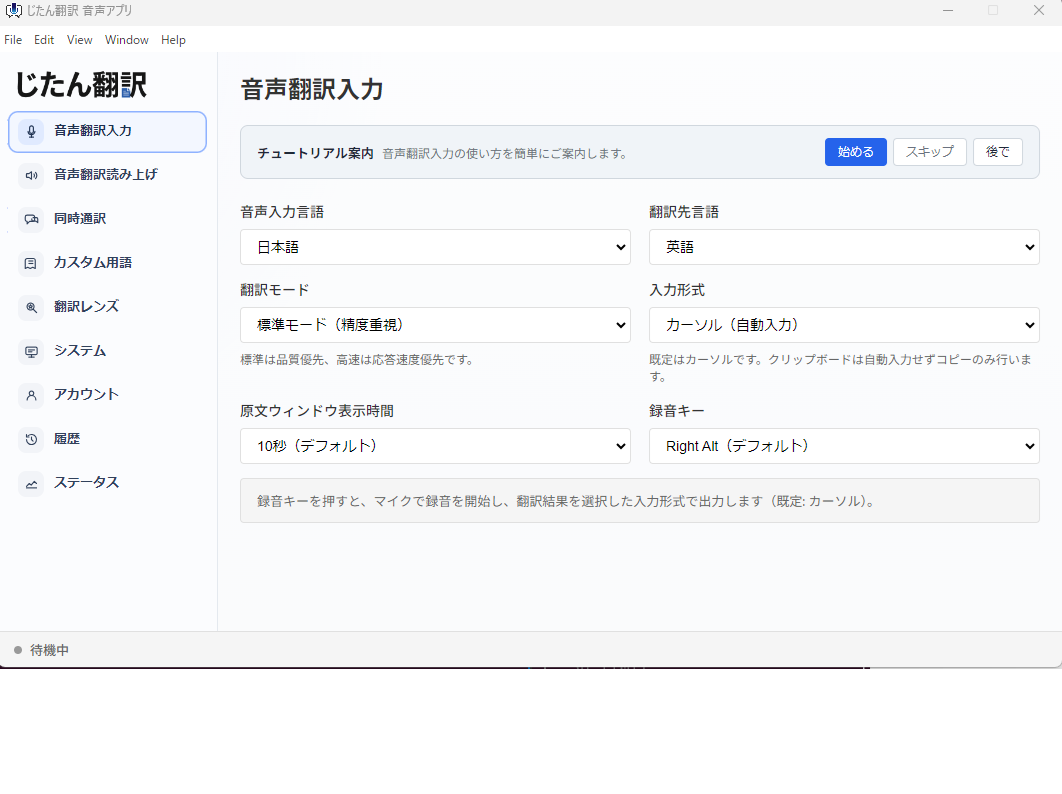
Desktop translation apps. Tools that run on your computer and translate any audio playing through your system, independent of the meeting platform.
-
DeepL Voice for Meetings. A dedicated service that provides real-time translated speech for meetings.
Source: DeepL Voice for Meetings
- Human interpreters. Professional interpreters who provide real-time translation, either in person or through the meeting platform’s interpretation channel.
What Translation Is Good For
- Following meetings conducted in a language you do not speak
- Participating in multilingual discussions
- Understanding clients, partners, or colleagues who speak a different language
What Translation Cannot Do
- Machine translation is not reliable for high-stakes content. Legal terms, financial details, and nuanced expressions may not translate accurately.
- Translation introduces additional delay beyond the captioning delay. The system must first recognize the speech, then translate it.
- Translation quality varies significantly between language pairs. Common languages like English-Spanish tend to be better supported than less common pairs.
Transcripts: A Written Record of the Meeting
What Transcripts Do
Transcripts are written records of what was said during a meeting. Unlike captions, which appear and disappear, transcripts are persistent documents that can be saved, searched, and shared.
Transcripts can be generated in two ways:
Real-time transcription. The system creates the transcript as the meeting happens. Participants can see the text building up during the call. Microsoft Teams offers this with its transcription feature.
Post-meeting transcription. The system generates the transcript after the meeting ends, typically from the meeting recording. Zoom creates transcripts from cloud recordings.
Where You Find Transcripts
- Microsoft Teams provides built-in transcription for meetings, stored in the organizer’s OneDrive or SharePoint.
Source: Teams transcription
-
Zoom generates transcripts from cloud recordings.
-
Third-party services offer transcription for meetings on any platform, usually through a bot that joins the meeting or by processing a recording after the fact.
Transcripts vs Captions
The distinction between transcripts and captions often causes confusion. Here is the key difference:
Captions are real-time and ephemeral. They appear on screen during the meeting and disappear when the meeting ends. Think of them like subtitles on a live TV broadcast.
Transcripts are persistent and reviewable. They capture the full text of the meeting and save it as a document. Think of them like a court reporter’s record.
A meeting can have captions without transcription (text appears during the meeting but is not saved). A meeting can have transcription without captions (the text is recorded but not displayed in real time). Or a meeting can have both (text appears during the meeting and is saved afterward).
What Transcripts Are Good For
- Creating a written record of meeting discussions
- Reviewing specific points after the meeting
- Sharing meeting content with people who could not attend
- Searching for specific topics or decisions in past meetings
- Supporting compliance requirements that mandate meeting records
What Transcripts Cannot Do
- Transcripts do not help you follow a meeting in real time if you do not speak the language. A transcript in Japanese is not useful if you read English, unless you also translate it.
- Transcripts are verbatim, which means they include filler words, false starts, and tangents. They are not a clean summary of the meeting.
- Transcript accuracy depends on the same factors as caption accuracy: audio quality, speaker clarity, and background noise.
AI Notes: Synthesized Summaries
What AI Notes Do
AI notes take meeting content and synthesize it into a structured summary. Instead of a verbatim record of everything that was said, AI notes extract the key points, decisions, action items, and follow-ups.
AI notes go beyond transcription by adding a layer of analysis. The AI identifies what is important and organizes the information into a more readable format.
Where You Find AI Notes
- Google Meet with Gemini features can generate AI summaries of meetings.
Source: Google Meet Gemini features
-
Microsoft Teams with Copilot can generate meeting summaries and action items.
-
Third-party tools like Otter.ai, Fireflies, and others provide AI-generated meeting notes.
AI Notes vs Transcripts
This is another common confusion point. Both transcripts and AI notes capture meeting content, but they serve different purposes:
Transcripts are comprehensive and verbatim. They capture everything that was said, word for word. They are useful when you need to know exactly what someone said, including the specific wording they used.
AI notes are selective and summarized. They capture the main points and organize them into a structured format. They are useful when you need a quick overview of what happened without reading through the entire conversation.
Use transcripts when you need the full record. Use AI notes when you need the key takeaways.
What AI Notes Are Good For
- Quickly catching up on meetings you missed
- Identifying action items and follow-ups
- Getting a structured overview of a long meeting
- Sharing meeting outcomes with stakeholders who want the highlights
What AI Notes Cannot Do
- AI notes may miss nuance or context. The AI selects what it considers important, and it may not align with what you consider important.
- AI notes are not a complete record. If you need to know exactly what was said about a specific topic, the full transcript is more reliable.
- AI-generated summaries can introduce errors. The AI might attribute a statement to the wrong person or misinterpret the significance of a discussion point.
- AI notes are not official records. Do not treat them as a substitute for formal meeting minutes in situations where a legal or compliance record is required.
How They Work Together
In practice, these four capabilities often overlap and combine:
- Captions provide real-time text of what is being said.
- Translation converts that text into your language if needed.
- Transcription saves the text as a persistent document.
- AI notes summarize the document into key points.
A fully featured multilingual meeting experience might use all four. You read translated captions during the meeting to follow along. After the meeting, you review the transcript (translated into your language) for the details. And you check the AI notes for a summary of decisions and action items.
Not every meeting needs all four. An internal team update might only need captions for accessibility. A multilingual client call might need translated captions plus a post-meeting summary. A board meeting might need full transcription plus AI notes.
Choosing the Right Combination
Here is a practical guide for common meeting scenarios:
Internal monolingual meeting. Captions for accessibility. Transcription optional. Translation and AI notes probably unnecessary.
Internal multilingual meeting. Translated captions for non-native speakers. Transcription if you need a record. AI notes for action items.
Client meeting, different language. Translated captions for real-time understanding. Transcription with post-meeting translation for documentation. AI notes for a summary to share with your team.
Large webinar, multiple languages. Translated captions for participants. Transcription for the archive. AI notes for post-event follow-up.
High-stakes negotiation. Human interpreter for real-time accuracy. Professional transcription and translation for the official record. AI notes as a supplementary reference only.
Avoiding Common Confusion
When discussing meeting tools with your team, use precise language:
- If you need real-time text in the same language, ask for captions.
- If you need real-time text in a different language, ask for translated captions or real-time translation.
- If you need a written record of the meeting, ask for a transcript.
- If you need a summary of key points, ask for AI notes or meeting summary.
Being specific about which capability you need helps your team choose the right tool and set the right expectations. Asking for “translation” when you actually need “transcription” leads to the wrong solution and a frustrated team.
The Bottom Line
Captions, translation, transcripts, and AI notes are related but distinct tools that serve different purposes in multilingual meetings. Captions provide real-time text. Translation converts between languages. Transcripts create a persistent record. AI notes synthesize the content into key points.
Most meetings benefit from one or two of these capabilities. Complex multilingual business meetings may need all four. The key is knowing what each one does so you can ask for the right tool and set appropriate expectations for what it will deliver.