If your team has ever sat through a multilingual Zoom call watching participants nod politely at the wrong moments, you already know the problem. People who do not share a common language struggle to follow along in real time, and the meeting either slows to a crawl or someone gets left behind.
Zoom translated captions were designed to address exactly this gap. They take the spoken audio in a meeting and display captions in another language on screen. But the feature comes with specific limitations that matter a lot in a business context: who controls it, which plans include it, and what happens when the host leaves.
This article walks through how Zoom translated captions work, where they fall short, and what alternatives exist when they do not meet your needs.
How Zoom Translated Captions Work
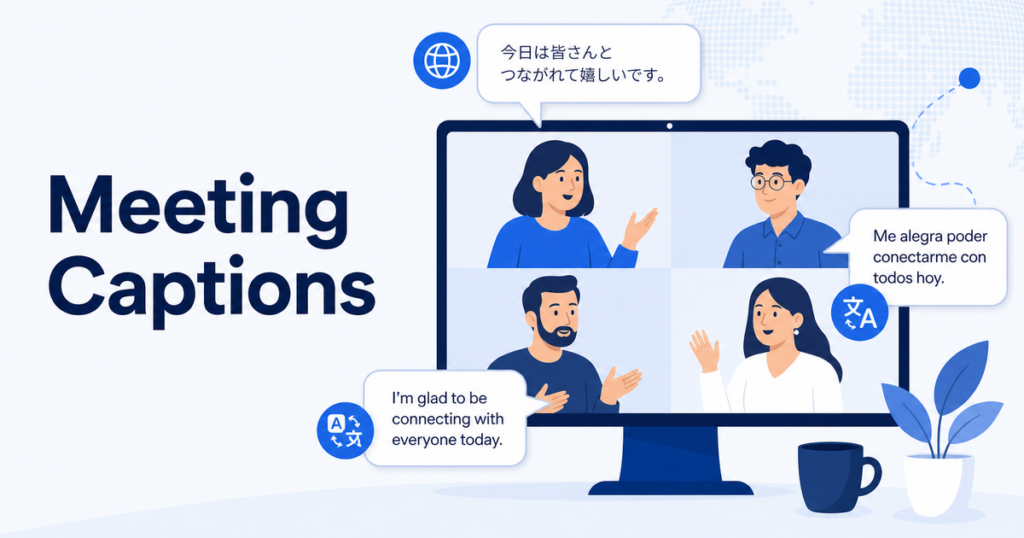
Zoom translated captions build on top of Zoom’s standard closed captioning. When a participant speaks, Zoom generates a text transcript of their speech, then translates that transcript into the viewer’s chosen language. The translated text appears as captions overlaid on the meeting video.
The process happens in real time, but there is a short delay. The system needs to capture the audio, convert it to text, translate it, and render the captions. In practice, this means you see translated text a few seconds after the speaker finishes a thought. For meetings with a measured pace, this works reasonably well. For rapid back-and-forth discussion, the lag becomes noticeable.
Zoom relies on its own machine translation engine for this feature. The translation quality is functional for general business conversation but can struggle with domain-specific terminology, acronyms, and colloquial expressions. Technical discussions, legal language, and industry jargon often produce captions that capture the gist but miss the precision.
Source: Zoom translated captions documentation
Who Controls Translated Captions
This is where most teams run into their first surprise. Translated captions are a host-controlled feature. The meeting host or co-host must enable translated captions for the meeting. Individual participants cannot turn them on independently.
What this means in practice:
- The host must have a supported plan. Translated captions are not available on all Zoom plans. If the host’s account does not include the feature, nobody in the meeting gets translated captions.
- The host must enable the feature before or during the meeting. Even on a supported plan, translated captions are off by default. The host has to manually turn them on in meeting settings.
- Participants choose their language. Once the host enables translated captions, each participant can select which language they want to read. One person can read Spanish captions while another reads Japanese, all in the same meeting.
This host dependency creates a practical problem for cross-organization meetings. If your company is meeting with a partner, client, or vendor, the host’s Zoom plan determines whether translated captions are available. If the other party hosts the meeting on a basic plan, you are out of luck.
Captions vs Interpretation in Zoom
Zoom offers two different multilingual features, and confusing them leads to wrong expectations.
Translated captions are automated. A machine translates the audio into text captions. No human is involved. The quality is what you would expect from machine translation: fast, broadly understandable, but not reliable for nuanced or high-stakes content.
Interpretation in Zoom is a separate feature where a human interpreter joins the meeting. Participants can switch to an audio channel where the interpreter speaks the target language. This is simultaneous interpretation, the same approach used at the United Nations and international conferences.
The differences matter for business use:
| Aspect | Translated Captions | Interpretation |
|---|---|---|
| Quality | Machine translation, good for gist | Human quality, catches nuance |
| Latency | A few seconds | Near real-time |
| Cost | Included in some plans | Requires hiring an interpreter |
| Setup | Host toggles a setting | Requires scheduling interpreters |
| Best for | Internal updates, casual meetings | Negotiations, legal discussions, executive calls |
Teams sometimes expect translated captions to deliver interpretation-quality results. They will not. If your meeting involves contract terms, regulatory details, or sensitive negotiations, translated captions are a support tool at best, not a replacement for human interpretation.
Plan Availability and Limitations
Zoom has moved features between plans over time, and translated captions have shifted as well. Rather than listing specific plan names and tiers that may change, here is what you need to check:
- Verify your account tier. Log in to the Zoom web portal and navigate to your account settings. Look for the translated captions toggle under Meeting Settings.
- Check the admin settings. Even if your plan includes translated captions, your account admin may have disabled them at the account or group level. Admins can lock this setting to prevent hosts from enabling it.
- Confirm language availability. The number of supported languages for translated captions has grown, but not all language pairs are available. Check Zoom’s current documentation for the latest list.
Source: Zoom apps and admin approval
If you are preparing for an important multilingual meeting, test the feature in advance with a small internal call. This lets you confirm that your plan includes it, that the admin has not blocked it, and that the language you need is supported.
Common Problems in Business Meetings
The Host Leaves
If the original host drops off the call and nobody else has co-host privileges, translated captions may stop working. This happens most often when a client or partner hosts the meeting and their connection drops. Designate a co-host from your own team as a backup.
Multiple Speakers Overlap
Translated captions work best when one person speaks at a time. In lively meetings where participants talk over each other, the captions become unreliable. The speech recognition engine has trouble separating overlapping voices, and the resulting captions can be garbled or incomplete.
If your meetings tend to be energetic with lots of crosstalk, consider using a facilitation approach where the host manages turn-taking. This helps both the translated captions and the overall meeting clarity.
Domain-Specific Vocabulary
Machine translation engines are trained on general text. They do not always know your company’s product names, industry acronyms, or technical shorthand. In practice, you will see captions that approximate the right word but get the specifics wrong.
There is no built-in way to add custom terminology to Zoom’s translated captions. If your meetings depend heavily on specialized vocabulary, the captions will need mental translation on top of the machine translation.
One practical workaround is to share a brief glossary of key terms with all participants before the meeting. When everyone knows the agreed translation for critical terms, participants can mentally fill in the gaps when the machine translation approximates but does not land on the exact word. This is especially useful for product names, internal project codenames, and regulatory terms that have specific meanings in your industry.
When Translated Captions Are Not Enough
For some business scenarios, translated captions simply do not meet the bar. Here are situations where you should look at alternatives:
High-stakes negotiations. When the precise wording of a proposal or counteroffer matters, machine-translated captions are not reliable enough. You risk misunderstanding terms, missing conditions, or agreeing to something you did not fully grasp.
Legal or compliance discussions. Regulatory language requires exact interpretation. Machine translation can miss critical distinctions between similar legal terms.
Large multilingual events. Webinars and all-hands meetings with participants speaking multiple languages often benefit from a dedicated interpretation setup rather than relying on automated captions.
Regular recurring meetings with the same multilingual team. If your team meets weekly and consistently needs translation, investing in a more robust solution pays off over time.
Desktop-Based Alternatives for Meeting Translation
If Zoom’s built-in translated captions are not available on your plan or do not meet your quality needs, desktop translation apps offer another path. These applications run on your computer and work with the audio playing through your system.
The advantage of this approach is independence from the meeting host’s plan and settings. You control the tool on your own machine. It works regardless of whether the host has enabled translated captions or even whether the meeting is on Zoom, Teams, or Google Meet.
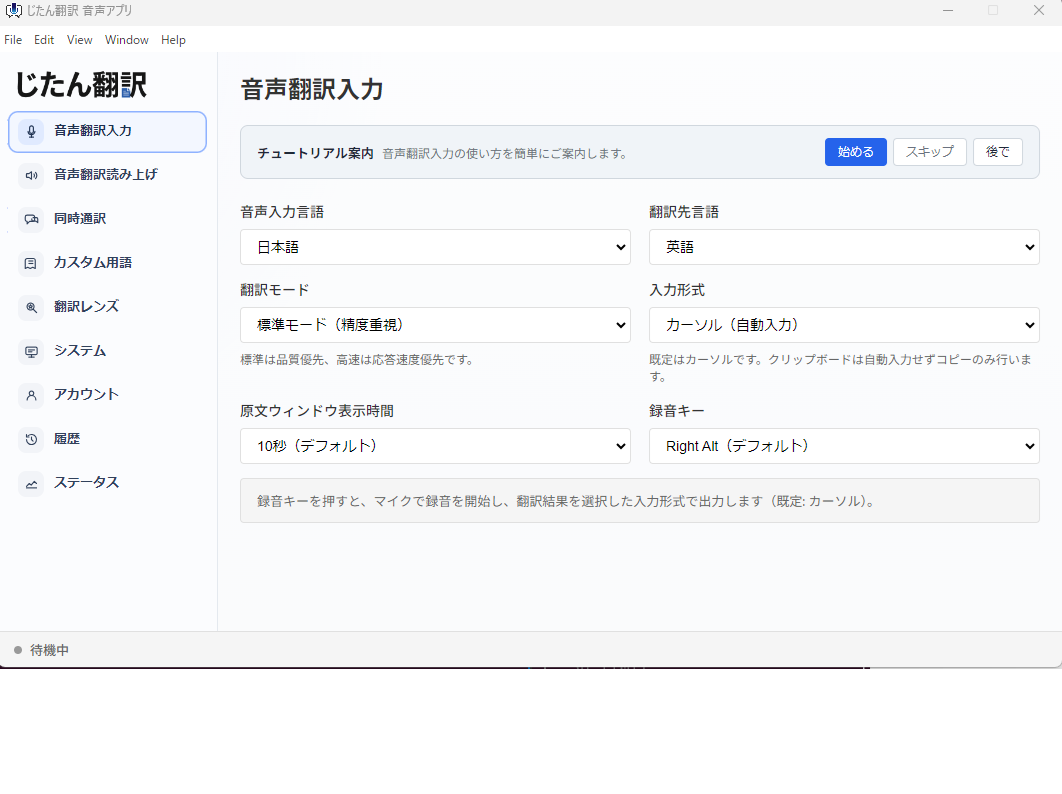
Tools like Jitan Translate’s voice translation app sit between your system audio and a translation engine. They capture the meeting audio as it plays through your speakers or headphones, translate it, and display the result on your screen. This means you can get translated text in meetings where the host has not enabled any translation features.
The tradeoff is that you are translating the audio you hear, not a direct feed from the meeting platform. Audio quality, background noise, and speaker clarity all affect the result. In a quiet room with a good headset, desktop translation apps perform well. In a noisy conference room, less so.
Practical Recommendations
Here is how to get the most out of Zoom translated captions, with backup plans for when they fall short:
- Before the meeting, confirm the host’s plan includes translated captions. If not, ask the host to enable them or consider who should host instead.
- Test with a short call using the same settings you plan to use for the real meeting. This catches plan limitations, admin blocks, and missing languages before they become problems.
- Designate a co-host from your team. If the original host drops, translated captions continue working.
- Set expectations with participants. Let everyone know that the captions are machine-generated and may not capture every detail accurately. Encourage participants to ask for clarification when something seems off.
- For important meetings, pair translated captions with a shared document where key points are summarized in both languages after the meeting. This gives participants a chance to review and confirm their understanding.
- Keep a desktop translation app as a backup. When the host’s plan does not support translated captions or when you join meetings on other platforms, a desktop tool ensures you always have some form of translation support.
The Bottom Line
Zoom translated captions are a useful feature for multilingual meetings, but they are not a complete solution. They depend on the host’s plan and settings, they use machine translation with all its limitations, and they work best in structured meetings with clear turn-taking.
For casual internal meetings and general updates, translated captions are often good enough. For anything where precision matters, plan to supplement them with human review, follow-up documentation, or a dedicated interpretation setup. And for meetings where you cannot control the host’s settings, a desktop translation app gives you independence from platform limitations.
The smartest approach is not to rely on any single tool. Combine Zoom’s built-in features with a desktop backup and clear communication practices, and your multilingual meetings will run more smoothly regardless of what the technology delivers on any given day.