Using Voice Translation Input as Japanese-to-Japanese Dictation
The phrase "voice translation input" sounds like a tool for translating one language into another. That is one use case, but it is not the only one.
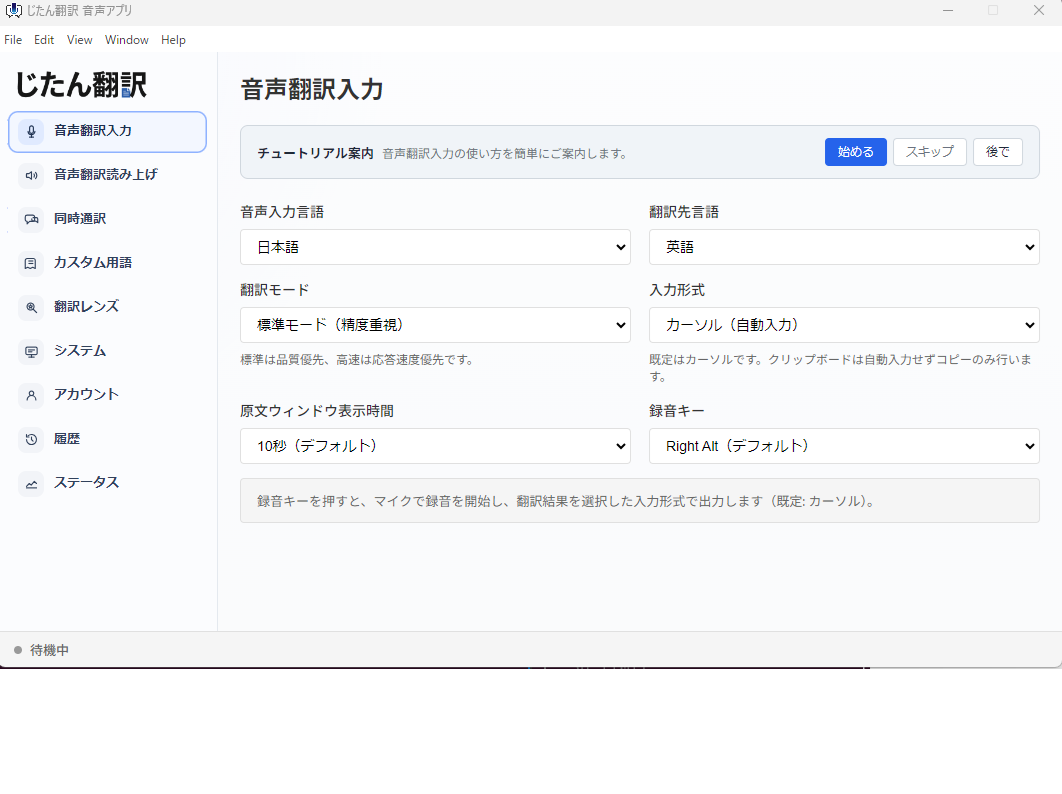
If you set both the input language and output language to Japanese, the same workflow becomes Japanese-to-Japanese dictation. You speak in Japanese, the app turns your speech into Japanese text, and the text is inserted into the active app.
This makes voice translation input useful even when you are not translating anything. It can become a daily writing tool for email, chat, AI prompts, meeting notes, and business messages.
Why Same-Language Voice Input Matters
Most people think of voice input as a accessibility feature or a mobile keyboard feature. On a desktop PC, however, voice input can be a productivity tool.
There are many situations where speaking is faster than typing:
- Writing a long chat reply.
- Drafting an email.
- Creating a prompt for an AI assistant.
- Taking quick notes after a meeting.
- Turning a rough idea into text.
- Creating a first draft before editing with a keyboard.
Typing is still better for URLs, code, tables, names, and precise formatting. But for natural language, voice input can reduce the friction of starting.
What Japanese-to-Japanese Dictation Looks Like
Imagine you want to write this:
Thank you for the meeting today. I will check the pricing plan, security requirements, and implementation schedule, then follow up by the end of the week.
If you are writing in Japanese, you might say:
本日はお打ち合わせありがとうございました。Pricing、Security要件、導入スケジュールを確認し、今週中にご連絡します。
That sentence is easy to speak but slower to type. With Japanese-to-Japanese dictation, you can speak it naturally and then make small edits afterward.
The goal is not to eliminate the keyboard. The goal is to use voice for the first draft and the keyboard for cleanup.
Best Use Cases
Email Drafts
Business emails often follow predictable patterns. You can speak the core message first, then adjust honorifics, names, and details.
For example:
お世話になっております。先ほどの件について、追加で2点確認させてください。1点目は契約開始日、2点目は請求方法です。
This kind of sentence is natural to speak and easy to clean up.
Chat and Team Communication
Slack, Chatwork, Teams, and similar tools are full of short but context-heavy messages. Voice input works well when a message is too long to type comfortably but not formal enough to require a polished document.
Examples:
- Explaining why a task is delayed.
- Summarizing a customer request.
- Asking a teammate to check a file.
- Turning a quick thought into a readable update.
AI Prompts
AI prompts are often better when they include context. The problem is that typing context takes effort.
With voice input, you can say:
I want to write a blog article for Windows users who want faster voice input. Include a section about using PowerToys to remap an unused key to F13, and explain why F13 avoids shortcut conflicts.
That gives the AI more useful information than a short typed command.
Meeting Notes
After a meeting, you may remember the key points but not want to type a full summary. Voice input lets you capture the rough version quickly:
今日の打ち合わせでは、見積もり、導入時期、社内承認フローの3点が論点になった。次回までにPricing表とSecurity資料を送付する。
You can then edit it into a cleaner note.
A Practical Workflow
Here is a simple desktop workflow:
- Open the app where you want to insert text.
- Place the cursor in the text field.
- Hold your voice input hotkey.
- Speak one thought at a time.
- Release the key.
- Review the inserted text.
- Fix names, punctuation, and formatting with the keyboard.
Short chunks work better than long monologues. Try speaking one paragraph at a time.
Why a Dedicated Hotkey Helps
Voice input should be fast enough that you use it without thinking. If the shortcut is awkward, the workflow breaks.
That is why a dedicated key matters. With Microsoft PowerToys, you can remap an unused key to F13 and assign F13 as your voice input hotkey. F13 is rarely used by normal apps, so it is less likely to conflict with browser, spreadsheet, or editor shortcuts.
For a detailed setup, see How to Create a Dedicated Voice Input Key with PowerToys and F13.
Dictation vs Translation
The same tool can support two workflows:
| Workflow | Example |
|---|---|
| Japanese to Japanese | Speak Japanese and insert Japanese text |
| Japanese to English | Speak Japanese and insert English text |
| English to Japanese | Speak English and insert Japanese text |
This is where voice translation input is different from a simple dictation tool. You can use it as dictation most of the time, then switch to translation when needed.
For example, you might write internal notes in Japanese, then use Japanese-to-English input for a message to an overseas colleague.
Tips for Better Results
Speak in Complete Phrases
Do not speak one word at a time. Speak in short, complete phrases:
明日の打ち合わせでは、Pricingと導入スケジュールを確認します。
This gives the recognition system more context.
Pause Between Ideas
If you have multiple points, pause between them. This makes the output easier to edit.
Edit After Dictation
Voice input is best for drafting. Use the keyboard to fix:
- Names
- Numbers
- URLs
- Product names
- Punctuation
- Formatting
Use It Where You Already Write
The best voice input tool is the one you use inside your normal workflow. Try it in Gmail, Slack, ChatGPT, Notion, Word, or your browser instead of creating a separate dictation document.
Cost Considerations
Specialized AI dictation tools often use monthly subscriptions. Jitan Translate's Starter plan begins at JPY 450 per month and includes access to voice translation app workflows, including voice translation input usage allowances.
That makes it a lower-cost way to test whether desktop voice input fits your daily work. If you mainly need Japanese dictation plus occasional translation, it is worth trying before committing to a higher-priced dedicated dictation service.
Source: Jitan Translate pricing
Summary
Voice translation input is not only for translation. Used Japanese-to-Japanese, it becomes a practical desktop dictation tool.
Use it for email, chat, AI prompts, notes, and rough drafts. Use the keyboard for precise cleanup. If you create a dedicated F13 hotkey with PowerToys, voice input becomes easier to use throughout the day.
For users who write in Japanese and sometimes need translation, this combination is more flexible than a basic dictation tool.