You just joined a meeting with colleagues or clients who speak a different language, and you need to understand what is being said right now — not after the call, when someone sends a summary. Real-time meeting translation has moved from a niche feature to a practical tool, but the options can be confusing. This article compares three main approaches — built-in translated captions, meeting bots and interpretation platforms, and desktop live translation apps — so you can choose the one that fits your workflow, budget, and IT environment.
The Three Main Approaches to Real-Time Meeting Translation
As of 2026, most real-time meeting translation falls into one of three categories:
- Built-in translated captions — features provided by Zoom, Microsoft Teams, and Google Meet that display translated subtitles during a meeting.
- Meeting bots and event interpretation platforms — third-party services that join a meeting as a participant or integrate via API to provide translation, transcription, or both.
- Desktop live translation apps — software installed on your computer that listens to system or microphone audio and provides real-time translation independently of the meeting platform.
Each approach has different setup requirements, privacy implications, and trade-offs.
Built-In Captions: Zoom, Microsoft Teams, and Google Meet
Zoom Translated Captions
Zoom offers translated captions that display real-time subtitles in a different language during a meeting or webinar. The feature translates the spoken language into captions that appear on screen.
What you need to know:
- Translated captions are available on specific Zoom plans and may require an add-on subscription.
- The meeting host typically needs to enable the feature in meeting settings.
- Caption accuracy depends on audio quality, speaker accents, background noise, and speaking speed.
- Captions appear as text overlays — there is no spoken audio translation.
Source: Zoom Translated Captions
When it works well: Internal team meetings, webinars where attendees need to follow along in their own language, and situations where the host controls the meeting settings.
Limitations to consider: The host must have the correct plan and settings enabled. If you are an external participant, you depend on the host’s configuration. Captions are text-only — participants who need audio output must look elsewhere.
Microsoft Teams
Teams provides multiple translation-related features:
- Live translated captions — real-time translated subtitles during meetings.
- Transcription with translation — meeting transcripts that can be translated after the call.
- Interpreter agent — a feature that provides spoken interpretation during Teams meetings and calls.
What you need to know:
- Live translated captions and the Interpreter feature are tied to Teams Premium or Microsoft 365 Copilot licensing.
- Multilingual speech recognition supports several languages, but availability varies by region and license tier.
- The Interpreter agent can provide a spoken voice in the target language, not just captions.
Sources:
When it works well: Organizations already invested in the Microsoft 365 ecosystem, internal meetings where everyone is on Teams, and situations where both captions and spoken interpretation are needed.
Limitations to consider: Licensing requirements can be a barrier for small businesses or external participants. Features are tied to the Teams platform — they do not help with other meeting tools or standalone audio.
Google Meet
Google Meet offers real-time captions in multiple languages. Translated captions are available on certain Google Workspace editions.
What you need to know:
- Translated captions are available on specific Google Workspace plans.
- The feature provides text captions — no spoken audio output.
- Language availability may be more limited compared to dedicated translation services.
When it works well: Teams using Google Workspace, quick internal meetings, and situations where text captions are sufficient.
Limitations to consider: Limited to the Google Meet platform. External participants may not have access depending on the host’s plan.
Source: Google Meet translated captions
Meeting Bots and Event Interpretation Platforms
A growing category of tools joins your meeting as a bot participant or connects via API to provide real-time translation and transcription. Examples include services designed for multilingual events, webinars, and conference calls.
How they work:
- The bot joins the meeting as a participant (often visible in the participant list) or connects through the meeting platform’s API.
- It listens to the meeting audio and generates translated captions, transcripts, or both.
- Some services offer post-meeting summaries and translated transcripts.
Strengths:
- Often platform-agnostic — many work with Zoom, Teams, Meet, and other tools.
- Can provide both captions and translated transcripts for follow-up.
- Useful for multilingual events with many participants.
Considerations:
- The bot appears as a meeting participant, which may require host approval and can raise questions from attendees.
- Some organizations restrict third-party bots due to security or compliance policies.
- Audio is routed through a third-party service, which introduces data privacy considerations.
- Accuracy depends on the service’s speech recognition and translation models.
When it works well: Large multilingual events, webinars, and situations where you need both real-time translation and a post-meeting transcript in multiple languages.
Desktop Live Translation Apps
Desktop apps take a different approach: instead of relying on the meeting platform or a bot, the app runs on your computer and translates audio directly from your system or microphone.
How they work:
- The app captures audio from your computer’s system audio output or microphone.
- It processes the audio through speech recognition and translation.
- It displays translated text on screen, and some apps also provide spoken output.
Strengths:
- Platform independent. Works with any meeting app — Zoom, Teams, Meet, Webex, or even a phone call played through your computer speakers.
- No host dependency. You do not need the meeting host to enable any features or approve a bot.
- No meeting bot joins the call. Audio is captured from your computer and processed according to the app’s local or cloud processing model, so review the provider’s privacy policy.
- Flexible. Can be used for meetings, training videos, podcasts, and any audio playing on your computer.
Considerations:
- You need to install software on your computer, which may require IT approval in corporate environments.
- Translation quality depends on audio clarity, speaker accents, and the app’s language models.
- Some apps require an internet connection for cloud-based translation.
- Audio capture from system audio may require specific drivers or permissions.
When it works well: Users who attend meetings on multiple platforms, situations where you cannot control the host’s settings, and anyone who wants a translation tool that works across different apps and audio sources.
Comparison Table
| Factor | Built-In Captions | Meeting Bots | Desktop Apps |
|---|---|---|---|
| Setup | Host enables in meeting settings | Invite bot or connect API | Install app on your computer |
| Platform dependency | Tied to one meeting app | Often cross-platform | Works with any audio source |
| Host approval needed | Yes (host enables feature) | Yes (bot joins as participant) | No |
| Output type | Text captions | Captions, transcripts, summaries | Text captions, some with audio |
| Privacy | Handled by meeting platform | Audio routed through third party | Local capture, direct to translation service |
| IT/admin approval | Managed in platform admin console | May require security review | May require software installation approval |
| Best for | Standard meetings on one platform | Large events, multilingual webinars | Cross-platform use, independent workflow |
| Cost model | Included in platform subscription | Per-meeting or subscription pricing | Subscription or per-use pricing |
Privacy, Admin Approval, and Meeting Etiquette
Privacy Considerations
- Built-in captions route audio through the meeting platform’s infrastructure. Review your platform’s data processing terms.
- Meeting bots send audio to a third-party service. Understand where the data is processed, how long it is stored, and whether it is used for model training.
- Desktop apps may process audio locally, via a cloud API, or both. Check the app’s privacy policy, especially for sensitive meetings involving legal, medical, or financial topics.
IT and Admin Approval
In corporate environments, installing new software or inviting bots to meetings may require IT security review. Before choosing a tool:
- Check whether your organization has an approved list of meeting tools and extensions.
- Understand whether recording or transcription is allowed under your company’s policies and applicable regulations.
- Consider whether the tool complies with your organization’s data residency requirements.
Meeting Etiquette
- Let participants know when translation is active. Transparency builds trust.
- Speak clearly and at a moderate pace. Real-time translation accuracy improves with clear, well-paced speech.
- Minimize background noise and overlapping speech, which confuse speech recognition systems.
- If you are the host, test the translation setup before the meeting to avoid technical delays.
When Human Interpreters Still Make Sense
Despite the progress in AI translation, human interpreters remain important in several scenarios:
- High-stakes negotiations and legal proceedings. Where accuracy, nuance, and cultural understanding directly affect outcomes.
- Diplomatic and government meetings. Where protocol, tone, and precise terminology are essential.
- Medical consultations. Where misunderstanding a symptom, diagnosis, or treatment instruction can have serious consequences.
- Complex multilingual events. Where multiple languages are spoken simultaneously and AI systems may struggle to distinguish speakers and languages.
AI translation tools are best understood as a practical layer for everyday meetings — daily standups, internal calls, vendor check-ins, and training sessions. For meetings where the stakes are high, combine AI translation with human review or use a professional interpreter.
Choosing the Right Approach for Your Meetings
Here is a practical decision framework:
- ☐ Do all participants use the same meeting platform? If yes, check the built-in caption options first. They are the simplest to set up.
- ☐ Do you need translation across multiple platforms? A desktop app gives you the most flexibility without depending on host settings.
- ☐ Are you running a large multilingual event? A meeting bot or event platform may provide the best combination of real-time translation and post-event transcripts.
- ☐ Does your IT team restrict third-party tools? Built-in captions may be the only option that does not require additional software approvals.
- ☐ Do you need spoken output, not just captions? Look for tools that provide audio translation, such as Teams Interpreter or desktop apps with text-to-speech features.
- ☐ Is the meeting content sensitive? Review the data handling practices of any tool before using it for confidential discussions.
A Practical Tool for Cross-Platform Meeting Translation
If you attend meetings across Zoom, Teams, Google Meet, or other platforms and want a translation workflow that is not tied to any single app, a desktop live translation tool may be the right fit.
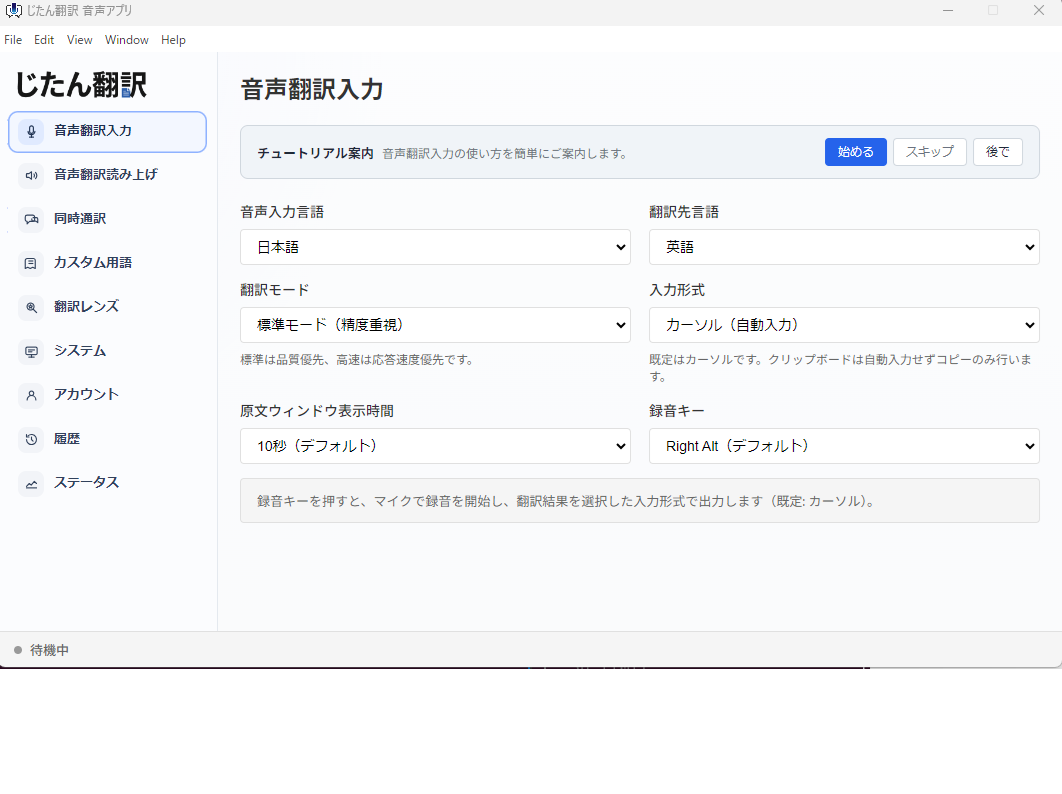
Jitan Translate offers a PC-based real-time voice translation app that captures computer audio and provides translated output. Because it works with system audio rather than a specific meeting platform, it can be used across different meeting tools, training videos, and other audio sources on your computer. It is designed for business users who need a practical way to follow multilingual meetings without depending on host settings or platform-specific features.
For everyday meetings, training sessions, and cross-team communication, tools like this can provide a review-ready translation layer. For high-stakes conversations, combine AI translation with human review or professional interpretation.