
You have a contract, a slide deck, or a product manual sitting on your desktop. You need it in another language fast. Google Translate is the first tool most people think of, and for good reason: it is free, widely available, and handles dozens of language pairs.
But when you move from translating a sentence on a web page to uploading an entire document, the experience changes. Format support is limited. File size caps apply. The output often needs cleanup before you can share it with a client or colleague.
This article walks through what Google Translate can actually do with document files, where it falls short, and how business teams can plan around those gaps.
What Google Translate Document Upload Supports
Google Translate offers a document upload feature on its web interface. You drag or browse a file, pick your source and target languages, and receive a translated version you can download.
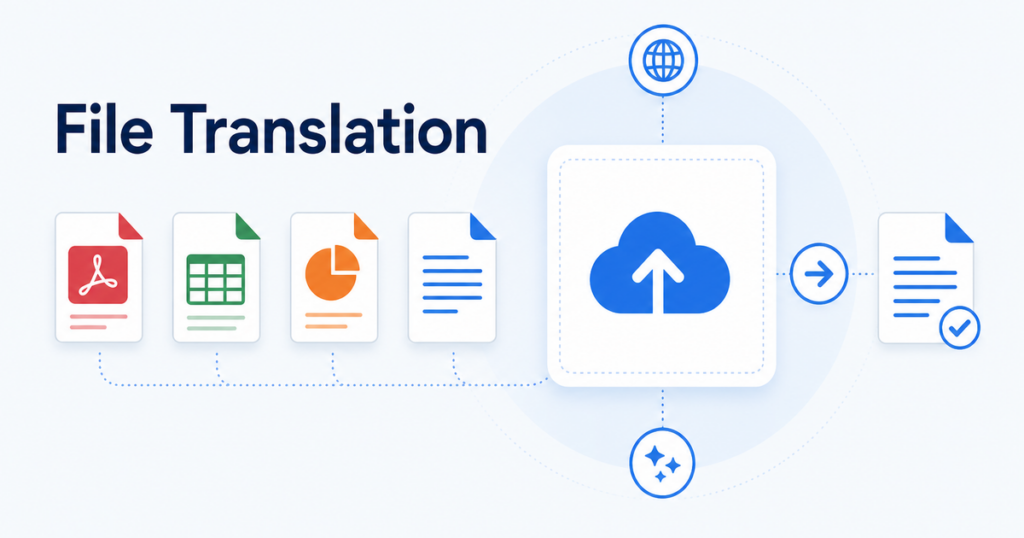
According to Google’s own help documentation, the web-based document translation supports a handful of common formats:
- Word documents (.docx)
- Excel spreadsheets (.xlsx)
- PowerPoint presentations (.pptx)
- PDF files (.pdf)
- Plain text files (.txt)
Source: https://support.google.com/translate/answer/2534559
That list covers many everyday business files, but it excludes older formats (.doc, .xls, .ppt), rich text, OpenDocument formats (.odt, .ods), and most image-based files. If your workflow involves any of those, you will need to convert before uploading or use a different tool.
File Size and Page Limits
Google enforces size limits on document uploads through the web interface. While the exact cap has shifted over time, the general expectation is:
- Maximum file size around 10 MB
- Maximum page count around 300 pages for text-heavy documents
These thresholds work fine for a ten-page contract or a fifty-slide deck. They become a problem when you are translating a 500-page technical manual or a media-rich catalog with embedded images pushing the file size past the limit.
For files that exceed the cap, your options are to split the document into smaller chunks, strip out heavy media, or move to the Google Cloud Translation API, which handles larger volumes through programmatic access.
How Format Preservation Works
When you upload a .docx or .pptx file, Google Translate attempts to preserve the original layout. In practice, the results vary:
- Word documents tend to come through reasonably well. Paragraph structure, headers, and basic formatting like bold and italic usually survive.
- PowerPoint files often lose fine-grained positioning. Text boxes may shift. Font sizes can change when the translated text is longer or shorter than the original.
- Excel files generally keep their cell structure, but formulas are not translated intelligently. A formula referencing a named range will not update to match translated column headers.
- PDF files are the most unpredictable. Google converts the PDF internally, translates the text, and rebuilds the file. Complex layouts, multi-column designs, and embedded graphics frequently misalign.
The takeaway: treat the downloaded file as a first draft that needs human review, especially for anything client-facing.
Language Pair Considerations
Google Translate supports over 100 languages, but not every language pair works equally well with document upload. Some combinations may produce output that reads awkwardly or misses industry-specific terminology.
For business-critical documents, it is worth testing with a short excerpt first. Paste a representative paragraph into the text box and evaluate the quality before committing to a full document upload.
Also note that language detection is automatic. If your document contains mixed languages (for example, a Japanese contract with English-defined terms in parentheses), the auto-detect feature may misidentify the primary language. Explicitly selecting the source language gives you more control.
When the Web Interface Is Not Enough
The free web interface works for occasional, low-volume translation. It breaks down when your needs include:
Repetitive, high-volume work
If your team translates dozens of documents per week, manually uploading and downloading through a browser wastes time. An API-based workflow lets you automate the pipeline.
Consistent terminology
Google Translate does not natively support custom glossaries through the web interface. If your company has standardized translations for product names, legal terms, or technical jargon, you have no way to enforce them. The Google Cloud Translation API does support glossaries, which we cover in a separate comparison article.
Batch processing
Need to translate 50 files overnight? The web interface handles one file at a time. A scripted approach using the API can process files in parallel.
Audit and compliance
The free web interface provides no logging, no access controls, and no data retention guarantees that enterprise teams typically require. If you need an audit trail of what was translated and when, you need a different setup.
Google Cloud Translation API: The Business Alternative
Google Cloud offers a document translation API that addresses many of these gaps. According to Google Cloud’s documentation, the API supports additional formats beyond the web interface and integrates with cloud storage for automated pipelines.
Source: https://docs.cloud.google.com/translate/docs/advanced/translate-documents
Key differences from the free web interface:
- Glossary support: Upload term lists that enforce specific translations.
- Format support: Includes a broader set of document types.
- Automation: Process files programmatically from cloud storage.
- Volume handling: No per-file manual upload step.
The trade-off is cost and complexity. You need a Google Cloud account, billing setup, and developer resources to build the integration.
Real-World Scenarios: What Happens When You Upload
Understanding the limits in the abstract is one thing. Seeing what actually happens when you upload different document types helps set realistic expectations.
A ten-page Word contract
You upload a .docx contract. Google Translate processes it in under a minute. The downloaded file opens cleanly in Word. Paragraphs are intact, headings are preserved, and bold formatting survives. But a few issues appear on closer inspection: the legal term “indemnify” is translated differently in two different clauses, a defined term in quotation marks lost its quotation marks, and the signature block shifted because the translated party names are longer than the originals. These are fixable but require a careful read-through.
A forty-slide PowerPoint deck
You upload a product presentation. The translated file opens with most slides looking reasonable. However, slides with dense text boxes have overflow issues where translated text extends beyond the visible area. A few slides with custom fonts substituted a default font, changing the visual appearance. Charts with text labels were not translated. The speaker notes section, which contained important talking points, was not translated either. You spend thirty minutes resizing text boxes and another twenty copying translated chart labels from a separate document.
A scanned PDF invoice
You upload a PDF that turns out to be a scanned image. Google Translate attempts OCR internally, but the results are poor. Vendor names, item descriptions, and amounts contain frequent character substitution errors. The table structure collapses entirely. This particular file would have been better handled by a dedicated OCR tool first, followed by manual translation of the key fields.
A multi-sheet Excel workbook
You upload a pricing workbook with five sheets. The translated file keeps all five sheets, and cell text is translated. However, a VLOOKUP formula that references a product name in the lookup table no longer works because the product name was translated in the table but the formula’s lookup value was also translated, and the translations do not match exactly. Number formatting on the currency columns changed from dollar notation to the target locale’s format, which breaks a downstream reporting macro that expects the original format.
These scenarios illustrate a consistent pattern: Google Translate’s document upload produces a usable starting point, but every file type has specific quirks that require a targeted review pass.
A Practical Workflow for Business Teams
For teams that need more than the free web interface but are not ready to build a custom API pipeline, dedicated document translation tools fill the middle ground. These tools typically offer:
- Support for PDF, DOCX, PPTX, and XLSX in a single upload step.
- Better layout preservation than free web translators.
- Options to review and edit the translated output before exporting.
- Handling of larger files than the free web cap.
If your team regularly translates contracts, proposals, training materials, or product documentation, a tool designed for document translation can save significant reformatting time compared to copying translated text back into the original file by hand.
Common Pitfalls to Watch For
Regardless of which Google translation path you choose, keep these in mind:
1. Blindly trusting the output
Machine translation has improved dramatically, but it still produces errors that a native speaker would catch immediately. Treat every translated document as a draft.
2. Ignoring context
A single word can have multiple translations depending on context. “Run” in a software manual is different from “run” in a financial report. Without glossary support, Google Translate guesses.
3. Forgetting to check fonts
Some target languages require specific fonts to render correctly. If your document uses custom fonts that do not support the target language’s character set, you will see boxes or missing characters.
4. Overlooking right-to-left languages
Translating into Arabic, Hebrew, or Persian introduces bidirectional text challenges. Layouts designed for left-to-right languages often break when the text direction flips.
5. Skipping the formatting review
Even when the tool preserves most of the layout, small shifts accumulate across a long document. Page breaks move. Tables resize. Always review the final file side by side with the original.
When to Choose a Different Approach
Google Translate’s document upload is a reasonable starting point. Consider a dedicated document translation tool or a professional review workflow when:
- The document is going to an external audience (clients, regulators, partners).
- Terminology consistency matters across multiple documents.
- Layout fidelity is critical (branded presentations, formatted reports).
- You need to translate regularly and want to minimize manual steps.
For teams that want to keep the review cycle efficient, translating PDFs without losing formatting is one of the most common pain points, and one where the right tool makes a measurable difference in time spent on post-translation cleanup.
Quick Reference: Google Translate Document Upload Checklist
Before you upload a document to Google Translate:
- Confirm the file format is supported (.docx, .xlsx, .pptx, .pdf, .txt).
- Check the file size is under the current limit.
- Select the source language manually if the document contains mixed languages.
- Download the translated file and open it in the native application (Word, Excel, PowerPoint).
- Compare the translation side by side with the original.
- Check for layout shifts, missing content, and incorrect terminology.
- Edit and finalize the document before distributing.
Google Translate’s document feature is a useful tool for quick, internal drafts. For business-critical documents that need to look professional and read naturally, plan for a review step and consider tools built specifically for document translation workflows.
What to Tell Your Team
If you are establishing translation guidelines for your organization, here is a simple framework:
Tier 1 – Use Google Translate directly: Internal notes, personal understanding of foreign-language content, quick email drafts. No formal review needed.
Tier 2 – Use Google Translate with review: Internal reports that will be shared with colleagues, training materials for internal use, meeting summaries. One person reviews the output for accuracy and formatting.
Tier 3 – Use a dedicated document translation tool: Client-facing proposals, legal documents, marketing materials, product documentation. Use a tool with better format preservation and plan for a thorough review cycle.
Tier 4 – Professional human translation: Regulatory submissions, legal filings, published content, executive communications. Machine translation may serve as a first draft, but a professional translator handles the final version.
Most teams end up with a mix of Tier 2 and Tier 3 work. Google Translate handles Tier 1 and Tier 2 adequately. For Tier 3, a tool focused on document translation reduces the time your team spends on post-translation cleanup and produces output that needs fewer corrections.
Final Thoughts
Google Translate’s document upload feature lowered the barrier to translating full files. Before it existed, you had to copy-paste text block by block or use the API. Now, a drag-and-drop gives you a translated file in seconds.
But convenience can create a false sense of reliability. The translated document looks like a finished product because it opens in Word or PowerPoint with the right file extension. The formatting looks roughly correct at first glance. It is only when you read carefully that inconsistencies, dropped content, and formatting shifts become apparent.
Treat Google Translate document upload as what it is: a fast, free first pass. Build your workflow around the assumption that the output needs review, and choose tools that make that review step efficient rather than treating it as an afterthought.