
DeepL has built a strong reputation for translation quality. Many teams prefer it over other machine translation services for European language pairs, and its file translation feature is one of the most commonly used ways to translate entire documents without copying and pasting text block by block.
But file translation comes with limits that depend on the file type, the plan you are on, and the complexity of the document. This article covers what DeepL supports, where the boundaries are, and what to watch for when translating business documents through DeepL.
Supported File Formats
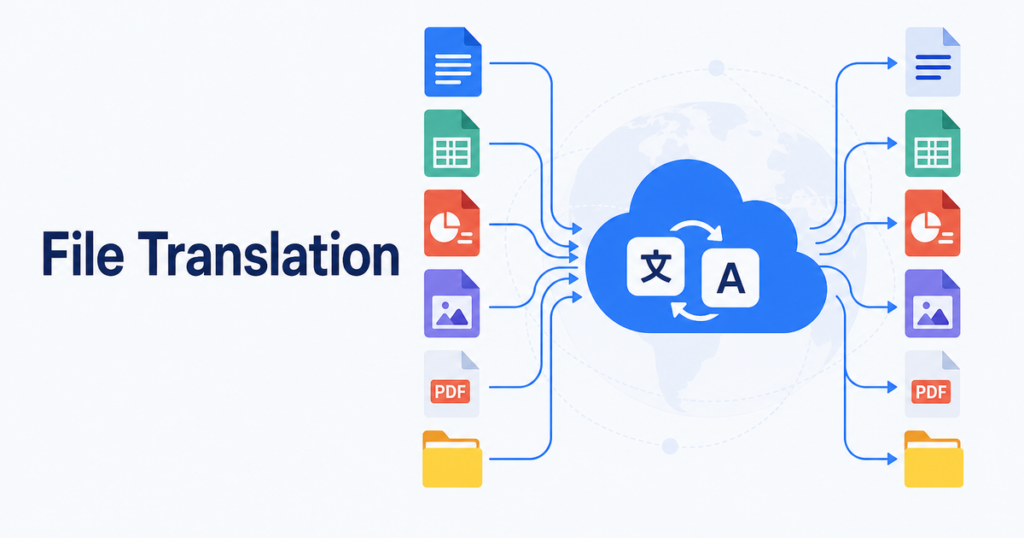
DeepL supports file translation through both its web interface and its API. According to DeepL’s documentation, the supported formats include:
- Word: .docx
- PowerPoint: .pptx
- Excel: .xlsx
- PDF: .pdf
- Plain text: .txt
- HTML: .html, .htm
- Subtitle files: .srt
Source: https://support.deepl.com/hc/en-us/articles/360020582359-File-formats
This covers the most common business document types. Notably absent are older formats (.doc, .xls, .ppt), OpenDocument formats (.odt, .ods, .odp), and design files like InDesign or Adobe Illustrator. If your workflow produces files in those formats, you need to convert them to a supported type first.
Plan-Dependent Limits
DeepL offers multiple tiers, and the file translation capabilities differ between them. Rather than listing specific plan names and limits (which change over time), here are the general categories of restrictions to be aware of:
File size limits
Each plan tier imposes a maximum file size for uploads. Free users face the tightest restrictions. Paid plans raise the ceiling, and API users typically get the highest limits.
Number of files per translation
Some plans limit how many files you can translate in a single batch or within a given time period.
Document complexity
DeepL does not publish a page count limit in the same way Google Translate does, but very large documents may time out or fail to process.
API vs web interface
The DeepL API provides programmatic access to document translation. According to the API documentation, you can upload a file, check processing status, and download the result. This enables automation but requires developer integration.
Source: https://developers.deepl.com/api-reference/document
Check DeepL’s current documentation for the exact limits applicable to your plan, as these values are updated regularly and vary by tier.
How DeepL Handles Each File Type
Word documents (.docx)
DeepL generally handles Word documents well. The translation preserves paragraph structure, headings, lists, and basic formatting. Bold, italic, and underline survive in most cases.
Where it can struggle:
- Complex layouts with multiple columns
- Text boxes positioned outside the main document flow
- Embedded objects like charts or SmartArt with text labels
- Custom styles that are not standard Word formatting
For straightforward business documents like contracts, reports, and letters, Word files translate cleanly through DeepL. For heavily designed documents, expect some reformatting.
PowerPoint presentations (.pptx)
PowerPoint translation through DeepL follows a similar pattern to other tools: the text is extracted from slides, translated, and placed back into the original text boxes.
Common issues:
- Text overflow when the target language produces longer text
- Font size changes to fit translated text within the original text box boundaries
- Speaker notes may or may not be included depending on how the translation is configured
- Master slide text is not always captured
If your slides use simple layouts with one or two text areas per slide, the results are usually acceptable. Dense slides with many small text elements, annotations, and overlaid objects require more cleanup.
Excel files (.xlsx)
Excel translation is straightforward for text content but requires attention to non-text elements.
What translates well:
- Cell contents (labels, headers, descriptive text)
- Sheet names (in some configurations)
- Text in headers and footers
What does not translate or needs caution:
- Formulas: DeepL does not rewrite formulas. If a formula references a text value, the formula itself stays in the source language.
- Numbers and dates: These should be preserved as-is, but verify that number formatting has not shifted.
- Conditional formatting text labels: May or may not be captured.
- Hidden sheets and very hidden sheets: Check whether the tool processes these.
Always open the translated Excel file and verify that formulas still work and that numeric data has not been altered.
PDF files (.pdf)
PDF is where file translation becomes the most unpredictable, regardless of the tool. DeepL faces the same challenges described in our article on why PDFs break more than Word or PowerPoint: fixed-position text, font embedding, and layout reconstruction.
DeepL’s PDF translation quality depends on:
- Whether the PDF contains selectable text or is a scanned image
- The complexity of the layout (single-column vs multi-column, tables, sidebars)
- The fonts embedded in the PDF
- The length and density of text on each page
For simple, text-heavy PDFs like articles and reports, DeepL produces reasonable output. For designed documents with complex layouts, the result typically needs significant formatting cleanup.
Glossary Support
DeepL supports custom glossaries through its API, which lets you define how specific terms should be translated. This is valuable for business documents where product names, legal terms, or technical vocabulary need consistent handling.
Source: https://developers.deepl.com/api-reference/multilingual-glossaries
Key points about DeepL glossaries:
- Glossaries are available through the API, not through the standard web interface.
- You create a glossary by uploading a list of source-target term pairs.
- The glossary is applied during translation to enforce your preferred translations.
- Glossary entries are case-sensitive by default.
For teams translating a series of related documents, setting up a glossary ensures that key terms are handled the same way every time. Without a glossary, DeepL may translate the same product name differently in different documents.
Practical Tips for Using DeepL File Translation
Start with the editable version
If you have both a PDF and a .docx version of a document, translate the .docx. The editable format produces better results.
Check the output in the native application
Open translated Word files in Word, translated PowerPoint files in PowerPoint. Do not rely on preview thumbnails or browser viewers to catch formatting issues.
Keep a glossary for recurring terms
If you translate documents regularly, invest time in building a glossary. The upfront effort pays off across every subsequent translation.
Split very large files
If a document is close to the file size limit or contains hundreds of pages, consider splitting it into sections and translating each section separately. This also makes review easier because you can check one section at a time.
Review numbers and data
In Excel files and data-heavy Word documents, manually verify that all numbers, dates, and financial figures are correct. Translation tools sometimes alter formatting that changes how numbers display.
When DeepL File Translation Is Not the Right Fit
DeepL is a strong option for many translation tasks, but it is not the best choice in every situation:
You need to translate many file types beyond the supported list
If your document pipeline includes formats DeepL does not support, you need either a format conversion step or a different tool.
You need layout-perfect output for designed documents
No machine translation tool produces layout-perfect PDF translations. If the visual design of the document matters as much as the text, you need human layout adjustment regardless of the tool.
You want an integrated review environment
DeepL’s web interface gives you the translated file to download and review in your own applications. Some teams prefer tools that show the original and translated text side by side within the same interface, making review faster.
You are translating to or from languages DeepL covers less well
DeepL’s quality is strongest for European language pairs. For some Asian, African, or less-resourced languages, other translation engines may perform better. Test a sample passage before committing to a full document.
Comparing DeepL to Other Options
DeepL is one of several options for file translation. Google Translate offers free document upload with its own set of supported formats and limits. Google Cloud Translation API provides programmatic access with glossary support. Microsoft Office has built-in translation features. Adobe offers PDF-specific workflows.
The right choice depends on your language pairs, volume, format requirements, and how much post-translation editing you are willing to do. For teams that value translation quality and primarily work with supported file types, DeepL is a solid choice. For teams that need broader format support or integrated review workflows, a dedicated document translation tool may be more efficient.
Real-World Example: Translating a Multi-Format Document Set
Consider a realistic scenario: your team needs to translate a product launch package into German. The package includes a Word press release, a PowerPoint pitch deck, an Excel pricing sheet, and a PDF data sheet.
Word press release (.docx)
You upload the press release to DeepL. The translation completes in under a minute. The output looks clean: paragraphs are intact, the heading hierarchy is preserved, and the company boilerplate at the end translated correctly. One issue: the product name, which should not be translated, was rendered in a German equivalent by the engine. Without glossary access (you are using the web interface), you manually find-and-replace the product name back to the original across three occurrences. Review time: ten minutes.
PowerPoint pitch deck (.pptx)
The pitch deck has twenty slides with various layouts. DeepL translates all text boxes. Most slides look acceptable at first glance. On closer inspection, four slides have text that overflows the text box boundaries. Two slides with embedded charts show untranslated axis labels and data labels. One slide has a text box positioned over a background image; after translation, the text box shifted slightly and now overlaps a key visual element. You spend twenty-five minutes resizing text boxes, repositioning the shifted element, and manually translating the chart labels. Review time: thirty minutes.
Excel pricing sheet (.xlsx)
The pricing sheet has four columns (Product, SKU, List Price, Discount) across thirty rows, plus a summary section with subtotals and a grand total formula. DeepL translates the column headers and product names. The SKU column, which contains alphanumeric codes, is left untouched. The price and discount columns preserve their numeric values. However, the product names in the translated file no longer match the lookup values used in a VLOOKUP formula on a hidden reference sheet, causing two errors in the summary section. You fix the lookup references and verify the grand total. Review time: fifteen minutes.
PDF data sheet (.pdf)
The data sheet is a two-page designed document with a product image, feature list, and specifications table. DeepL processes it, but the output needs significant cleanup. The product image is preserved, but the text overlaid on a colored background has shifted and partially overlaps the background edge. The specifications table has misaligned columns. A callout box with a quote from a customer lost its formatting entirely and appears as plain text. You end up spending forty-five minutes on cleanup, and the result still does not match the design quality of the original. In hindsight, you would have been better off translating from the original InDesign file or asking the design team to recreate the layout with the translated text.
Total time investment
The entire package took roughly one hundred minutes of review and cleanup, with the PDF consuming nearly half of that time despite being the shortest document. This distribution is typical: PDFs and designed documents consume disproportionate cleanup effort regardless of the translation tool.
A Decision Framework for DeepL File Translation
Use this framework to decide when DeepL is the right choice for your file:
Strong fit: Text-heavy Word documents, simple Excel spreadsheets, straightforward PowerPoint presentations with minimal design elements.
Acceptable fit with review: Complex Word documents with embedded objects, Excel files with formulas referencing translated text, PowerPoint decks with dense text and charts.
Weak fit: Designed PDFs, PowerPoint files with custom layouts and precise visual positioning, Excel workbooks with complex cross-sheet references, any document where layout fidelity is as important as text accuracy.
For weak-fit documents, either use a tool with better format handling or plan for significant manual cleanup and factor that time into your project schedule.
Key Takeaways
- DeepL supports .docx, .pptx, .xlsx, .pdf, .txt, .html, and .srt files.
- File size and volume limits depend on your plan tier; check current documentation for specifics.
- Word and Excel files generally translate with minimal formatting issues.
- PowerPoint files need text box and font size review after translation.
- PDF translation quality depends heavily on the document’s complexity and whether the text is selectable.
- Glossaries (API only) help maintain terminology consistency across documents.
- Always review translated files in their native applications before distributing.
DeepL file translation is a practical tool for business teams that need to move documents between languages efficiently. Knowing its limits helps you plan your workflow, set realistic expectations, and avoid surprises when you open the translated file.