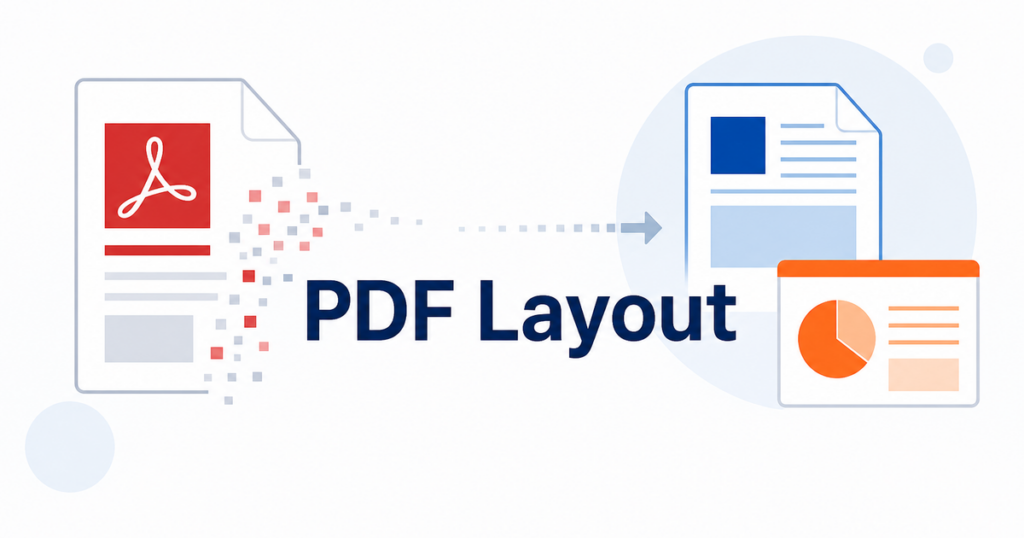

If you have ever translated a document and watched the layout fall apart, chances are it was a PDF. Word files and PowerPoint decks are not immune to formatting shifts, but they hold together far more reliably than PDFs when run through a translation tool.
This is not a flaw in the translation software. It is a fundamental difference in how these file formats store information. Understanding that difference helps you choose the right format for translation and avoid hours of manual reformatting.
The Core Difference: Editable vs Fixed Layout
Word (.docx) and PowerPoint (.pptx) are editable file formats. They store content as structured data: paragraphs, text runs, styles, tables, and slide objects. The application (Microsoft Word or PowerPoint) renders this structure into a visual layout when you open the file.
PDF is a fixed-layout format. It is designed to look exactly the same on every screen and printer. A PDF stores text as positioned characters on a page, not as logical paragraphs or sentences. It records the x-y coordinates of every glyph, the exact font used, and the precise size of every margin and column.
When you translate text, the length changes. English to Japanese can shorten the character count. English to German often lengthens it. In an editable format, the application reflows the text automatically. Paragraphs stretch or shrink. Tables adjust column widths. Page breaks move. The layout adapts.
In a PDF, there is no reflow. The translated text gets placed back into the same x-y coordinate slots that held the original text. If the new text is longer, it overflows. If it is shorter, there are gaps. If the font does not support the target language characters, you get missing glyphs.
How Translation Tools Handle Each Format
Word documents (.docx)
Translation tools parse the XML structure inside a .docx file. They extract text runs, translate them, and write them back into the same structure. Because Word files use logical paragraph and style definitions, the translated text flows naturally within the existing layout.
Things that usually survive translation in Word:
- Paragraph structure and indentation
- Heading hierarchy
- Bold, italic, and underline formatting
- Bullet and numbered lists
- Basic table structures
Things that can still break:
- Complex column layouts
- Wrapped images with tight text flow
- Custom margins or non-standard page sizes
PowerPoint presentations (.pptx)
PowerPoint files are similar to Word in structure, but with one added challenge: slides have fixed dimensions. Text is placed inside text boxes at specific positions with specific sizes. When translated text changes length, it may overflow the text box or leave visible whitespace.
Things that usually survive in PowerPoint:
- Slide order and master layout references
- Text box positions (mostly)
- Basic font styling
Things that commonly break:
- Font sizes (translation tools may auto-shrink to fit)
- Text box overflow when target language is longer
- Precise visual alignment of design elements
- Embedded charts with text labels
For more on handling these issues, see our guide to translating PDFs without losing formatting.
PDF files (.pdf)
PDF translation is the hardest problem in document translation. The tool has to:
- Extract text from fixed positions on the page.
- Identify which characters belong to the same paragraph, sentence, or table cell. (This is not stored in the PDF. It has to be inferred.)
- Translate the extracted text.
- Place the translated text back into the original layout, matching fonts, sizes, and positions as closely as possible.
Each of these steps introduces potential failure points.
Why PDF Reconstruction Fails
Text extraction errors
PDFs do not always store text in reading order. A two-column layout might store the left column line by line, then the right column, or it might interleave them. Some PDFs store text in arbitrary order. The extraction tool has to guess the reading sequence, and it guesses wrong surprisingly often.
Result: jumbled paragraphs, sentences that skip between columns, or header text merged with body text.
Font and encoding issues
PDFs embed font subsets that include only the glyphs used in the original document. If the target language uses characters not present in the embedded font (for example, translating an English-only PDF to Japanese), the tool has to substitute a different font. Font substitution changes character widths, which breaks alignment.
Result: text that runs past boundaries, uneven spacing, or missing characters displayed as boxes.
Image-based content
Many PDFs, especially scanned documents, are essentially images of text. There is no selectable text to translate. The tool must run OCR (optical character recognition) first, then translate the OCR output, then overlay the translated text on the image.
Result: low OCR accuracy produces garbled translations. The overlaid text rarely aligns with the original layout.
Tables and complex layouts
Tables in PDFs are not stored as tables. They are stored as lines and positioned text blocks. The reconstruction tool has to infer which text cells belong to which rows and columns, then rebuild the table structure after translation.
Result: misaligned columns, merged cells that should be separate, and data that ends up in the wrong position.
The Practical Impact: Time Spent on Cleanup
When translation breaks a Word or PowerPoint file, the fixes are usually minor. A text box needs resizing. A font size needs adjusting. A table column needs widening. These are small edits in the native application.
When translation breaks a PDF, the fixes are often substantial. You might need to:
- Manually reposition dozens of text blocks
- Rebuild tables from scratch
- Replace fonts across the entire document
- Redesign pages where the layout has collapsed completely
In many cases, teams end up converting the PDF to Word, translating the Word file, and then recreating the PDF layout. This works, but it adds conversion steps and its own set of formatting risks.
When You Have No Choice: Working with PDFs
Sometimes the PDF is all you have. The original editable file was lost, or the document came from a third party who only provided a PDF. In those cases, a few practices reduce the pain:
Check if the PDF has selectable text
Open the PDF and try to select text. If you can highlight and copy the text, the document contains real text data, which gives translation tools something to work with. If you cannot select text, it is a scanned image, and you need OCR first.
Convert to an editable format before translating
Export the PDF to Word or PowerPoint using tools like Adobe Acrobat. Fix any conversion errors in the editable version, then translate that file. The editable format gives the translation tool structured data to work with.
Source: https://helpx.adobe.com/uk/acrobat/using/exporting-pdfs-file-formats.html
Keep the original PDF as a reference
Always compare the translated output against the original PDF side by side. Check that no content was dropped, that tables still make sense, and that page references are accurate.
Accept that some manual cleanup is inevitable
Even with the best tools, PDF translation rarely produces a pixel-perfect result. Budget time for a formatting review pass.
Choosing the Right Format from the Start
If you control the source documents, the simplest way to avoid PDF translation headaches is to avoid translating PDFs whenever possible.
| Format | Translation reliability | Typical cleanup effort |
|---|---|---|
| .docx | High | Low (minor font and spacing tweaks) |
| .pptx | Medium-high | Low-medium (text box resizing) |
| .xlsx | High (text cells) | Low (check formulas) |
| .pdf (native) | Medium | Medium-high (repositioning, font fixes) |
| .pdf (scanned) | Low | High (OCR errors, layout rebuild) |
When you need to distribute a translated document as a PDF, translate the editable source file first, then export or print to PDF. This keeps the translation quality high and the layout intact through the editable stage.
A Concrete Example: The Same Document, Three Formats
To see the difference clearly, imagine translating a product specification sheet from English to Japanese. The document contains a title, a product description paragraph, a specifications table, and a company logo.
As a .docx file
You upload the Word file. The translation tool processes the XML structure. The title becomes Japanese text and reflows within the heading style. The paragraph adjusts its line count (Japanese text is often shorter in character count). The table columns resize automatically to fit the translated labels. The logo stays in place because it is an embedded image, not text. You open the result in Word and make minor adjustments: the title font size was slightly too large, and one table column needs to be wider. Total cleanup: five minutes.
As a .pptx file
You upload the PowerPoint file. Each element is translated within its text box. The title fits because Japanese characters are more compact. The description text box overflows slightly because the translation tool did not auto-resize it. The specifications table, which was built using PowerPoint’s table tool, keeps its structure but the translated text is too long for the cells. You resize the text boxes, adjust the table column widths, and reduce one font size. Total cleanup: fifteen minutes.
As a .pdf file
You upload the PDF. The tool extracts text from fixed positions. The title, which was centered using precise coordinates, shifts left because the Japanese text has different character widths and the centering calculation fails. The paragraph text is placed back character by character, but the line breaks occur at different positions, causing the last line of the paragraph to overlap with the table below it. The table cells are reconstructed from inferred grid lines, and two cells merge because the OCR-like extraction misread the column boundary near a thin vertical line. The logo is preserved as an image, but a text caption below it is lost entirely because the tool treated it as part of the image rather than a separate text element. Total cleanup: forty-five minutes to an hour, and you may decide to start over with a different approach.
This example illustrates why format choice matters. The content is identical, but the translation experience and cleanup effort vary dramatically based on how the file stores its information.
What This Means for Your Translation Workflow
Understanding the technical difference between editable and fixed-layout formats should influence how you design your document creation and translation processes:
Store originals in editable formats
Keep your master documents in Word, PowerPoint, or Excel, even if you distribute them as PDFs. The editable version is your translation source.
Request editable files from partners
When you receive documents from clients, vendors, or partners, ask for the editable version in addition to the PDF. This small request can save hours of reformatting later.
Build templates with translation in mind
If you know a document will be translated, design it with extra space in text boxes, wider table columns, and simpler layouts. This reduces the cleanup needed after translation regardless of format.
Establish a format policy
For teams that translate regularly, create a simple policy: always translate from the editable source, never from the PDF, unless the PDF is the only version available.
Key Takeaways
- PDFs break during translation because they store text as fixed-position characters, not as structured paragraphs.
- Word and PowerPoint files preserve layout better because their formats support text reflow.
- If you must translate a PDF, check for selectable text first, consider converting to an editable format, and plan for a manual review pass.
- The best approach is to translate from editable source files and generate the PDF as the final step.
Understanding why PDFs break helps you make smarter format choices and set realistic expectations for post-translation cleanup. It also helps you evaluate translation tools: any tool claiming to handle PDFs flawlessly is overselling. The question is how much manual work remains after the tool finishes, and starting with an editable format almost always means less work.