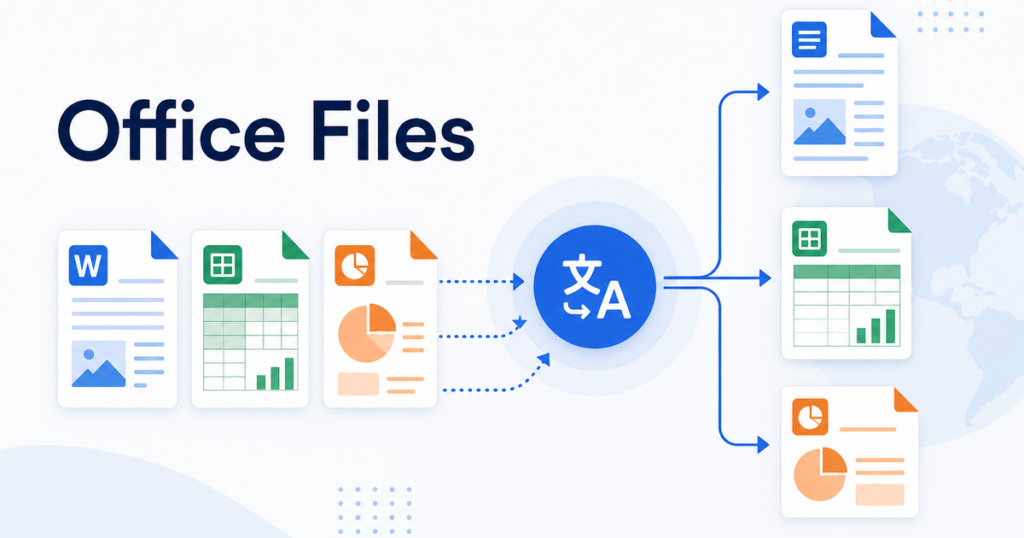

Microsoft has been building translation capabilities into Office for years. Word, Excel, and PowerPoint all include built-in translation features that let you translate text without leaving the application. For many users, this is the most convenient option because the translation happens right inside the document they are already working on.
But convenience is not the same as completeness. Office’s built-in translation handles some tasks well and falls short on others. This article explains what each application can actually translate, where the limits are, and when you need a different approach.
How Office Translation Works
Microsoft Office uses Microsoft Translator as its translation engine. According to Microsoft’s support documentation, the translation feature is available in Word, Excel, PowerPoint, Outlook, and OneNote.
The feature offers two main modes:
Translate Document
Translates the entire document in one pass and creates a new translated copy. The original document remains unchanged.
Translate Selection
Lets you select specific text and translate just that portion. The translated text can replace the original or be inserted alongside it.
Both modes are accessible from the Review tab in the ribbon under the Translate button.
Word Translation
What it does well
Word’s document translation is the most mature of the three applications. It handles:
- Full document translation with one click
- Preserving paragraph structure and heading hierarchy
- Maintaining basic formatting (bold, italic, lists)
- Side-by-side view of original and translated text (in some configurations)
For standard business documents like reports, memos, and letters, Word’s built-in translation produces a reasonable first draft.
Where it falls short
- Complex layouts: Multi-column documents, wrapped images, and text boxes can shift during translation.
- Terminology control: There is no built-in glossary support. You cannot define how specific terms should be translated.
- Style matching: Custom styles may not be preserved perfectly. Font changes are common when the target language requires different character sets.
- Headers and footers: These are sometimes included and sometimes skipped, depending on the document configuration.
- Comments and track changes: These elements are typically not translated.
- Embedded objects: Charts, SmartArt, and embedded files are not translated.
When Word translation is sufficient
- Internal documents where speed matters more than polish
- Getting a quick translation of a long report to understand the content
- Translating straightforward text with minimal formatting complexity
When to use a different tool
- Client-facing documents that need professional quality
- Documents with custom terminology requirements
- Files with complex layouts that must be preserved exactly
- Documents with many embedded objects, tables, and cross-references
Excel Translation
What it does
Excel’s translation feature works on selected cells or the entire worksheet. It translates cell content while leaving formulas, numbers, and formatting untouched.
What it handles
- Text in individual cells (headers, labels, descriptions)
- Multiple cells at once through selection
- The translated text appears in a sidebar where you can choose to insert it
What it does not handle
- Sheet tab names: These must be renamed manually.
- Chart labels and titles: Chart text elements are not included in the translation.
- Data validation messages: Dropdown list options and input messages stay in the source language.
- Conditional formatting text: Rules based on text content are not updated.
- Comments and notes: Cell comments are not translated.
- Multiple sheets: Each sheet must be translated separately.
- Named ranges: Named range definitions stay in the source language.
Practical approach for Excel
For a simple spreadsheet with text labels in one language, Excel’s built-in translation works fine. Select the cells with text, translate, and insert.
For complex workbooks with formulas referencing translated labels, data validation dropdowns, and multiple interconnected sheets, the built-in tool misses too many elements. A document-level translation tool that understands the full workbook structure is more efficient.
PowerPoint Translation
What it does
PowerPoint can translate individual slides or the entire presentation. It translates text in placeholders and text boxes.
What it handles
- Text in standard placeholders (title, body)
- Text in manually inserted text boxes
- Speaker notes (in some versions)
What it does not handle
- Slide master text: If your master slide contains text, it is not translated.
- SmartArt text: Text inside SmartArt diagrams often does not get translated.
- Chart labels: Axis titles, data labels, and chart titles are typically excluded.
- Embedded objects: Any embedded content is not translated.
- Comments: Reviewer comments are left in the source language.
- Layout and sizing: Translated text may overflow text boxes, requiring manual adjustment.
The layout challenge
PowerPoint slides have fixed dimensions. When text gets longer after translation (which is common for many language pairs), it overflows the text box. Office translation does not auto-adjust text box sizes or font sizes. You end up with text that runs outside the visible area or gets cut off.
This means every translated slide needs a manual formatting pass: resize text boxes, adjust font sizes, reposition elements that shifted. For a ten-slide deck, this is manageable. For a hundred-slide training course, it is a significant time investment.
Cross-Application Limitations
No batch processing across documents
Office translates one document at a time. If you have a folder of 50 Word files that all need the same translation, you open each one individually and run the translation. There is no batch mode.
No translation memory
Office’s translation does not remember what you translated yesterday. If you translate the same paragraph in five different documents, you get five separate translations that may not be identical. For organizations that need consistency across a document set, this is a problem.
No glossary support
You cannot upload a glossary or terminology list that tells the translator how to handle specific terms. Product names, legal terms, and technical jargon are translated based on the engine’s default behavior.
No customization
You cannot fine-tune the translation model, adjust formality levels, or set domain-specific preferences. What the engine produces is what you get.
Language support varies
Microsoft Translator supports many languages, but the quality varies significantly by language pair. Major languages like Spanish, French, German, and Chinese generally produce good results. Less common language pairs may produce lower quality output. Check Microsoft Translator’s current language list for availability.
When Office Translation Is the Right Choice
Despite its limitations, Office’s built-in translation is genuinely useful in the right context:
- Quick understanding: You receive a foreign-language document and need to understand the content fast. Translating in-app is faster than switching to a separate tool.
- Single documents: One-off translations where you do not need to maintain a terminology database.
- Internal use: Documents that will not be shared externally and where minor inconsistencies are acceptable.
- Budget constraints: The feature is included with your Office subscription at no additional cost.
When You Need a Document-Level Translation Tool
Office’s per-application translation works for quick, one-off tasks. A document-level translation tool becomes worthwhile when you translate entire files across formats (.docx, .pptx, .xlsx, .pdf) in a single workflow, need consistency across documents through translation memory or glossaries, work with PDFs that Office cannot handle directly, or want a built-in review environment with side-by-side comparison. If you translate more than a handful of documents per week, the manual per-file approach becomes tedious and a dedicated tool is more efficient.
Tips for Getting the Most from Office Translation
If you decide to use Office’s built-in translation:
-
Translate the full document at once rather than section by section. Full-document translation tends to maintain better context than piecemeal translation.
-
Review the output in editing mode (not just reading mode) so you can see formatting issues clearly.
-
Save a copy of the original before translating. Office creates a new translated file, but it is good practice to keep the original as a reference.
-
Check all text elements after translation. Look for headers, footers, comments, chart labels, and embedded text that the translator may have skipped.
-
Adjust text sizing in PowerPoint before finalizing. Go through each slide and check for overflow, cut-off text, and alignment shifts.
-
Verify Excel formulas after translation. Confirm that formula cells were not modified and that lookups still reference the correct translated labels.
Key Takeaways
- Microsoft Office includes built-in translation in Word, Excel, and PowerPoint, powered by Microsoft Translator.
- Word handles full-document translation reasonably well for standard documents.
- Excel translates cell text but misses sheet names, chart labels, data validation, and comments.
- PowerPoint translates slide text but requires manual formatting adjustment for text box overflow.
- Office translation lacks glossary support, translation memory, batch processing, and cross-document consistency.
- It is a good option for quick, internal, one-off translations.
- For business-critical documents, volume work, or multi-format workflows, a dedicated document translation tool is more efficient.
Office translation is a capable starting point. Understanding its boundaries helps you decide when it is sufficient and when investing in a more complete translation workflow makes sense for your team.
Real-World Example: Translating a Project Deliverable Package
Consider a realistic scenario: a consulting team needs to deliver a project package to a Japanese client. The package includes a Word report, a PowerPoint executive summary, and an Excel data appendix.
The Word report
The report is a twenty-page consulting deliverable with a cover page, table of contents, body text with headings and subheadings, bullet lists, and a few embedded tables. The team uses Word’s Translate Document feature from the Review tab.
Results: The body text translates reasonably well. Heading structure is preserved. The table of contents updates automatically based on the translated headings, though a few entries are cut off where the Japanese text is longer than the original English. The cover page, which uses a text box for the title, translates correctly but the title now overflows the design boundary of the cover page template. Embedded tables translate their cell content but column widths do not adjust, causing text wrapping that changes the table layout. The footer with page numbers is preserved but the footer text (“Confidential”) is not translated.
Cleanup time: 30 minutes to fix the cover page, adjust table column widths, translate the footer text, and do a read-through for context errors.
The PowerPoint executive summary
The deck has twelve slides with a mix of title slides, bullet-point slides, and a few slides with diagrams and charts. The team uses PowerPoint’s translation feature on each slide.
Results: Text in standard placeholders translates correctly. Text in manually positioned text boxes also translates. However, the text boxes on three slides overflow because the Japanese text occupies more vertical space. Two slides with SmartArt diagrams show untranslated text inside the SmartArt shapes. A slide with an embedded Excel chart object shows untranslated axis labels and legend entries. Speaker notes, which contain the talking points the presenter will use, are partially translated: the first slide’s notes were translated, but the rest were skipped for unclear reasons.
Cleanup time: 45 minutes to resize text boxes, manually translate SmartArt content, update chart labels, translate the remaining speaker notes, and adjust font sizes on two slides where the text became too small to read.
The Excel data appendix
The workbook has three sheets: Raw Data (with headers and 500 rows of entries), Summary (with pivot tables and charts), and Methodology (with descriptive text explaining the data collection approach).
Results: The Raw Data sheet headers translate correctly. The actual data values (mostly numbers with some text descriptions) are partially translated: numbers are preserved, text descriptions in the “Notes” column are translated. The Summary sheet’s pivot table references the Raw Data headers. Because the headers changed, the pivot table breaks and shows blank fields. The charts on the Summary sheet lose their labels. The Methodology sheet translates correctly because it is pure text.
Cleanup time: 60 minutes to rebuild the pivot table with the translated field names, fix chart references, verify that all 500 rows of data are intact, and cross-check the translated Notes column for accuracy.
Total package time
The entire package required roughly 135 minutes of post-translation cleanup, with the Excel file consuming the most time despite being the most formula-driven. The PowerPoint required significant visual adjustment. Only the Word file needed relatively minor fixes.
This experience is typical for teams using Office’s built-in translation on real business deliverables. The feature handles the text translation step adequately but leaves significant structural and formatting work for manual cleanup.
The Hidden Cost of “Free” Office Translation
Office translation does not charge per word or per document, but it is not truly free when you account for staff time. As shown in the example above, a single deliverable package required over two hours of cleanup across three files. Because Office translation has no translation memory, the same term may be translated differently each time, requiring reviewers to catch inconsistencies. When the source document changes and needs re-translation, the entire file is retranslated from scratch and previous manual corrections are lost.
For occasional use, these costs are acceptable. For teams that translate regularly, a dedicated tool with translation memory and consistent terminology handling reduces cumulative costs over time.
Combining Office Translation with Other Tools
Some teams use a hybrid approach: Office’s built-in translation for quickly understanding foreign-language content, a dedicated document translation tool for production work that needs to be polished and consistent, and Office for final editing of the translated file. This leverages Office’s convenience for quick tasks while relying on a more capable tool for the heavy lifting, without switching entirely away from the familiar Office environment.