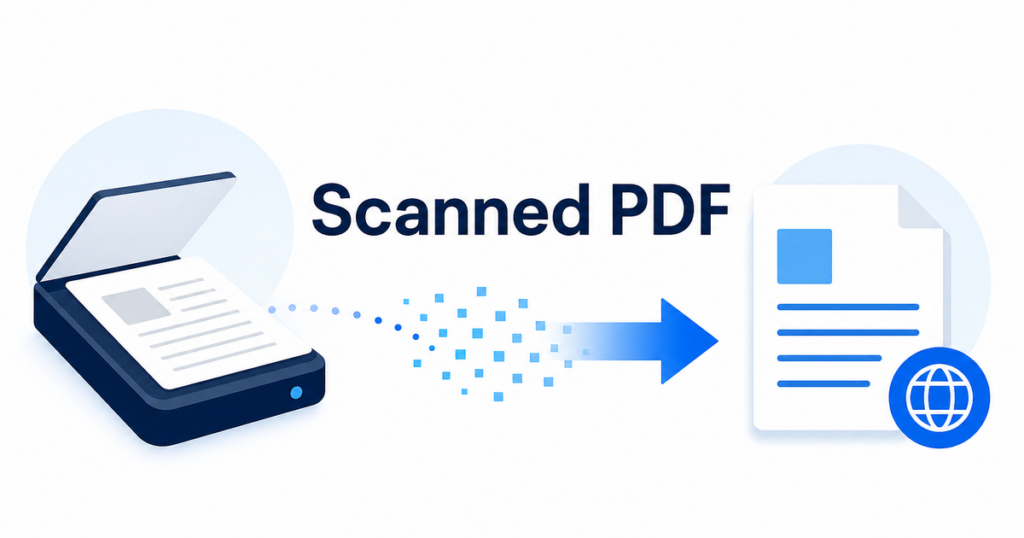

A scanned PDF is not really a text document. It is a photograph of a page. Your computer sees pixels, not words. Before you can translate anything, something has to read those pixels and turn them into editable text. That process is called optical character recognition, or OCR, and it introduces a whole layer of potential errors before translation even begins.
This article explains the OCR-first workflow for scanned PDFs, what tends to go wrong, and how to review the output so that the final translation is actually usable.
Why Scanned PDFs Are Different
A normal PDF contains selectable text. You can click and drag to highlight words, copy them, and paste them into another application. The text is stored as character data inside the file.
A scanned PDF contains an image of each page. There is no selectable text. If you try to copy from a scanned PDF, you either get nothing or you get gibberish. The scanner or copier that created the document captured a picture, not the underlying text.
For translation, this distinction matters enormously. Translation tools work with text. If there is no text to extract, the tool has to create text through OCR before it can translate anything.
The OCR-First Translation Workflow
Translating a scanned PDF follows a multi-step process:
- OCR scan: The tool analyzes each page image and identifies characters, words, and paragraphs.
- Text extraction: Recognized text is pulled into an editable format.
- Translation: The extracted text is translated into the target language.
- Reconstruction: The translated text is placed back onto the page, replacing the original text or creating a new document.
Each step can introduce errors. The quality of the final translation depends heavily on how well step one performs.
What Affects OCR Quality
Scan resolution
Low-resolution scans produce blurry characters that OCR engines misread. A resolution of 300 DPI (dots per inch) is generally considered the minimum for reliable OCR. Anything below 200 DPI produces noticeable errors.
Signs of a low-resolution scan:
- Characters look pixelated when you zoom in
- Small text is hard to read even for a human
- OCR output contains frequent character substitutions (0 for O, 1 for l, rn for m)
Document quality
Physical damage to the original document carries through the scan. Faded ink, coffee stains, creases, and smudges all degrade OCR accuracy. Photocopies of photocopies are particularly problematic because each generation loses detail.
Font and text complexity
OCR engines are trained on common fonts and standard character sets. Decorative fonts, unusual typefaces, and very small font sizes all reduce accuracy. Handwritten text is largely unreadable by standard OCR.
Layout complexity
Simple, single-column documents with consistent formatting produce the best OCR results. Multi-column layouts, text wrapping around images, sidebars, and callout boxes confuse OCR engines about reading order.
Common OCR Errors That Affect Translation
OCR errors fall into several categories, and each one impacts translation differently:
Character substitution
The OCR engine misreads a character. “rn” becomes “m”, “0” becomes “O”, “cl” becomes “d”. These errors create misspelled words that the translation engine may not recognize, leading to wrong or missing translations.
Word boundary errors
The OCR engine merges words that are close together or splits words at inappropriate points. “thesample” becomes one word instead of two. Translation engines handle garbled input poorly.
Line and paragraph breaks
OCR engines insert line breaks based on the visual position of text on the page, not on the logical structure of sentences. A sentence that wraps across two lines may be split into two separate text blocks. The translation engine then processes incomplete sentences, producing awkward output.
Reading order confusion
In multi-column documents, OCR may read across columns instead of down them, producing word salad. Headers and footers get mixed with body text. Footnotes merge with the paragraph they reference.
Dropped content
If the OCR engine cannot recognize a section of text, it simply omits it. This is especially common with stamps, watermarks, and text overlaid on images. You may not notice missing content until you compare the translation against the original page by page.
Special Cases That OCR Struggles With
Tables
Tables in scanned PDFs are particularly difficult. OCR has to identify the grid structure, associate text with the correct cells, and maintain the row-column relationships. Merged cells and irregular table structures cause frequent errors.
If your scanned PDF contains important tables, verify the table data separately. Compare every number and label against the original.
Stamps and seals
Official documents often include stamps, seals, and handwritten annotations overlaid on the typed text. These are essentially images within the image. Standard OCR does not handle them well, and they are usually lost during the extraction process.
Handwriting
Any handwritten notes, signatures, or margin comments are invisible to standard OCR. If the handwritten content is important, it needs to be transcribed manually before or alongside the translation process.
Mixed languages
Some documents contain text in multiple languages, such as a bilingual contract or a form with English labels and entries in another script. OCR engines typically expect a single language. When they encounter mixed scripts, accuracy drops for both languages.
The Review Process: What to Check
After OCR and translation, you need a structured review. Here is what to examine:
1. Completeness check
Open the original scanned PDF and the translated document side by side. Go page by page and confirm that every section of text has been translated. Look specifically at:
- Headers and footers
- Table contents
- Captions under images
- Text in sidebars or callout boxes
- Any small print or footnotes
2. Table verification
For every table in the document, check that:
- All rows and columns are present
- Numbers are transcribed correctly (OCR often swaps digits)
- Headers match the data below them
- Totals and calculated values are correct
3. Terminology consistency
OCR errors can create inconsistent spellings of the same term throughout a document. If the source text reads “Agreement” in some places and “Agrcement” (OCR error) in others, the translation engine may treat them as different words and translate them differently.
4. Context accuracy
Because OCR breaks text into chunks based on visual layout rather than logical structure, the translation engine may lack context. A sentence fragment at the bottom of a page gets translated without the context of the paragraph it belongs to. Read the translated output for coherence, not just word-level accuracy.
5. Formatting reconstruction
After OCR and translation, the reconstructed document may have shifted elements. Check:
- Page breaks are in reasonable positions
- Tables are aligned
- Images and text blocks have not overlapped
- Font sizes are readable
When to Skip OCR Entirely
In some cases, OCR-based translation is not worth the effort:
- The document is only a few pages and the content is critical. Manual retype and translate is more reliable.
- The scan quality is very poor (blurry, low resolution, heavily damaged). OCR accuracy will be too low to trust.
- The document contains mostly handwritten content. OCR will not capture it.
- The document is a form where only a few fields need translation. Extract and translate just those fields manually.
Tips for Better Results
If you regularly deal with scanned PDFs, a few practices improve outcomes:
Improve the scan
If you control the scanning process, use at least 300 DPI, scan in grayscale or color (not black and white), and ensure the document is flat on the scanner bed with no skew.
Clean up before OCR
Some tools let you adjust the scanned image before OCR runs. Increasing contrast, straightening skewed pages, and removing noise can improve recognition accuracy.
Use a dedicated OCR tool first
Rather than relying on the OCR built into a translation tool, run the document through a dedicated OCR application first. Review and correct the OCR output, then translate the corrected text. This two-step approach catches OCR errors before they corrupt the translation.
Keep a bilingual record
Maintain a side-by-side file with the original scanned pages and the translated text. This makes ongoing review and correction much easier than working from memory.
A Realistic Expectation
Scanned PDF translation will not produce a clean, ready-to-distribute document in a single pass. The OCR layer introduces errors that compound through the translation step. Plan for at least one full review cycle where a human compares the output against the original.
For documents that matter, the review step is not optional. It is the difference between a translation you can use and one you have to redo.
If your team works with scanned documents regularly, consider tools that combine OCR and translation with built-in review features. Seeing the original scan alongside the translated text makes the review process faster and more reliable than switching between separate applications.
Real-World Example: Translating a Scanned Contract
To see how these issues compound, consider a typical scenario: your company receives a scanned ten-page supplier agreement from a partner. The document was printed, signed, and scanned at a branch office using a standard office scanner. You need to understand the key terms.
What you encounter
Page 1 has the title and parties. The scan is clear and the OCR reads it well. Page 2 contains the definitions section in a two-column layout with defined terms in bold. The OCR struggles with the column boundary, mixing the last word of the left column with the first word of the right. Page 3 has a pricing table. The OCR reads most numbers correctly but misreads an 8 as a 3 in one cell, turning a price of 800 into 300. Page 4 contains a clause about dispute resolution with a footnote. The OCR merges the footnote text into the body paragraph, creating a confusing sentence. Page 5 includes a handwritten initial next to a modified clause. The OCR skips it entirely.
What happens after translation
The translated document reflects every OCR error. The jumbled two-column text produces a nonsensical translation for that section. The pricing error of 300 instead of 800 carries through, and the translated number is wrong. The merged footnote creates a translated paragraph that makes no logical sense. The handwritten modification is invisible in the translation, which means you are working from an incomplete version of the agreement.
The fix
A human reviewer comparing the translation against the original scan catches most of these issues. The two-column section is retranslated after the text is manually reordered. The pricing table is corrected against the original image. The footnote is separated and translated in context. The handwritten modification is transcribed and translated separately.
This example shows why the review step is not optional for scanned PDFs. The OCR layer introduces errors that the translation layer amplifies. Without review, you are working with a document that looks translated but contains silent inaccuracies.
How Scan Quality Directly Affects Translation Cost
The economics of scanned PDF translation are worth understanding. Poor scan quality does not just produce worse results; it costs more time and therefore more money:
-
High-quality scan (300 DPI, clean document, good contrast): OCR accuracy around 95-98%. Translation errors are mostly limited to unusual terms. Review time: roughly 1.5x the time it would take to review a native-text translation.
-
Medium-quality scan (200 DPI, some noise, slight skew): OCR accuracy around 85-95%. Translation errors include misread words, jumbled sentences, and missing content. Review time: roughly 2-3x normal.
-
Low-quality scan (under 150 DPI, blurry, stained, skewed): OCR accuracy drops below 80%. Translation contains frequent errors, missing sections, and garbled text. Review time: 3-5x normal, and in some cases it is faster to retype the document from scratch.
If you control the scanning process, investing in better scan quality pays for itself in reduced review time. If you receive scans from external sources, push back and request higher quality when possible.
Quick Checklist for Scanned PDF Translation
- Confirm the PDF is scanned (text is not selectable).
- Check scan resolution (aim for 300 DPI minimum).
- Run OCR and review the extracted text before translating.
- Check for completeness: headers, footers, tables, captions, footnotes.
- Verify all table data numbers and labels against the original.
- Read the full translation for coherence, not just word accuracy.
- Check formatting: page breaks, alignment, readability.
- Budget time for at least one human review pass.
Scanned PDFs are the hardest document type to translate well. Understanding where the process breaks down helps you set realistic timelines, catch errors early, and produce translations that are accurate enough to be useful.