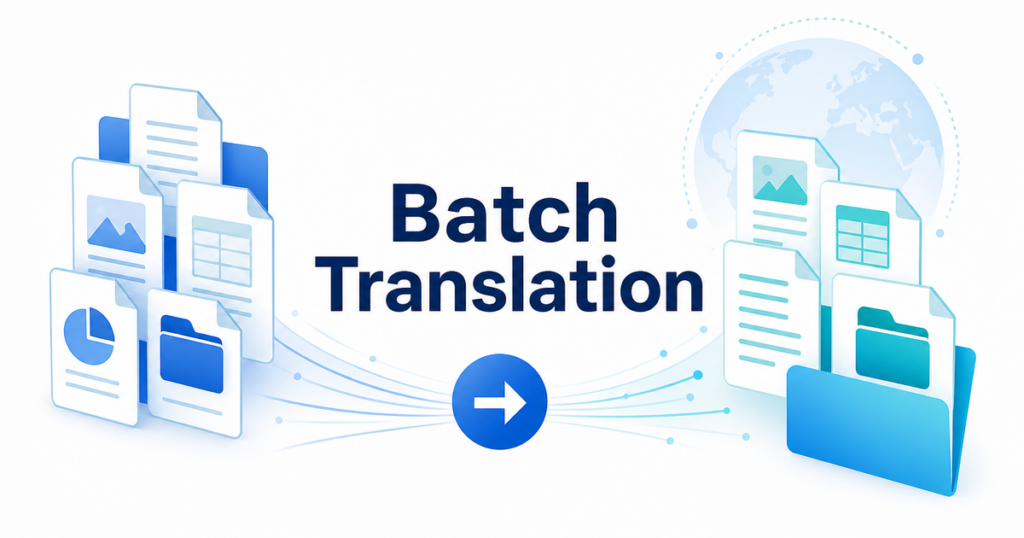

Translating one document is straightforward. Open a tool, upload the file, download the result. But what happens when your team needs to translate fifty product manuals, a hundred contract templates, or a thousand support articles? The one-at-a-time approach breaks down fast.
Batch document translation addresses this by processing multiple files in a single operation. The major cloud providers, Google, Microsoft, and DeepL, all offer batch capabilities, but they differ in how they work, what they support, and what they require from your team.
This article compares the batch translation options from DeepL, Google Cloud, and Microsoft Azure, focusing on what business teams need to know to choose the right approach.
What Is Batch Document Translation
Batch translation means processing two or more documents in a single operation or workflow without manual intervention for each file. This can mean:
- Uploading a folder of files and translating them all to a target language
- Pointing a service at a storage location and having it translate everything that appears there
- Running a script that submits files programmatically and collects the results
The key benefit is removing the manual upload-download cycle that makes translating many files through a web interface impractical.
When Teams Need Batch Translation
Batch translation becomes relevant when:
- Volume exceeds manual capacity: Your team translates more files than one person can handle through a web interface in a day.
- Recurring translation is part of a process: New content is created regularly and needs to be translated on a schedule.
- Consistency matters across a document set: Product documentation, knowledge bases, and legal libraries need uniform terminology and style.
- Speed matters: Getting fifty documents translated in parallel is faster than doing them sequentially.
If your team translates fewer than five documents per week, batch translation is probably overkill. If you translate fifty per week, it is essential.
Google Cloud Translation API: Batch Document Translation
Google Cloud offers document translation through its Advanced Translation API. The batch feature processes multiple documents from Cloud Storage without requiring individual API calls for each file.
How it works
- Upload your source documents to a Google Cloud Storage bucket.
- Submit a batch translation request specifying the source language, target language, input bucket, and output bucket.
- The API processes all supported documents in the input location.
- Translated documents appear in the output bucket.
Source: https://docs.cloud.google.com/translate/docs/advanced/translate-documents
Supported formats
Google Cloud’s document translation supports a range of formats including Word, PowerPoint, Excel, PDF, and others. Check Google Cloud’s documentation for the current list.
Source: https://cloud.google.com/translate/docs/supported-formats
Key features
- Glossary support: Apply custom terminology lists to batch translations for consistent term handling.
- Cloud Storage integration: Direct read from and write to storage buckets without local file handling.
- Scalability: Handles large volumes of documents in a single batch request.
- Logging and monitoring: Cloud Logging tracks all translation activity for audit purposes.
Source: https://cloud.google.com/translate/docs/advanced/glossary
Requirements
- A Google Cloud project with billing enabled
- Cloud Storage buckets for input and output
- Understanding of IAM permissions and API configuration
- Developer resources to set up and manage the pipeline
Best for
- Teams already using Google Cloud infrastructure
- Organizations that need glossary support at scale
- Workflows where documents arrive in a storage location and need automatic processing
DeepL API: Document Translation at Scale
DeepL’s API supports document translation, and while it does not have a native batch endpoint in the same way Google Cloud does, you can process multiple files by submitting sequential or parallel API requests.
How it works
- Upload a document through the API.
- Receive a document ID.
- Poll the API to check if the translation is complete.
- Download the translated document.
Source: https://developers.deepl.com/api-reference/document
For batch processing, you wrap this workflow in a script that iterates over multiple files and manages the upload-check-download cycle for each one.
Key features
- Translation quality: DeepL is widely recognized for strong quality, particularly in European language pairs.
- Glossary support: Custom glossaries ensure consistent terminology across documents.
- Format handling: Supports Word, PowerPoint, Excel, PDF, HTML, and subtitle files.
Source: https://developers.deepl.com/api-reference/multilingual-glossaries
Source: https://support.deepl.com/hc/en-us/articles/360020582359-File-formats
Scaling approach
Because DeepL’s API handles documents one at a time, batch processing requires your own orchestration:
- A script that reads files from a directory
- Parallel API calls (within rate limits) to process multiple files simultaneously
- Error handling for failed uploads and timeouts
- Progress tracking across the batch
Requirements
- A DeepL API account with appropriate plan
- Developer resources to build the batch orchestration layer
- Understanding of API rate limits and error handling
Best for
- Teams that prioritize translation quality and primarily use European language pairs
- Organizations willing to build custom batch orchestration around the DeepL API
- Workflows where glossary consistency is important
Microsoft Azure: Translator Document Translation
Azure offers a dedicated Document Translation feature within Azure Translator. It is specifically designed for batch processing of documents.
How it works
- Upload source documents to Azure Blob Storage.
- Submit a translation request specifying the source and target containers, languages, and optional glossaries.
- The service translates all supported documents in the source container.
- Translated documents appear in the target container.
Key features
- Batch-native design: Built specifically for multi-document translation, not adapted from a single-document API.
- Glossary support: Custom glossaries for terminology consistency.
- Multiple target languages: Translate a single source document into multiple target languages in one request.
- Format preservation: Attempts to maintain the layout and formatting of the original document.
Supported formats
Azure Translator Document Translation supports Word, PowerPoint, Excel, PDF, HTML, XML, and other common formats. Check Azure’s documentation for the current list and any format-specific limitations.
Requirements
- An Azure subscription with Translator resource provisioned
- Azure Blob Storage containers for input and output
- Understanding of Azure authentication and access management
- Developer resources for pipeline setup (less than Google or DeepL, since the batch feature is built-in)
Best for
- Teams already using Azure infrastructure
- Organizations that need to translate into multiple target languages simultaneously
- Workflows where a batch-native service reduces integration effort
Comparison: Key Differences
| Feature | Google Cloud | DeepL | Azure |
|---|---|---|---|
| Batch-native API | Yes (batch endpoint) | No (single-file API, orchestration needed) | Yes (document translation) |
| Glossary support | Yes | Yes | Yes |
| Multiple target languages per request | No (one target per request) | No (one target per request) | Yes |
| Cloud storage integration | Google Cloud Storage | None (upload/download via API) | Azure Blob Storage |
| Format support | Broad (check docs) | .docx, .pptx, .xlsx, .pdf, .html, .srt | Broad (check docs) |
| Translation quality | Good across many pairs | Strongest for European pairs | Good across many pairs |
| Setup complexity | High | Medium (plus orchestration) | Medium |
| Existing infrastructure dependency | Google Cloud | None | Azure |
What None of These Options Solve
All three services handle the translation step efficiently at scale. None of them solve the surrounding workflow challenges:
Layout preservation
Batch translation processes files automatically, but layout quality varies by format and complexity. If your PDFs have complex layouts, batch translation produces the same formatting issues as single-file translation, just across more files.
Review workflow
None of the batch APIs include a review environment. Translated documents land in a storage bucket, and your team needs to open each one, compare it against the original, and mark it as reviewed. For large batches, this creates a review bottleneck.
Non-technical user access
All three options require developer setup. Your marketing team cannot submit a batch translation request to an API endpoint. They need either a custom interface built on top of the API or a different tool.
Cost management
Batch processing makes it easy to accumulate translation costs quickly. A batch of 100 documents with 50 pages each represents millions of characters. Without monitoring and budgeting, the monthly bill can exceed expectations.
Choosing the Right Approach
You should use Google Cloud if:
- Your organization already uses Google Cloud Platform.
- You need glossary support integrated with Cloud Storage.
- You want logging and IAM controls for compliance.
You should use DeepL if:
- Translation quality for European language pairs is your top priority.
- You are willing to build batch orchestration around the single-document API.
- Your volume is moderate and does not require a batch-native service.
You should use Azure if:
- Your organization already uses Azure.
- You need to translate into multiple target languages in a single batch.
- You want the simplest batch setup with the fewest custom integrations.
You should consider a dedicated document translation tool if:
- Your team includes non-technical users who need to submit translations.
- You want built-in review features rather than reviewing files from a storage bucket.
- You need a solution that works across all three providers or is provider-agnostic.
- You want to avoid building and maintaining a custom integration.
Building a Batch Translation Pipeline: Best Practices
Regardless of which provider you choose, follow these practices:
1. Start with a small test batch
Before processing your entire document library, test with a representative sample. Verify that format handling, glossary application, and translation quality meet your standards.
2. Implement error handling and retry logic
Batch operations fail. Files are corrupted, formats are unsupported, rate limits are hit. Your pipeline should log failures, skip problematic files, and retry transient errors.
3. Track what has been translated
Maintain a record of which documents have been translated, when, and to which languages. This prevents re-translation of unchanged documents and helps with audit requirements.
4. Set up cost monitoring
Configure billing alerts on your cloud account. Translation costs scale linearly with volume, and a batch of large documents can generate significant charges.
5. Separate source and output storage
Keep original and translated documents in separate locations. Mixing them creates confusion about which version is which, especially when filenames are similar.
6. Schedule regular reviews
Even with batch processing, translated content needs human review. Schedule review cycles that match your translation frequency. Monthly batches should have monthly review cycles.
The Human Element in Batch Translation
Batch processing handles the mechanical work of translating many files quickly. It does not eliminate the need for human judgment. Terminology choices, context understanding, and cultural appropriateness all require a person who understands the content and the audience.
The most effective batch translation pipelines include:
- Pre-translation preparation: Glossary setup, format standardization, and file cleanup.
- Automated batch processing: The API-based translation step.
- Post-translation review: Human review of a sample or all translated documents.
- Feedback loop: Reviewer corrections feed back into glossaries and future translations.
Treating batch translation as a complete solution without the human steps leads to consistency at scale, consistently mediocre output that erodes over time.
Key Takeaways
- Batch document translation is essential for teams processing more than a handful of files per week.
- Google Cloud offers a batch endpoint with glossary support and Cloud Storage integration.
- DeepL provides strong translation quality but requires custom orchestration for batch processing.
- Azure offers a batch-native document translation service with multi-language support.
- All three require developer resources and cloud infrastructure setup.
- None of them include built-in review workflows or non-technical user interfaces.
- A dedicated document translation tool can fill the gap for teams that need batch capability without building a custom pipeline.
- Budget for human review as part of the batch workflow, not as an optional afterthought.
Batch translation is about efficiency. The right choice depends on your existing infrastructure, your developer resources, your language pairs, and how much post-translation review your content requires. Start with a test batch, measure the results, and scale from there.